Your audio is your masterpiece, and you wouldn’t want to hand over an unpolished piece of work, right? Use audio dithering in your masters to smooth out those rough spots in the quieter amplitudes. This is the secret to achieving a professional, polished sound that you can proudly present!
Today, I’ll be showing you how to diter audio and so much more…
Table of Contents
Bit-Depth 101
Bit-depth is essentially the measurement of the precision with which amplitudes of a waveform are represented digitally.
In simpler terms, it dictates the range of values a digital audio signal can have. Higher bit-depths allow for larger dynamic ranges (quietest-loudest).
Lower Bit-Depth (e.g., 16-bit): Commonly found in CD audio, lower bit-depths can represent a limited range of values. While suitable for many scenarios, they might struggle to capture the full richness and subtleties of complex audio recordings.
Higher Bit-Depth (e.g., 24-bit): Widely embraced in professional audio recording, a higher bit-depth provides a more expansive canvas for audio representation. This allows for meticulous capturing of minute details, preserving the authenticity and depth of the original recording.
Imagine a musical masterpiece recorded with meticulous precision at 24-bit depth, a canvas rich with dynamic range. However, when the time comes to export this masterpiece to a standard CD format at 16-bit depth and 44.1 KHz, a conundrum arises. Enter dithering, the maestro of resolution conversion.
Dithering in music mastering serves as the translator between these different bit depths. It introduces a controlled amount of noise (randomization) to the lower 16 bits, smoothing the transition and preventing quantization errors. This meticulous process ensures that the delicate nuances and subtleties of the original recording remain somewhat intact, with as little distortion as possible.
Dithering in Film Mixing
From 32-bit (fixed) to 24-bit
In the realm of film mixing, the stakes are high, and audio quality is paramount. Imagine a scenario where sound effects are captured at bit-depths as high as 32-bit (fixed point), but the final export demands a more conventional 24-bit depth. This is where the strategic application of dithering enters the cinematic stage.
It’s crucial to note the distinction between 32-bit fixed-point and 32-bit floating-point audio (what location sound is usually recorded at).
32-bit (float) and adjust itself to any bit-depth so you’ll only need to worry about fixed point bit-depths!
Audio Dithering Algorithms
In the intricate world of audio mastering, the choice of dithering algorithms shapes the final sonic tapestry. Diving into the realm of algorithms, we encounter two primary categories: Flat TPDF (Triangular Probability Density Function) algorithms and those with sophisticated noise shaping. The nuances between these approaches carry profound implications for audio quality, underscoring the importance of employing high-quality dithering plugins.
Flat TPDF Algorithms
Simplicity in Noise: Flat TPDF algorithms, exemplified by the Triangular Probability Density Function, introduce a uniform amount of noise across all frequencies. This simplicity ensures a straightforward and consistent application of dithering throughout the audio spectrum.
Universal Application: The beauty of flat TPDF algorithms lies in their versatility. They are well-suited for a wide range of audio material, offering a balanced approach to dithering without favoring specific frequencies. This universal application makes them a reliable choice for scenarios where a neutral and consistent noise floor is desired.
Advanced Noise Shaping
Sculpting the Noise Floor: Contrasting with flat TPDF, advanced noise shaping algorithms embark on a more sophisticated journey. These algorithms analyze the audio signal and strategically apply varying amounts of dithering to different frequency bands. The goal is to shape the noise floor in a way that minimizes perceptual artifacts, enhancing the overall listening experience.
Contextual Precision: By adapting the dithering intensity based on the characteristics of the audio content, noise shaping algorithms aim for a more nuanced and transparent result. This contextual precision is particularly valuable in situations where maintaining the subtleties of quiet passages is paramount.
Dithering in Logic Pro X
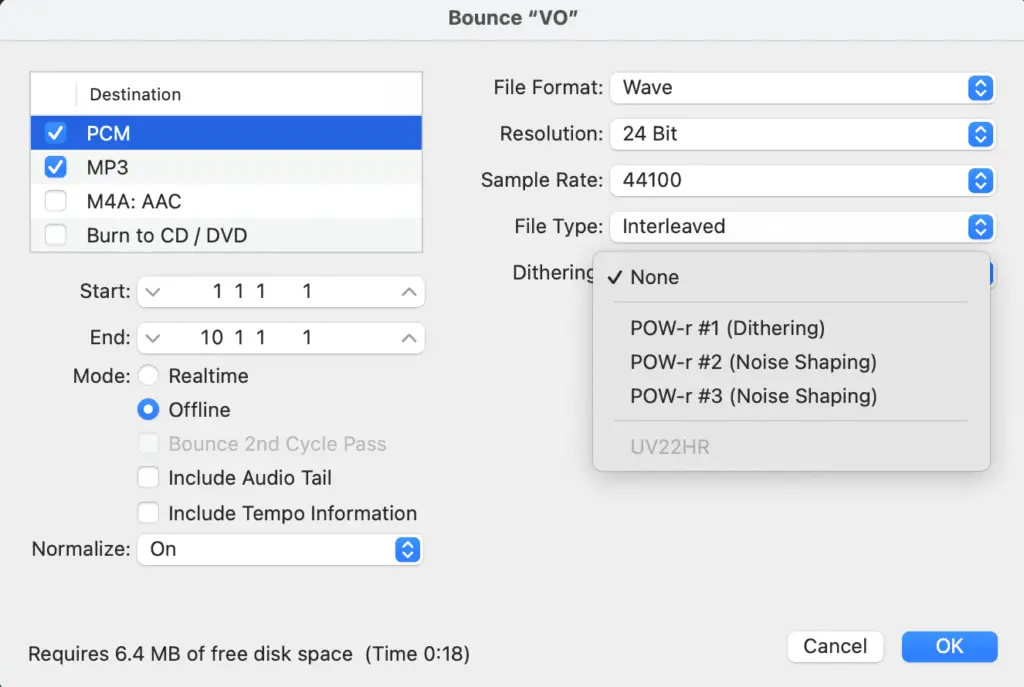
In Logic Pro X, it’s very simple…
It’ll automatically adjust itself to match the bit-depth you chose for export.
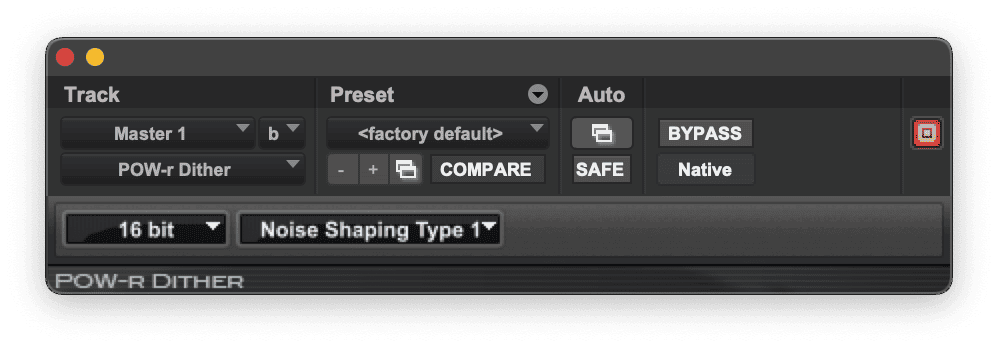
Notice that you’ll have the option to choose between three different dithering algorithms. POW-r #1 is TPDF and the other two offer noise shaping.
Dithering in Pro Tools
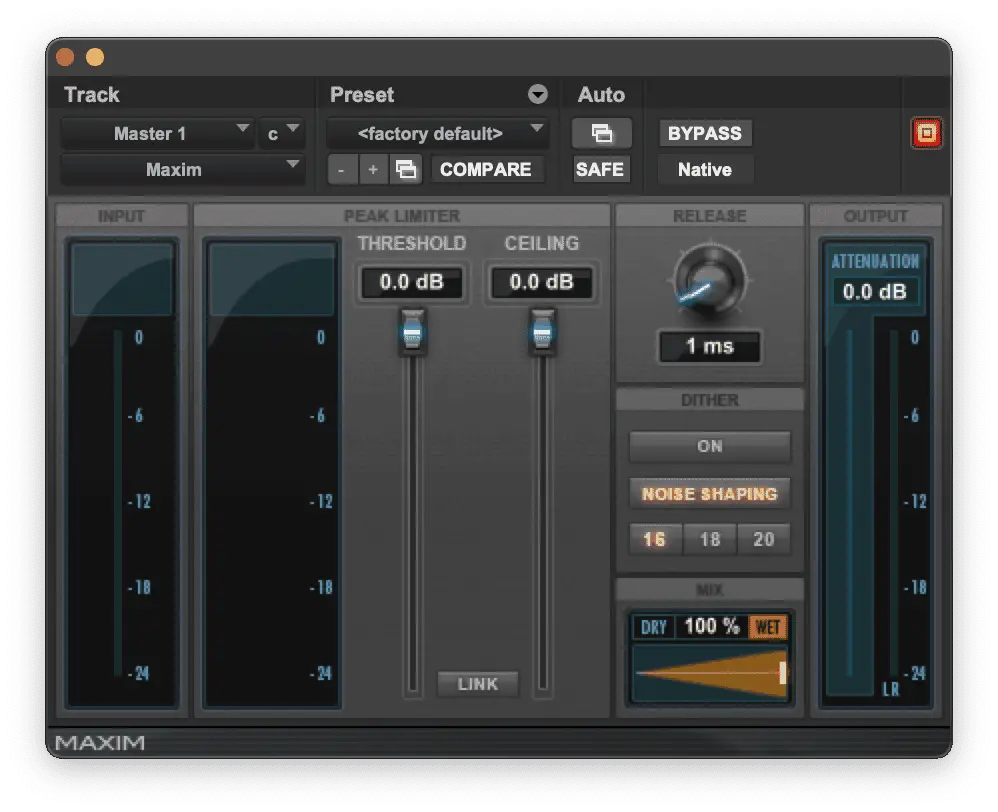
There are many ways to dither in Pro Tools, but the easiest is to use the Maximizer on your master fader…
You can choose between 16, 18 and 20-bits of added noise. You even have the option to add noise shaping!
To top it all off, you can also mix the wet version of the signal with the dry. Pretty cool!
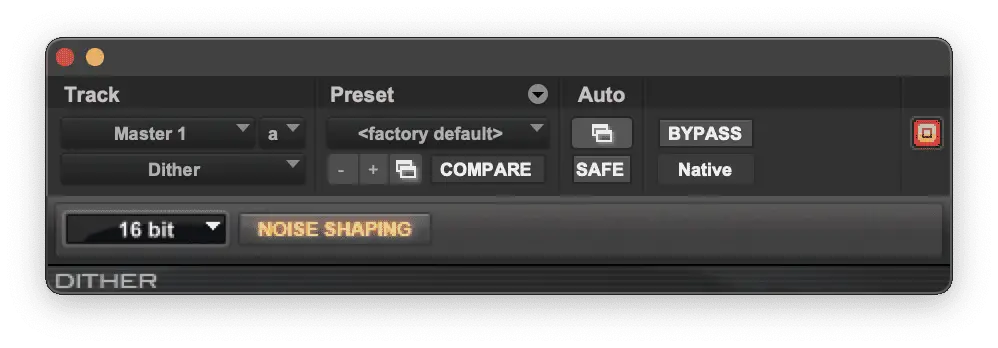
But, you can also choose one of the dedicated dithering plugins in Pro Tools…
The regular dither has noise shaping and the Pow-R dither is TPDF.
But, what about using a dithering plugin form a 3rd party?
3rd Party Dithering Algorithms and Plugins
In the intricate world of audio mastering, the choice of dithering algorithms and plugins plays a pivotal role in shaping your final sonic tapestry.
As you’ve learned… Audio dithering has THOUSANDS of different algorithms, each with its unique characteristics.
Some advanced algorithms, like those employed in plugins such as Goodhertz “Good Dither,” go beyond mere noise addition. They intelligently manage and shape the noise floor, removing perceptual artifacts and ensuring a seamless transition between different bit depths.
Remarkably, certain algorithms can eliminate up to 8dB of perceived noise, offering a delicate balance between preserving audio fidelity and minimizing unwanted artifacts.
Here are some noteworthy dither plugins that stand out in the realm of audio mastering:
Today, we’ve uncovered the art of audio dithering, comparing it to a craftsman smoothing rough edges.
Our journey into the realm of audio dithering has unraveled the secrets to achieving a polished sound. From mastering our understanding of bit-depth to exploring advanced dithering algorithms like the one in Goodhertz’s “Good Dither”.
Now, armed with step-by-step guides, it’s time to take action!
Embrace the art of dithering in Logic Pro X and Pro Tools, and confidently export your audio masterpiece into a professional product.
Let us know what you think and which dithering plugin you like to use!
How To EQ Drums in Logic Pro X
If you’ve ever found yourself wrestling with the complexities of EQing drums, you’re not alone!
Crafting a professional and balanced drum sound is a key element in achieving that polished, radio-ready mix. In this guide, we’ll unravel the mysteries of how to EQ drums, providing you with the essential knowledge to take your drum mixes to new heights.
As you continue reading, you’ll gain insights into the nuances of subtractive and additive EQ, discover the best EQ plugins for the job, and receive a step-by-step breakdown on how to EQ each drum element – from the commanding kick and snappy snare to the thunderous toms and sparkling cymbals.
Ready to take your drum mixes to the next level? Don’t miss our actionable tips and detailed walkthroughs. Plus, stay tuned for an exclusive offer at the end of this article, designed to fast-track your journey to becoming a proficient music mixer and master.
Let’s dive in and unlock the secrets of mastering the art of EQing drums.
Table of Contents
Subtractive vs Additive EQ
The debate surrounding subtractive versus additive equalization has raged on among music producers for years.
Some argue vehemently in favor of one over the other, emphasizing the supposed impact on distortion and phase. However, let’s delve into the heart of the matter and uncover whether these differences are as substantial as they may seem.
“Subtractive EQ is better”
One common belief is that additive EQ introduces more distortion and phase issues than subtractive EQ.
The truth, however, is that you’ll get degradation even with subtractive EQ if you subtract too much! In the digital age, both subtractive and additive EQ, when applied judiciously, can yield pristine results without noticeable degradation (especially using a linear EQ).
The key is understanding the tools at your disposal and using them with precision.
“Professionals don’t use EQ”
For those who advocate against using EQ altogether, arguing that it alters the natural essence of the sound, consider this: the essence of a well-mixed track lies in its ability to carve a space for each element.
Subtractive EQ, in particular, serves as a sculptor’s chisel, cutting away frequencies that could otherwise muddy the mix.
But, you may also want to use additive EQ to bring out certain elements in the mix.
The Middle Ground
Contrary to the divisive opinions on this matter, the pragmatic approach is to recognize that both subtractive and additive EQ have their place in the mixing engineer’s toolkit. It’s not about adhering to a rigid doctrine but understanding the needs of the mix.
In the context of drum EQ, we’re not aiming to make the drums sound better for their own sake.
Instead, we’re wielding EQ as a means to shape the sonic landscape, allowing each drum element to coexist harmoniously within the mix.
Whether it’s subtracting unwanted frequencies or adding a touch of brilliance, our goal is to sculpt a balanced soundscape that serves the mix.
Best Plugins To EQ Drums
When it comes to EQing drums, the right choice of plugins can make all the difference in achieving a professional and nuanced sound.
While stock plugins that come bundled with your digital audio workstation (DAW), such as Logic Pro, are powerful and versatile, exploring additional options can open up new creative avenues.
Let’s dive into some classic favorites and shed light on the different types of EQ plugins that can improve your drum mixing.
Stock Plugins: A Solid Foundation
Logic Pro, like many other DAWs, provides a robust set of EQ tools right out of the box.
Plugins such as the Channel EQ and Linear Phase EQ offer a wide range of features, making them formidable contenders for drum EQing.
Before venturing into third-party options, familiarize yourself with these tools.
That’s what we’ll be using as an example is this guide, but any EQ plugin will do!
Classic Choices:
FabFilter Pro-Q 3: Renowned for its intuitive interface and surgical precision, Pro-Q 3 is a favorite among professionals. Its dynamic EQ capabilities and real-time spectrum analysis make it a go-to for shaping drum frequencies with finesse.
Waves SSL G-Equalizer: Modeled after the classic SSL 4000 G console, this plugin imparts a warm analog character to your drums. The SSL G-Equalizer is celebrated for its musicality and ability to add color to your mix.
Sonnox Oxford EQ: Trusted in top studios, the Sonnox Oxford EQ is praised for its transparency and flexibility. Its five bands and comprehensive features make it a versatile tool for shaping drum sounds.
Types of EQ Plugins:
Parametric EQs:
These are the workhorses of drum EQing. Parametric EQs like the ones found in Logic Pro allow you to precisely control frequency bands, gain, and Q-factor. This level of control is invaluable when sculpting the tonal balance of individual drum elements, from the thump of the kick to the snap of the snare.
Linear Phase EQ:
Linear phase EQs, such as Logic Pro’s Linear Phase EQ, maintain the phase relationship of the original audio, preventing any phase shifts that could occur in traditional EQs. This is particularly useful when dealing with complex drum mixes, ensuring clarity without sacrificing the integrity of the sound.
How To EQ Kick
It’s litteraly the foundation of your mix; the kick drum.
Regardless of the genre, the kick drum usually shares most of its characteristics.
You might need to emphasize the bottom-end or even the “thump”.
Let’s listen to an example to give us some context…
Kick drum in the mix (no EQ)
You might be thinking to yourself, “that sounds fine the way it is”.
It’s true that the drum recording you just heard sounds full and was clearly recorded in a studio environment using professional microphones and placement. However, we’re not hearing it in the context of a full mix.
Let’s isolate the kick drum to hear what needs to be done…
Kick drum, isolated (w/o EQ)
Kick drum, isolated (w/ EQ)
It’s a subtle difference (as it should be), but the EQed kick will retain its bottom-end and “thump” in the context of a mix.
If we don’t apply the following EQ steps, we might lose out on that…
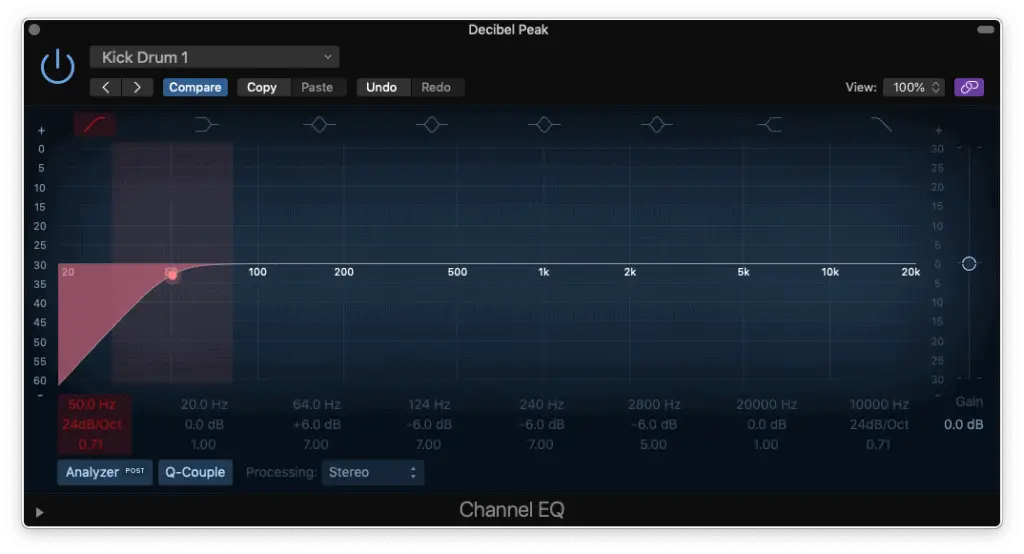
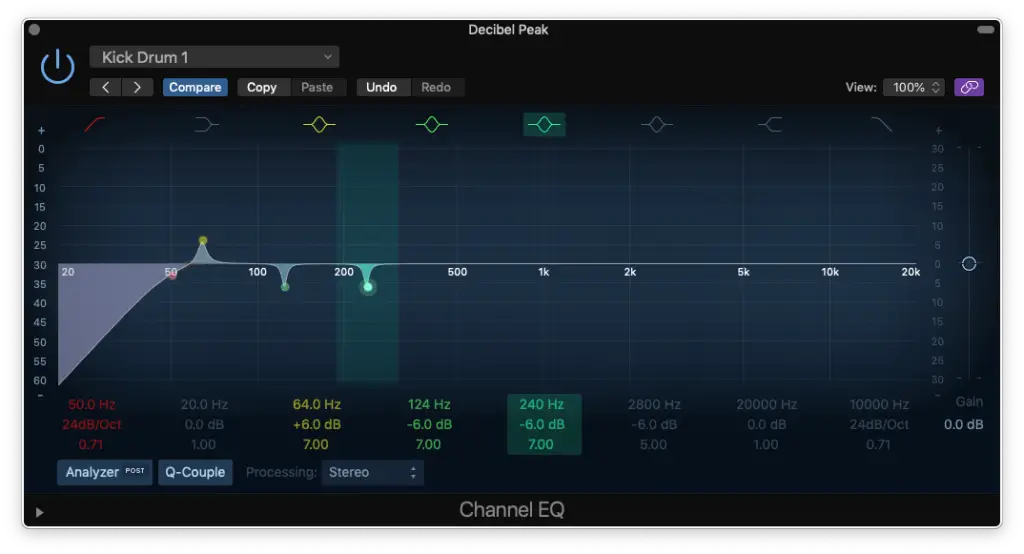
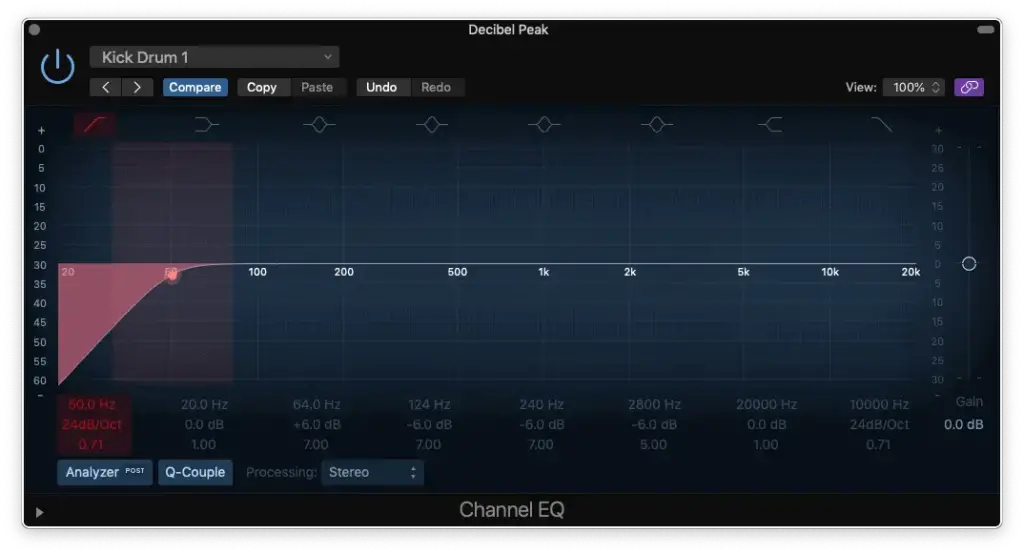
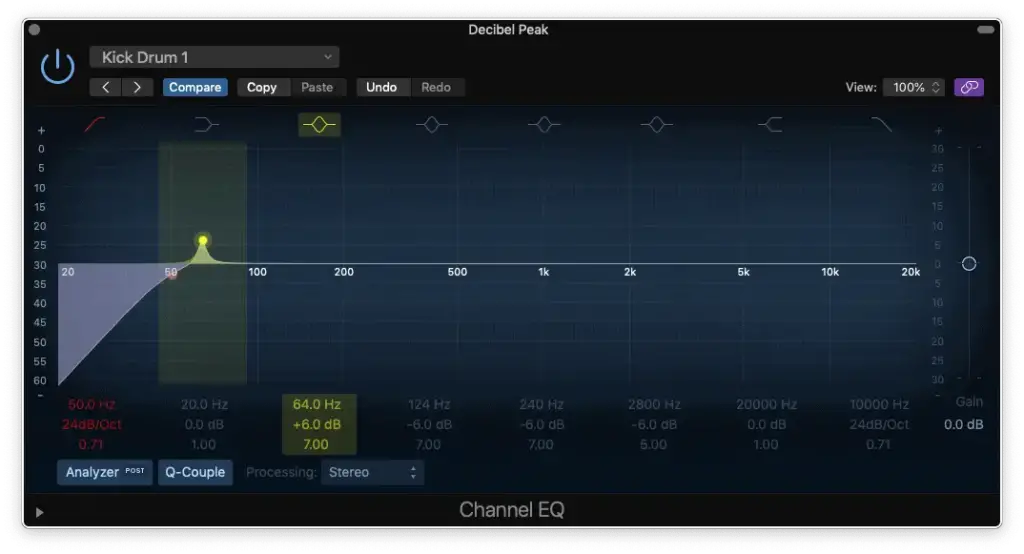
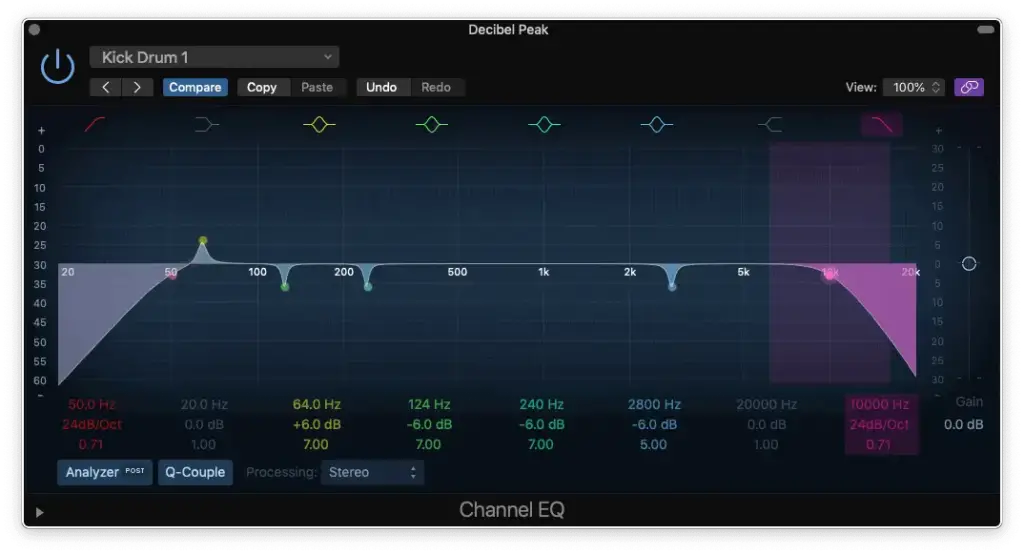
Step 1 – HP Filter around 50 Hz
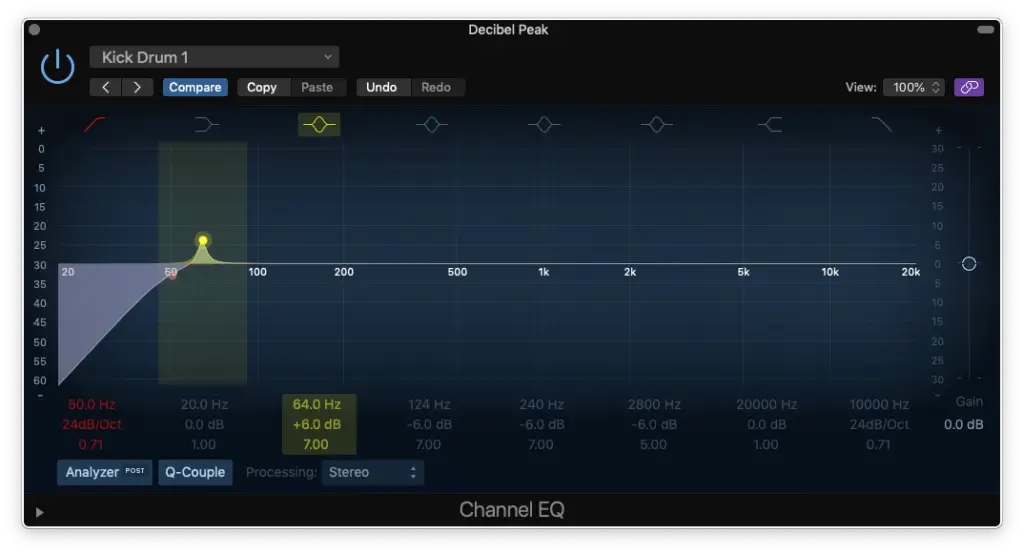
Step 2 – Boost for “Thump” at 60 – 90 Hz
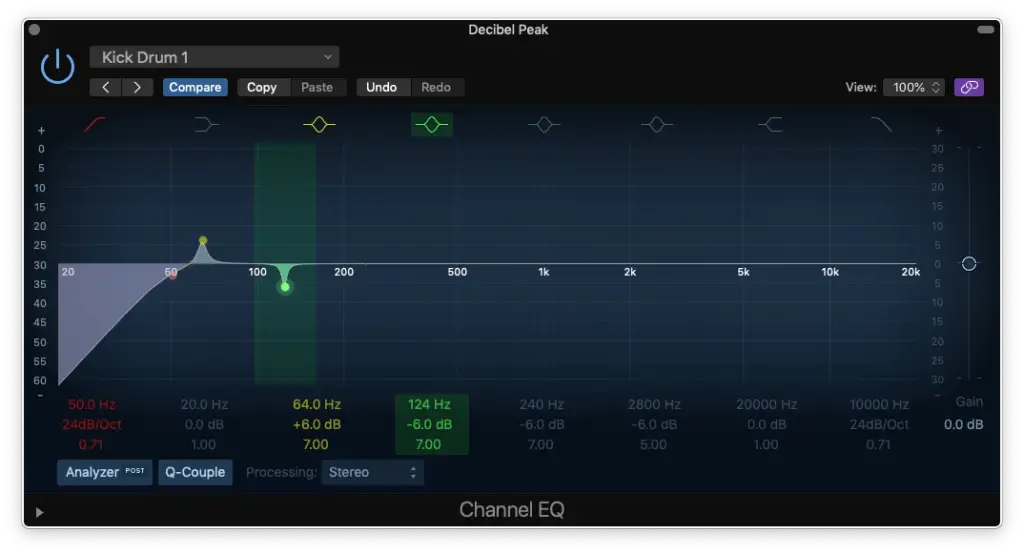
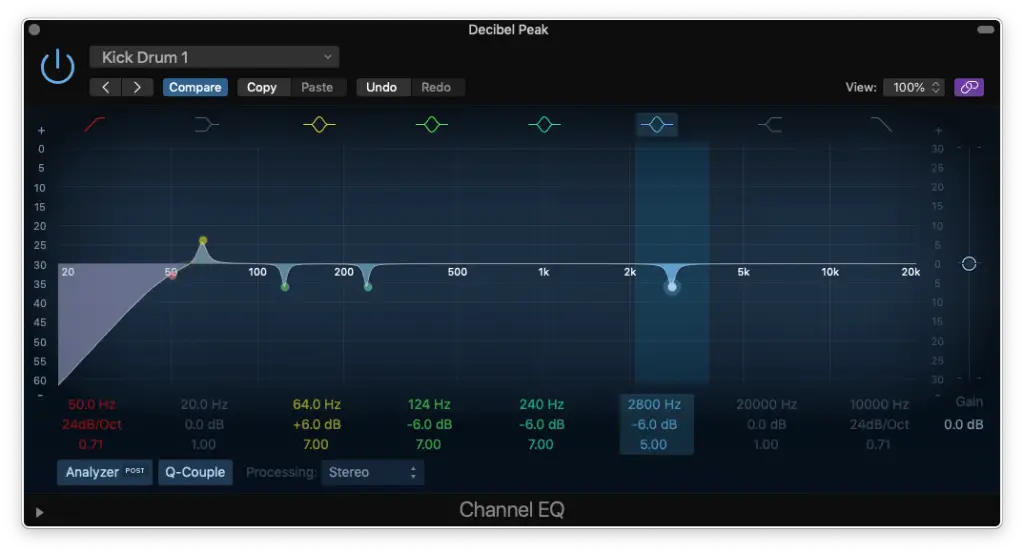
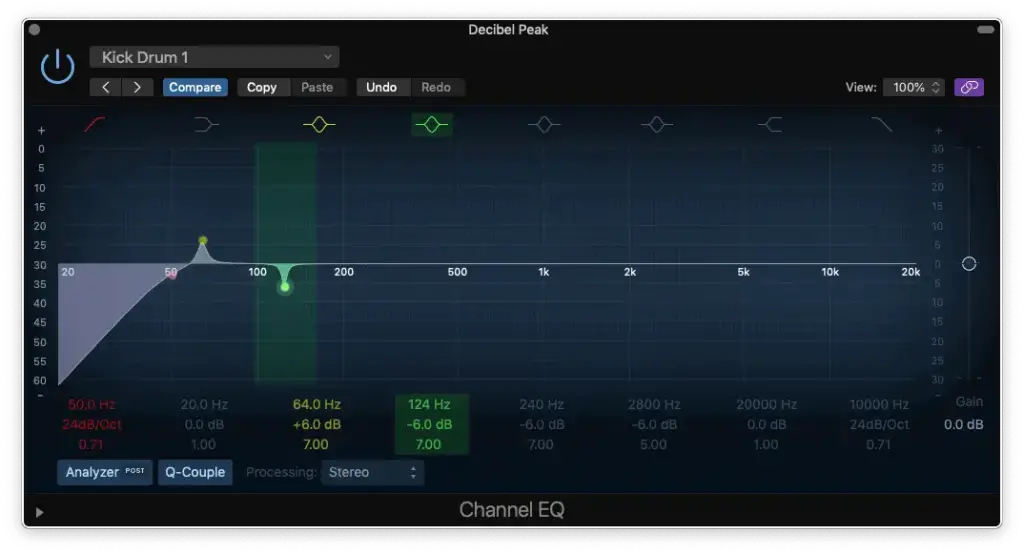
Step 3 – Cut for “Unpleasantness” at 100 – 150 Hz
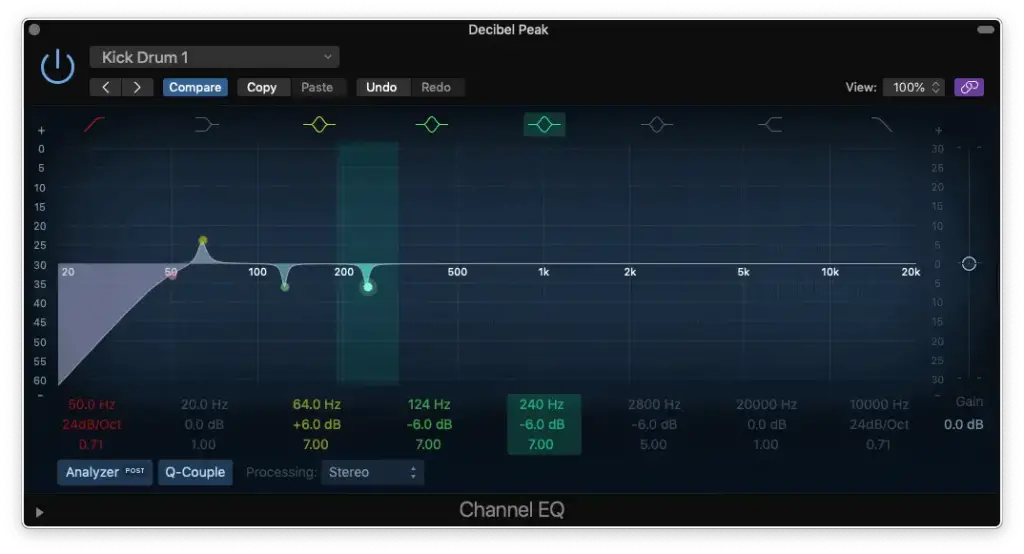
Step 4 – Cut for “Unpleasantness” at 200 – 250 Hz
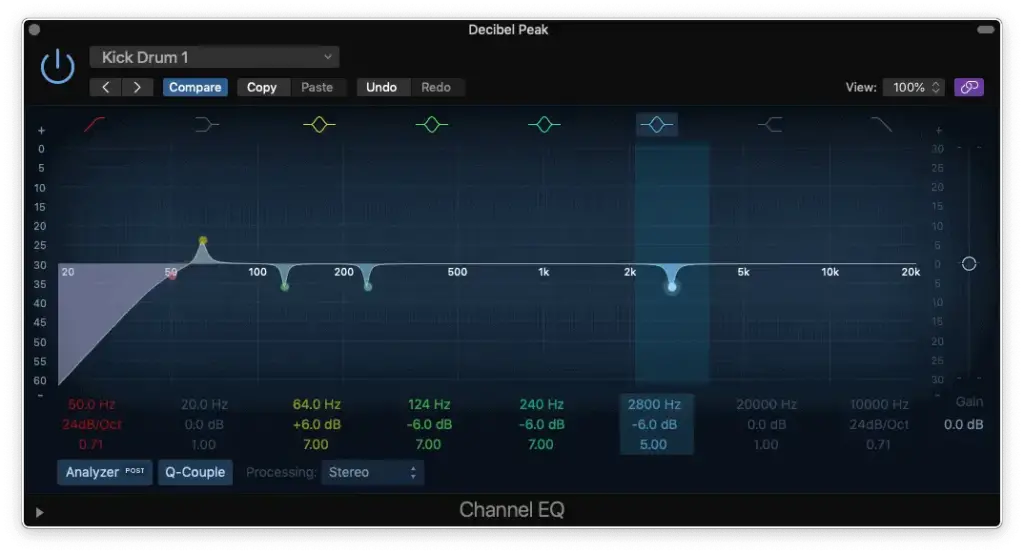
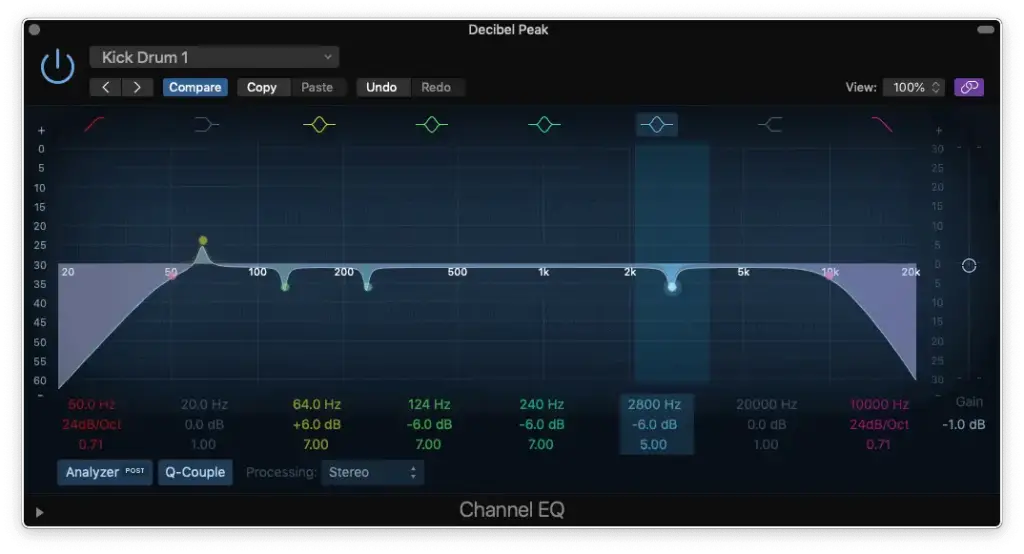
Step 5 – Boost around 1.5 kHz for more “Beater” OR Cut around 2 kHz for less “Plastic”
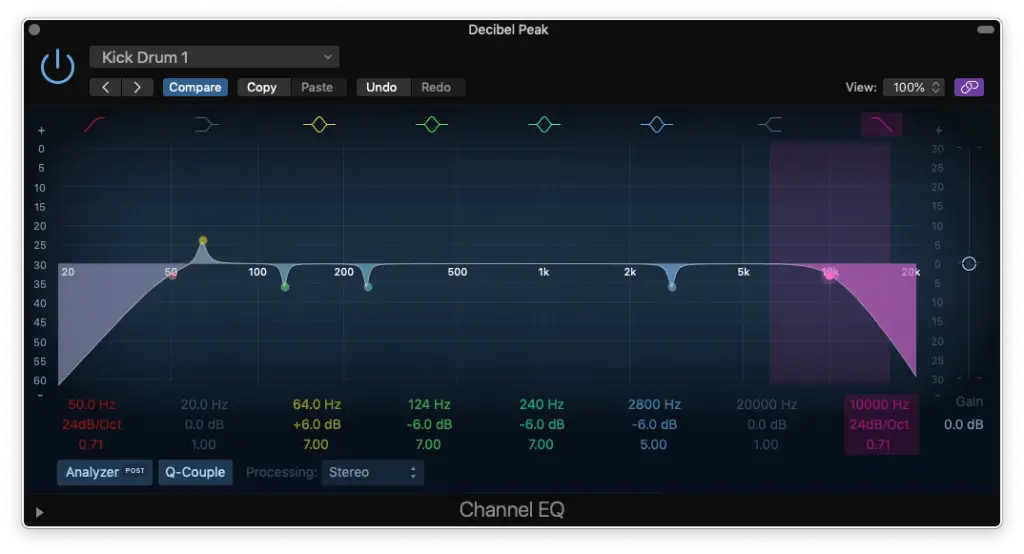
Step 6 – LP Filter around 10 kHz
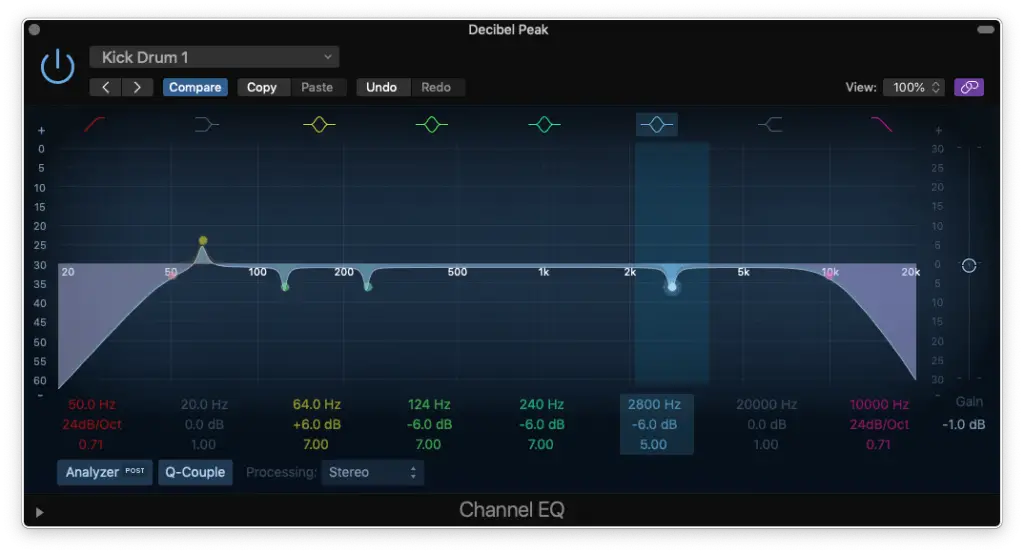
Step 7 – Reduce Gain to Compensate for any Boosting
Of course, the exact frequencies I stated won’t apply to every single kick. You’ll need to use your ears and adjust for that.
You’ll also want to widen the “Q” to make your EQ moves sound more seamless (as if we weren’t using a parametric EQ).
How To EQ Snare
It’s the backbone of pretty much every beat you’ve ever heard.
The snare drum is so important that it either makes or breaks a track!
That’s because it’s usually in the “foreground” of our mix and because that, needs special attention.
Let’s listen to the same example as before, but focus on the snare…
Snare drum, in the mix (w/o EQ)
Once again, it sounds fine. BUT, will it make the cut?
In this case, probably not! So, we need to give this particular snare more body and more top-end.
That’s what we want to preserve!
Now, let’s isolate it to hear how this snare is transformed from bonely to beastly…
Snare drum, isolated (w/o EQ)
Snare drum, isolated (w/ EQ)
Once again, subtle different. But, you can hear that it sounds fuller.
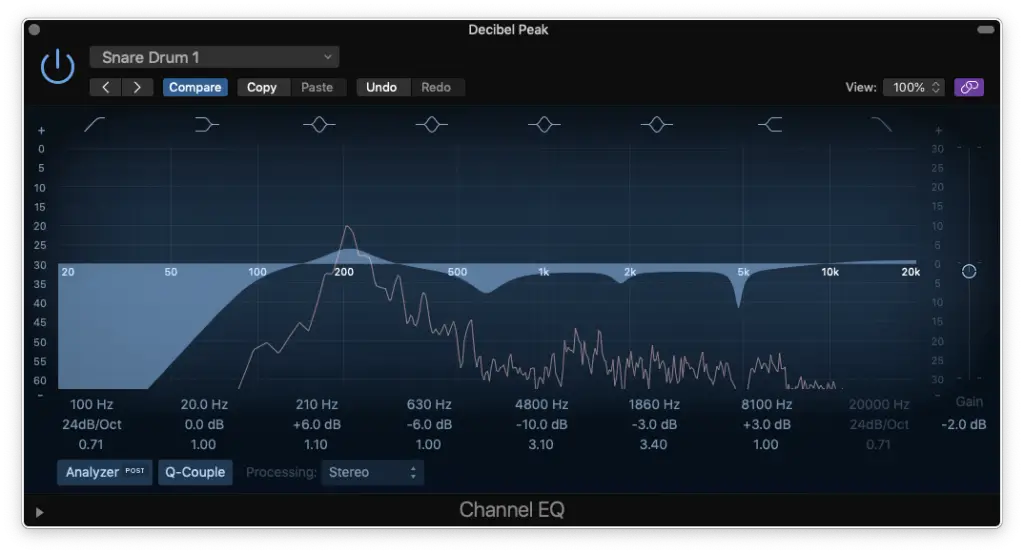
How did I do it? Let’s follow these steps…
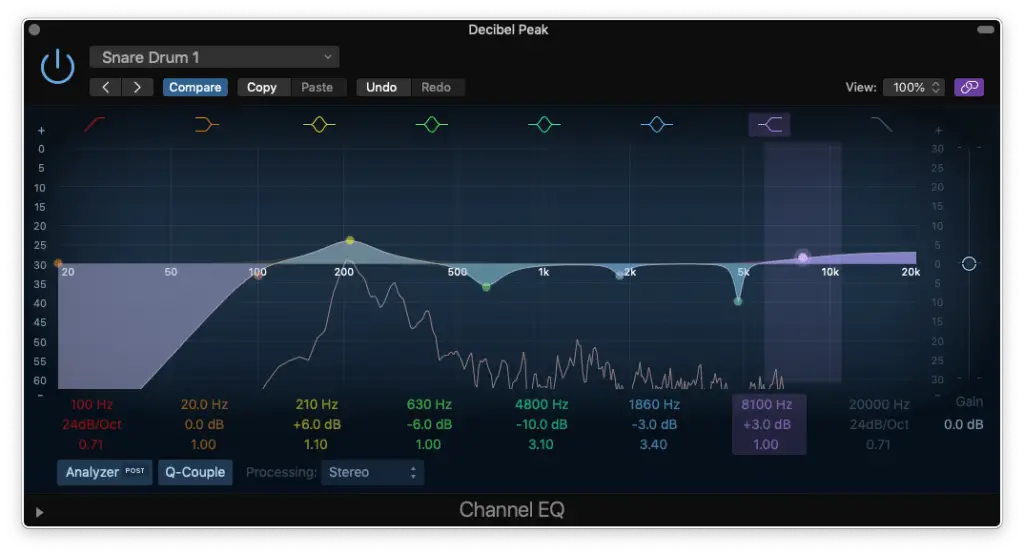
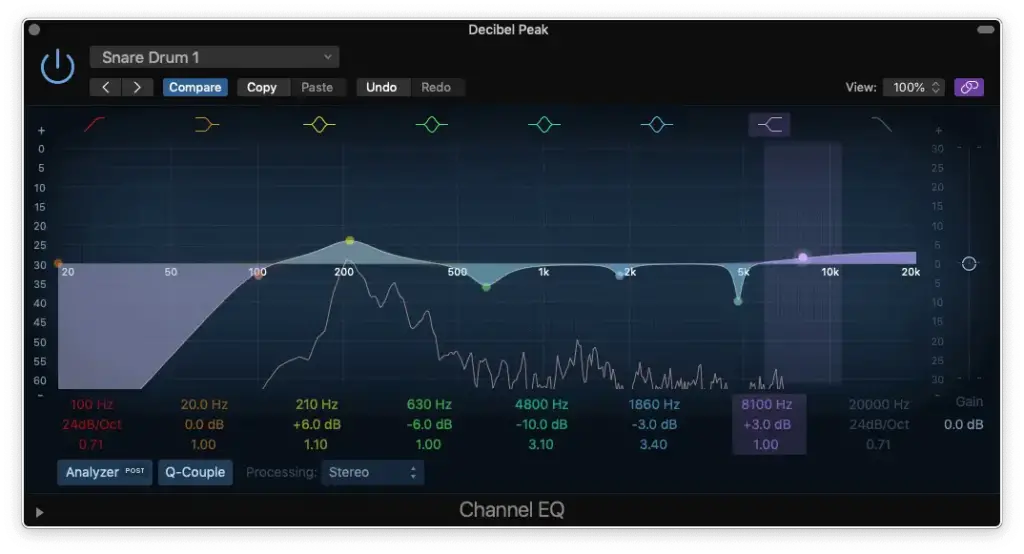
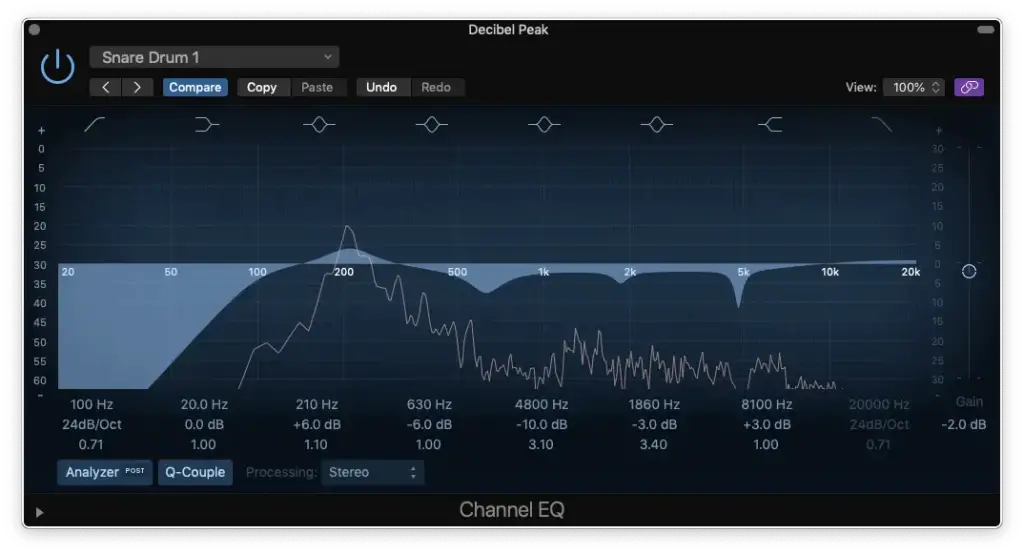
Step 1 – LP Filter at 100 Hz
Step 2 – Boost for “Body” at 150 – 250 Hz
Step 3 – Cut for “Boxiness” at 500 – 800 Hz
Step 4 (optional)
Step 5 – Cut for “Ringing/Whistlin” at 4.5 – 8 kHz
Step 6 – High-Shelf for “Sizzle” at 8 – 10 kHz
Step 7 – Reduce Gain to Compensate
Kick drums are more difficult to discern, but snare drums definitely aren’t!
That being said, you’ll definitely want to treat each snare you work with as its own instrument. Take extra time to tweak the EQ to bring out the things you like and obscure the things you don’t.
Remember, this snare drum is going to the forefront!
Summary: How To EQ Drums
Congratulations on completing your introduction to drum EQ mastery!
In this comprehensive guide, we’ve explored the intricacies of sculpting drums to fit perfectly in any mix.
We began by addressing the age-old debate of subtractive vs. additive EQ, challenging preconceptions and emphasizing the need to wield EQ not merely as a tool for enhancement but as a means to seamlessly integrate drums into the mix.
We stirred the commotion by dissecting the myths surrounding distortion, phase issues, and the age-old question of whether one should refrain from using EQ altogether.
The takeaway? A balanced approach that acknowledges the strengths of both subtractive and additive techniques.
Moving forward, we delved into the toolbox of EQ plugins, acknowledging the prowess of stock options in DAWs like Logic Pro while exploring classic third-party choices like FabFilter Pro-Q 3, Waves SSL G-Equalizer, and Sonnox Oxford EQ.
We deciphered the nuances of parametric and linear phase EQs, empowering you to make informed decisions based on your artistic vision.
Now, as we stand at the crossroads of knowledge and creativity, it’s time to take action!
If you’re eager to amplify your skills and dive deeper into the world of mixing and mastering, consider joining our exclusive online course. You’ll learn how to mix an entire track from drums, to bass, to guitar and beyond.
How To Mix and Master Music in Logic Pro X (w/ Presets)
I’m going to show you how to master the art of mixing and mastering music in Logic Pro X in just TWO HOURS OR LESS!
If you’re skeptical about the feasibility of this claim, it’s probably because you haven’t had a chance to explore the wealth of knowledge available in my comprehensive online mixing and mastering course, discreetly named “MIX and MASTER IT Yourself!”
In today’s article, I’ll offer a condensed version of the course, providing you with a blueprint for efficiently transforming your music. We’ll cover all the essential steps of mixing and mastering, including EQ, compression, reverb, sub-mixing, limiting, and metering.
But here’s the best part: I’m not stopping there. To kick-start your journey, I’ll also be sharing some of my personal Logic Pro X presets, which you can download and use right away.
Whether you’re a hobbyist creating music for fun or an aspiring professional embarking on your music career, mastering the art of mixing and mastering is a game-changer. It saves you precious TIME, MONEY, and ENERGY, allowing you to produce professional-sounding music independently.
My commitment is to provide you with this invaluable knowledge right now! So, let’s dive into the world of Logic Pro X and unlock the secrets of mixing and mastering incredible music.
Table of Contents
What Equipment Do You Need To Start Mixing Music?
When it comes to crafting the perfect mix and mastering your music in Logic Pro X, having the right equipment is essential. To get started, it’s important to set up your home recording studio with the right gear. For a more comprehensive list of essential equipment and a guide on building your home studio, check out our detailed post on building a home recording studio.
Now, let’s break down the equipment you need into two crucial categories: “Speaker Monitors” and “Studio Headphones.”
Speaker Monitors:
KRK Rokit RP5 G4 – Renowned for their balanced sound and affordability, these are a popular choice among music producers.
Presonus Eris E3.5-3.5″ – Compact, accurate, and great for small spaces, they’re a solid pick for home studios.
Yamaha HS5 – Known for their accuracy, these studio monitors are favored by professionals.
Studio Headphones:
Audio-Technica ATH-M50x – Loved for their excellent sound isolation and clarity, they’re a go-to choice.
Sennheiser HD 650 – Praised for their open-back design and natural sound reproduction, perfect for critical listening.
Beyerdynamic DT 990 Pro – Known for their comfort during long sessions and impressive audio quality.
Adding these quality speaker monitors and studio headphones to your setup will give you the precision and clarity needed for effective mixing and mastering in Logic Pro X. Don’t forget to check out our full guide on [building a home recording studio](insert internal link) for a complete list of equipment recommendations.
What Plugins Do You Need To Mix Music?
We’re delving into the world of mixing and mastering music using Logic Pro X, and you might be wondering about the plugins you need. Truth be told, most DAWs come equipped with the essential plugins for your mixing and mastering journey. However, Logic Pro X stands out for its exceptional array of tools.
Let’s break down the types of plugins you’ll need, categorized into “essential” and “optional.”
Essential Plugins:
EQ
Compressor
Reverb
Limiter
Surprisingly, these are the fundamental building blocks for your mixing and mastering toolkit. But don’t be fooled by their simplicity. It’s amazing what you can achieve with these four essential tools, and I’ll show you exactly how to wield them in the next section.
Now, let’s briefly touch on some non-essential plugins that can be handy depending on your specific needs:
Optional Plugins:
Delay/Echo
Saturation (distortion)
Noise Gate/Suppressor
Expander
The usage of these non-essential plugins often depends on the quality of the tracks you’re working with. For example, you may encounter a guitar track with excessive noise. In such cases, a combination of noise gating/suppression and automation can work wonders.
In addition to these, we have a few plugins that can elevate your mixing and mastering experience further:
Recommended Plugins:
Youlean Loudness Meter: A valuable tool for keeping your music at the right loudness levels.
Goodhertz Vulf Compressor: Known for its unique analog warmth and character.
iZotope Audio Lens: A versatile plugin for enhancing audio quality and clarity.
While we won’t delve deep into these recommended plugins today, they can be fantastic additions to your toolkit. Feel free to ask any questions you have about them in the comments section.
Now that you’re equipped with the knowledge of essential and non-essential plugins, and even have some recommendations, you’re ready to embark on your mixing and mastering journey in Logic Pro X. Let’s dive into the next section where I’ll show you precisely how to utilize these plugins effectively.
How To Mix Music: Step-by-Step
Of course, it’s much more difficult to learn how to mix and master music by simply reading about it. I still recommend checking out my course “MIX and MASTER IT Yourself!” if you really need additional support.
If you’re willing to figure some stuff out on your own though, then I know these steps will help!
Step 1 – EQ
I personally start with EQ (I’m aware that some producers start with compression though).
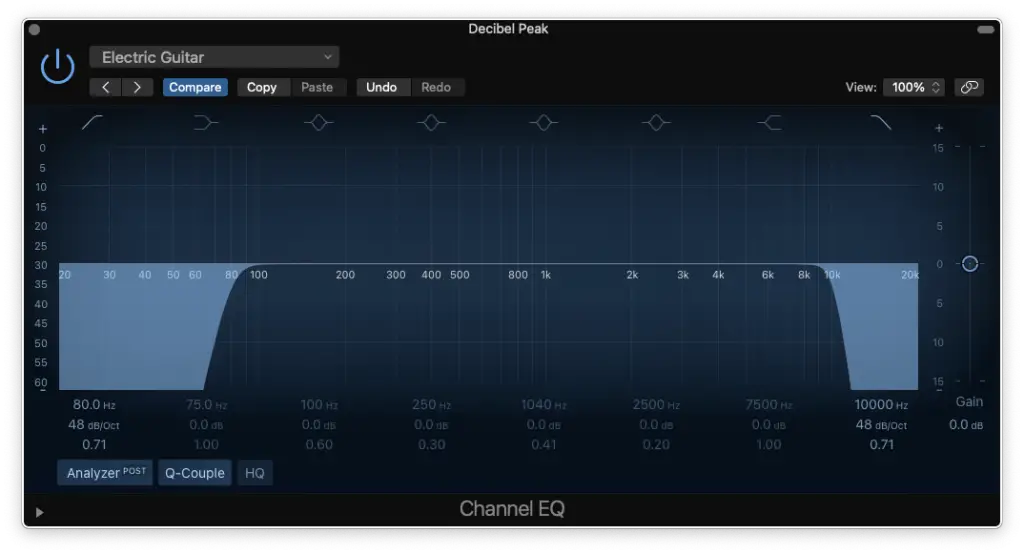
The first thing you want to do is use a high-pass filter to “clean up” the bottom-end. Secondly, you’ll use a low-pass filter to “clean up” the top-end.
Of course, the actual frequencies you’ll be cutting will vary from instrument to instrument.
For example…
Electric Guitar (cut at 80-100 Hz and at 10,000 Hz)
I won’t be showing you how to “tweak” each EQ further because it would be very complicated to do in writing and it varies not just by instrument, but by performance.
That being said, you’ll get a much better idea by checking out MY COURSE.
For now, these EQ presets will give you the framework you need.
Every track needs an EQ, so make sure to take care of all of them.
Step 2 – Compression
Next up, I insert a compressor on EACH track after the EQ.
Technically, a compressor could actually remove some high-end so you may want to add another EQ after the compressor with a top-shelf boost (I rarely do).
Either way, here are the basic compression settings I use…
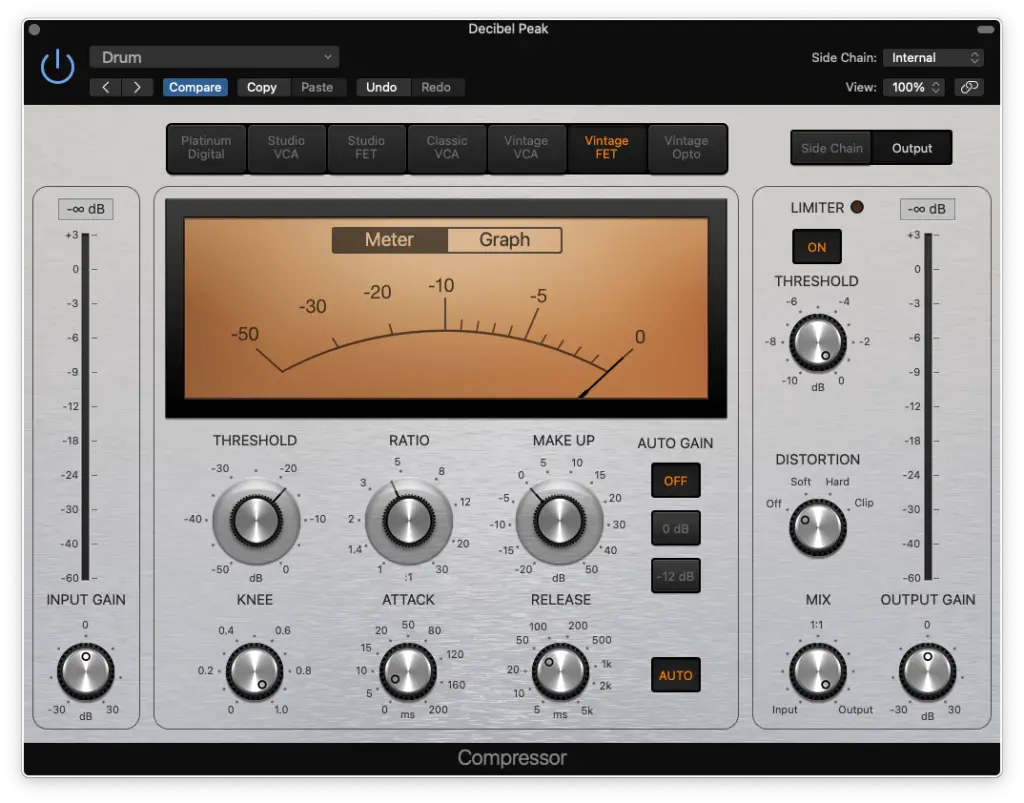
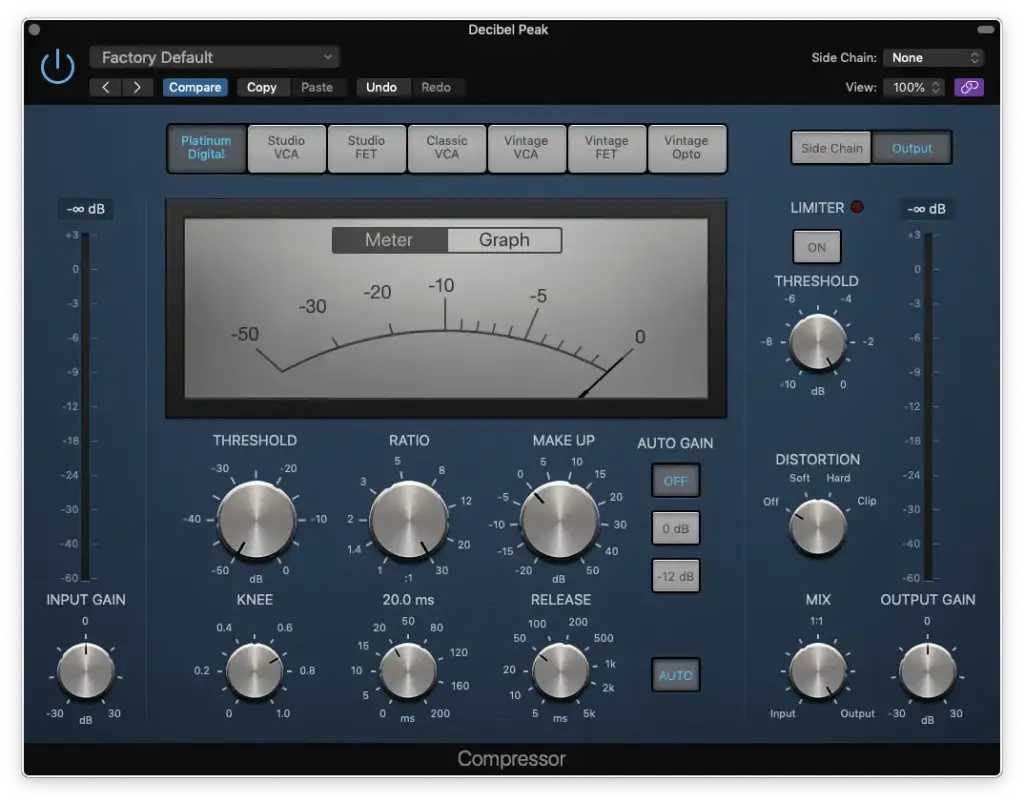
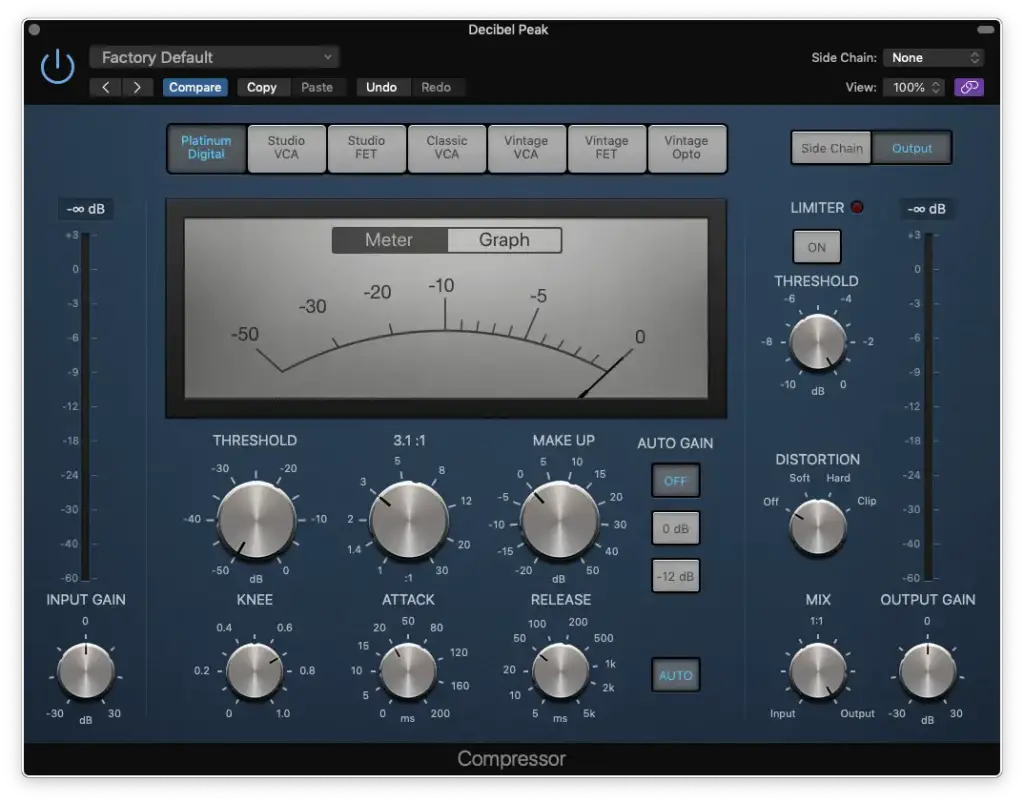
Threshold: -18 dB
Ratio: 4:1 (for now)
Make-Up: 0 dB
Knee: 1 (it’s softer)
Release: Auto
You’ll notice that I didn’t talk about the “attack” yet. That’s because it’s one of the only parameters we’ll need to adjust on a track-by-track basis.
The other one is the “input gain”.
Essentially, by setting your threshold to -18 dB for each track and adjusting your input gain to get approximately 5 dB of compression… You’re leveling everything out.
In other words, even tracks that were recorded too quiet or too loud will become centered at -18 dB which is a pretty important level to set (read more about it HERE).
However, you need to set your attack before doing that.
In short, if you want less transient (and more sustain) you’ll set the attack time FASTER (0-20ms). More transient and less sustain? Set it SLOWER (20-200ms).
Step 3 – Sub-Mixing
Once you’ve taken care of EQ and compression on ALL YOUR TRACKS, you’re ready to move on to sub-mixing.
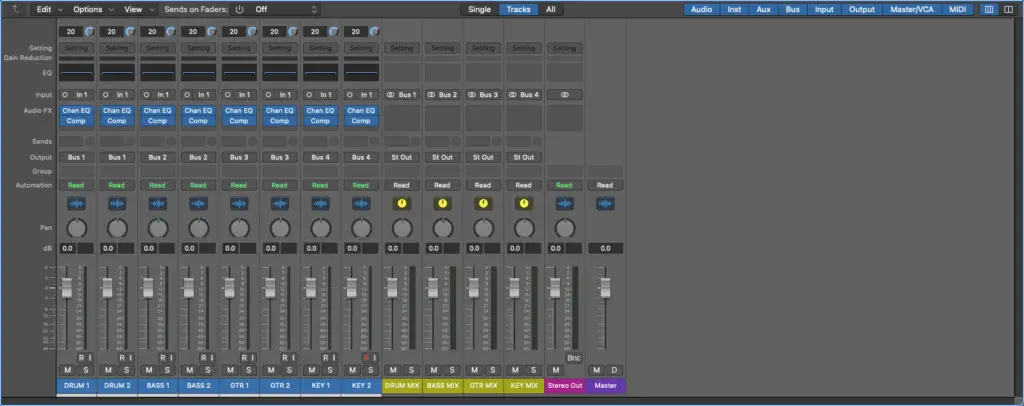
That’s essentially when we group our tracks into “sections” by using auxiliary buses.
It’ll make the mixing process much more simple and organized!
How should you group the different tracks? It depends, but I personally group all the drums into one sub-mix, all the guitars into another, etc…
Just use common sense and you’ll be on the right track.
Once you’ve routed all of your tracks to a sub-mix, we’re ready to start mixing the sub-mixes.
Step 4 – EQ (submix)
Just like the previous EQ phase, we’re going to simply “clean up” the frequency spectrum.
The actual values of your high-pass and your low-pass filters will depend on the lowest/highest frequencies you cut out of those tracks.
For example, a sub-mix for bass guitars would most likely be…
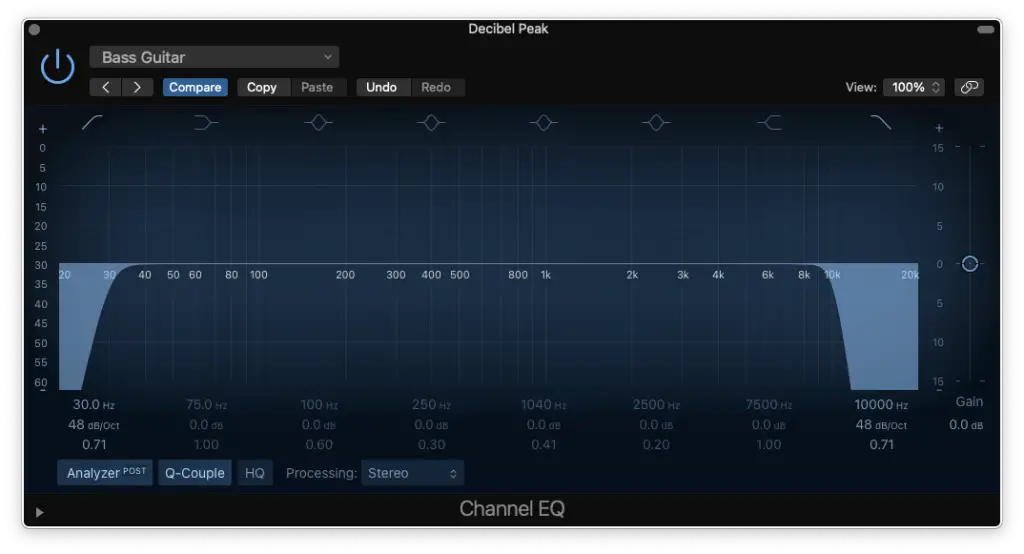
High-Pass Filter: 30 Hz
Low-Pass Filter: 10,000 Hz
You can make tweaks with notches using your musical ear once you’ve completed the “essentials cuts” for each sub-mix.
You’ll want to hear everything in context to make proper EQ manoeuvres though.
Step 5 – Compression (submix)
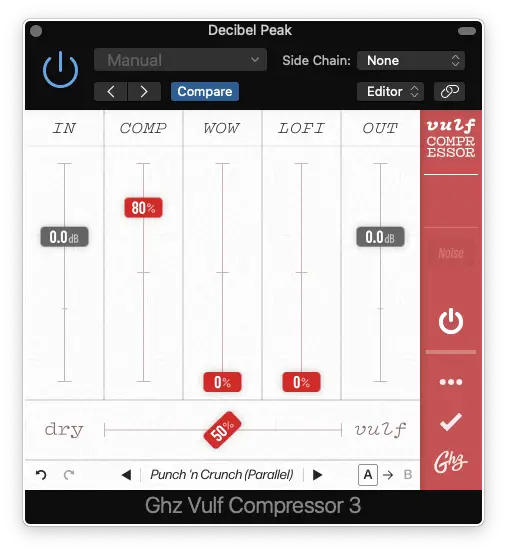
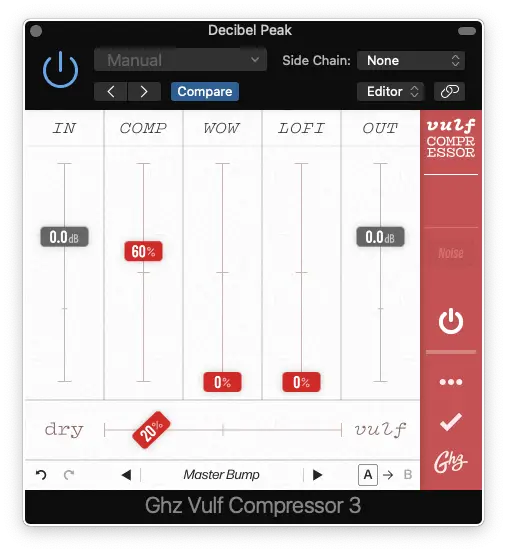
One of my favourite “go-to” presets in Vulf Compressor is called “Punch ‘n Crunch (Parallel)”. I start by loading this in and then make some modifications (as you can see). The settings you see are best suited for guitars and keys.
This is the ONLY plugin that I recommend outside of Logic Pro X.
It’s called Vulf Compressor (by Goodhertz). However, you can use ANY compressor that you like that adds colour. For example, an analog modelled Teletronix LA-2A plugin.
The objective here is to reduce our dynamic range once more.
Also, the way these different compressors saturate your signal provide a WIDE variety of sounds. The standard Logic Pro X Compressor is relatively transparent.
It’ll really make a difference in the end, you’ll see!
Step 6 – Reverb
You might be wondering why I didn’t add a reverb on the actual buses of the individual tracks.
That’s because I don’t always need it.
For instance, some guitar amplifiers provide their own reverb. I only add one on each sub-mix because it just makes things sound like they were recorded in the same room.
How To Master Music: Step-by-Step
Alright, so we’re now moving onto the final phase… MASTERING.
Basically, mastering is the equivalent of packaging a product but in this case, it’s also important to get our music to meet certain industry standards.
LOUDNESS is definitely the most important.
However, you shouldn’t need to do nearly as much in the mastering phase. SUBTLETY is key here and if you made mistakes in the mixing phase, this is where they’ll become apparent.
So, let’s see if we need to go back and review or if we’re ready to FINISH THIS!!
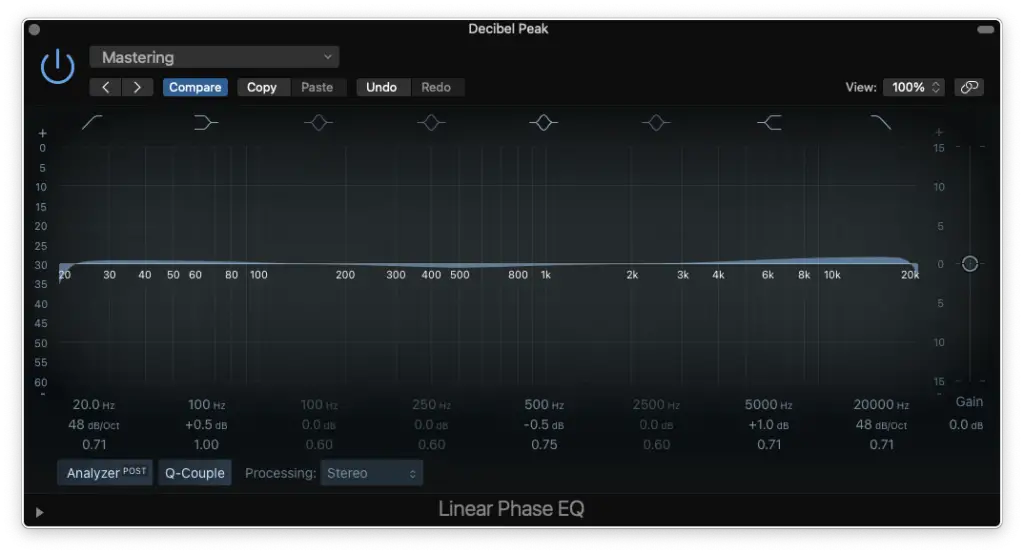
Step 1 – Linear EQ
Linear EQ is different from the standard Logic Pro X EQ.
When it comes to EQ plugins, it’s always better to go with linear phase EQs because they’re more transparent. If you want colour, analog modelled EQ plugins are much better.
That being said, the reason I didn’t use Linear EQ on the individual tracks is because it takes up more CPU resources. So, I’ll let you decide which one is best for you.
The idea is to make SUBTLE changes. For example, you might want to give the high frequencies a top-shelf boost to brighten up the mix.
Remember though, this EQ affects the entire mix.
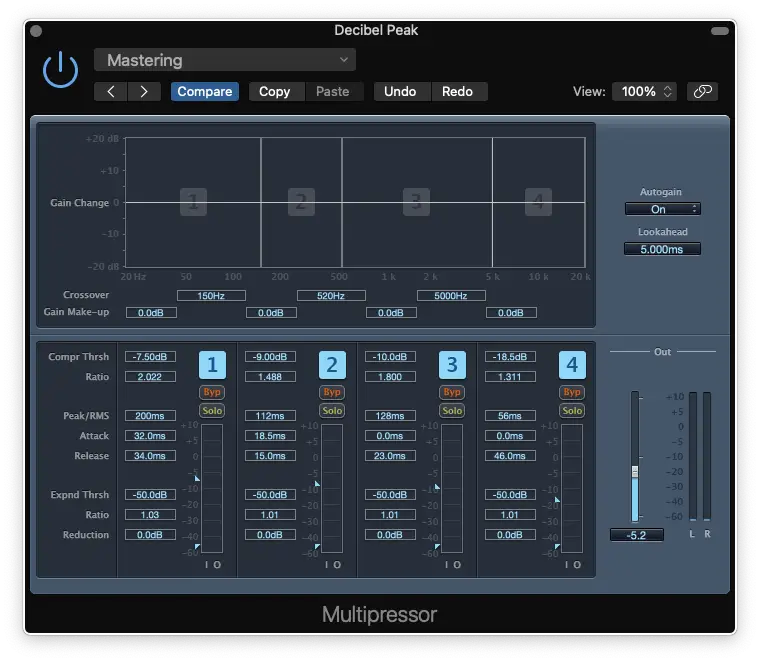
Step 2 – Multi-Band Compression
I have to say, the Multipressor is one of my favourite plugins.
It’s essentially a hybrid of a compressor and an EQ. In other words, you can control how each region of the frequency spectrum is compressed.
Feel free to use them on your individual tracks as well, but only if you need more control.
Multi-Band compression is great for mastering because it really shapes the entire mix. It gives it a distinct feel depending on the genre you’d like to imitate.
Step 3 – Compression
I also add an instance of Vulf Compressor on the master bus.
However, I usually set it to 20% and simply pick one of the two mastering presets (master bump/master hump).
Once again, this just adds a bit more colour and texture to the mix.
Step 4 – Reverb
The reverb in mastering is used for the same reason as the reverb in the sub-mix phase.
We’re just trying to “glue” everything together.
I don’t usually set the reverb higher than 10% here, it’s SUPER subtle.
Step 5 – Limiting
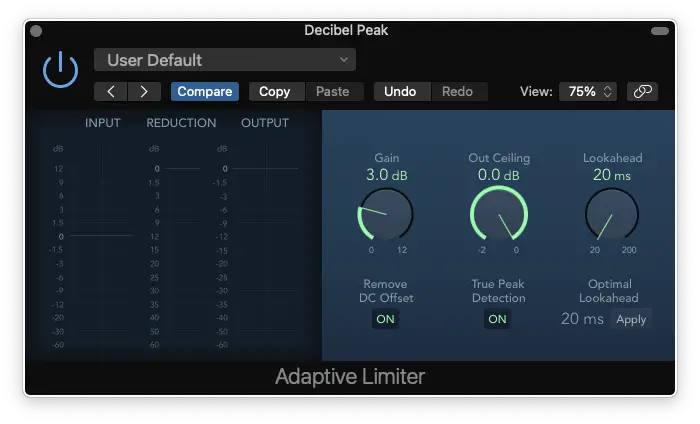
One of the most important plugins for mastering is the LIMITER.
This essentially acts like the “final compressor” and takes off one last -5 dB of gain. It also helps you boost the perceived loudness of your track to bring it up to industry standard.
You should push your track as loud as it goes, but back it off once your track starts sounding broken/distorted. How loud you’ll be able to get it depends on how well you MIXED IT!!
Step 6 – Metering
To measure the overall loudness of your master, we currently use Loudness Units (LUFS).
If you want to learn more about LUs, check out THIS ARTICLE.
I personally aim to get the LOUDEST part of my master to about -10 LUFS. Of course, this depends on the genre (i.e. Classical vs Metal) and on the sound you want.
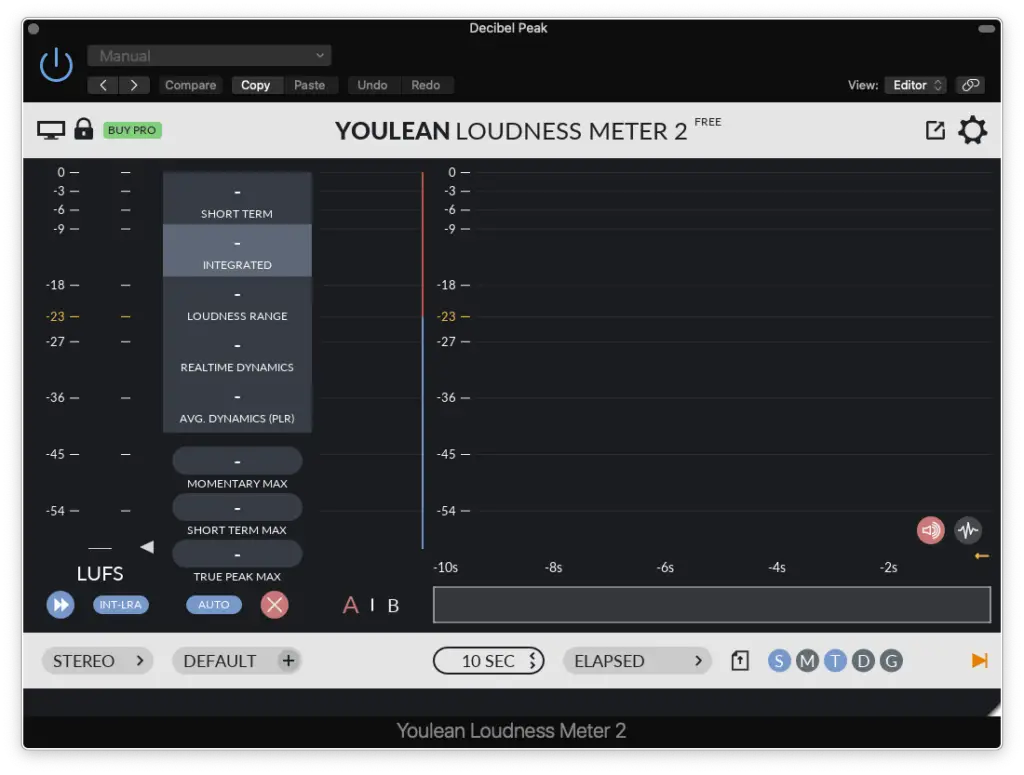
The loudness meter that comes with Logic Pro X is fine, but I personally recommend the Loudness Meter from YouLean.
It has a FREE version that’s already much better than the stock loudness meter.
Mixing and Mastering: BEFORE AND AFTER
Is mixing and mastering necessary?
If you’re still doubting the importance of mixing and mastering, then maybe these before/after examples will convince you…
When it comes to EQing your bass guitar, you’ll find both basic and advanced techniques to fine-tune your sound.
Basic EQ Settings
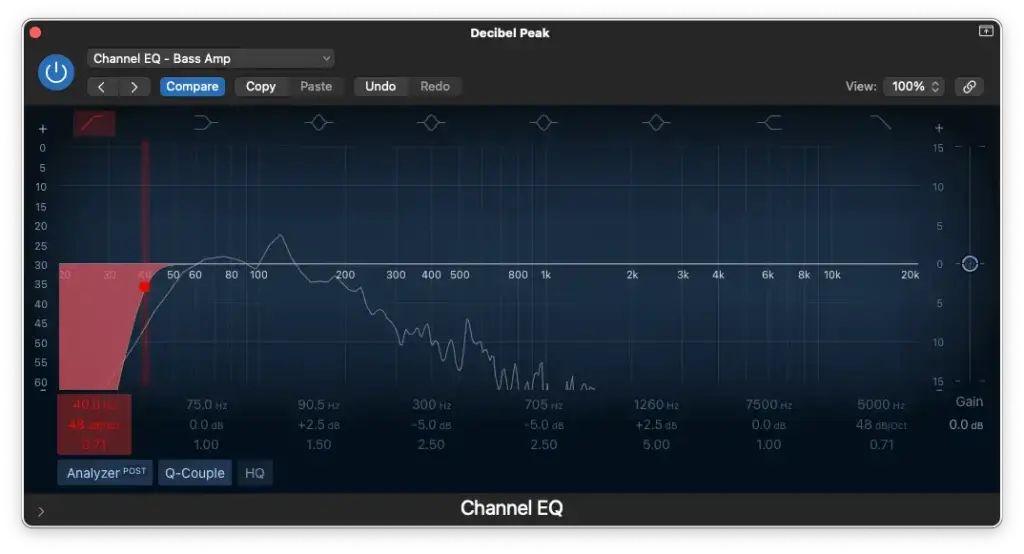
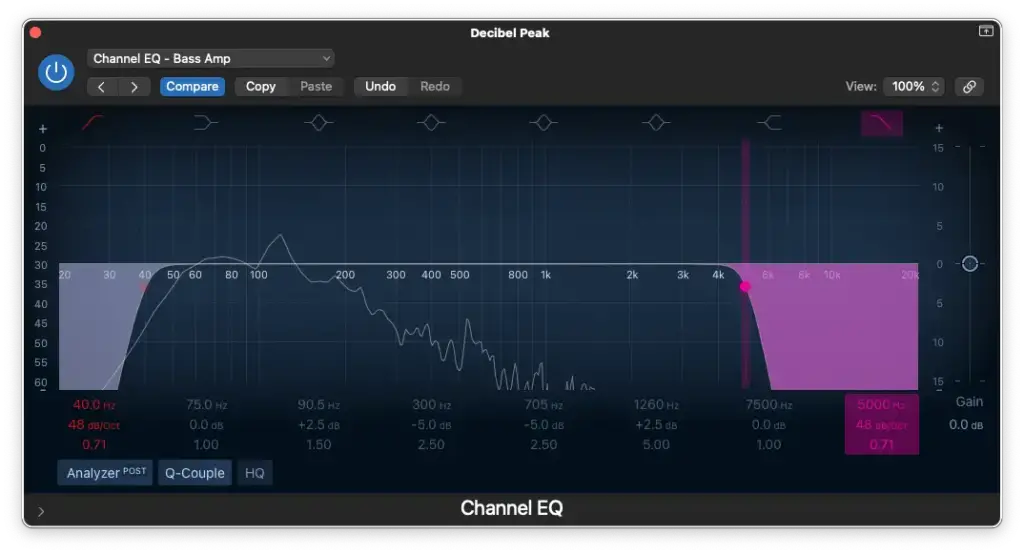
Follow these steps for a basic EQ setup for your “Amp/Amp Sim” track…
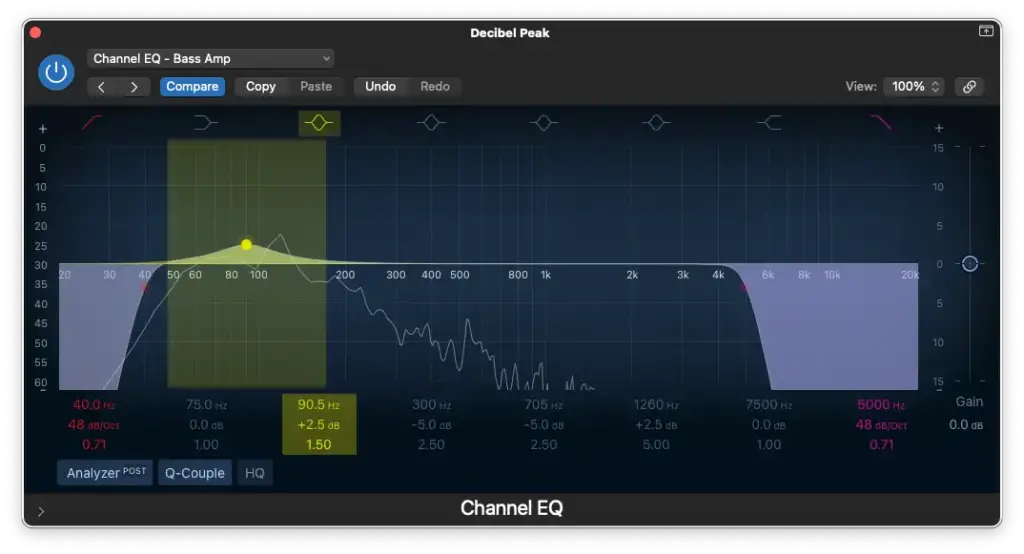
High-Pass Filter around 20 Hz – 60 Hz.
Low-Pass Filter around 5,000-10,000 Hz.
Boost between 60 Hz – 150 Hz.
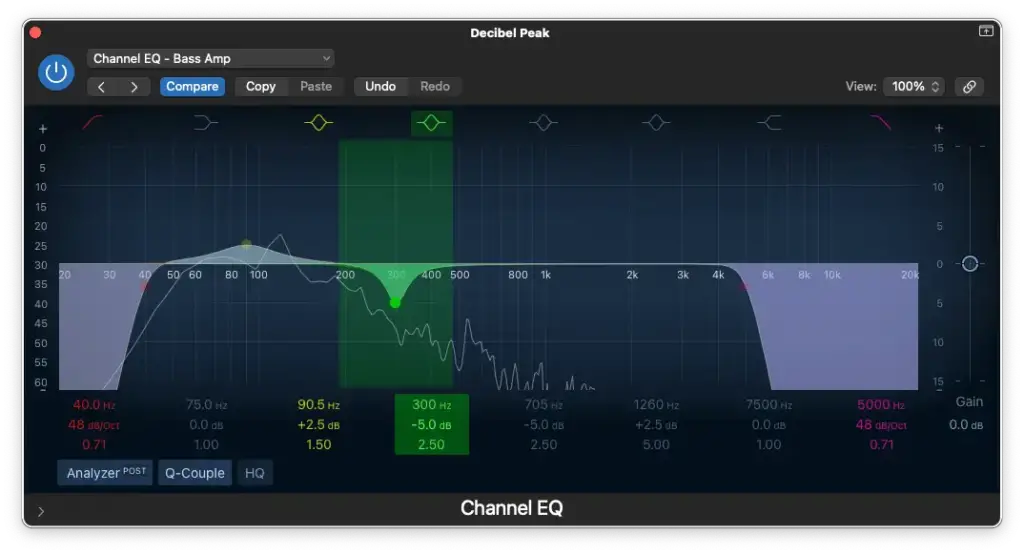
Cut between 150 Hz – 500 Hz.
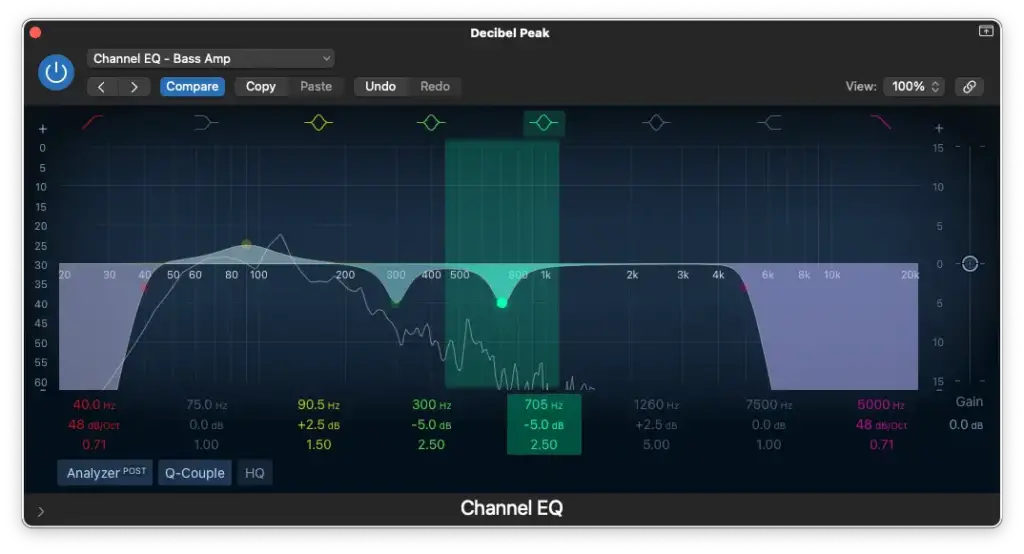
Cut between 500 Hz – 800 Hz.
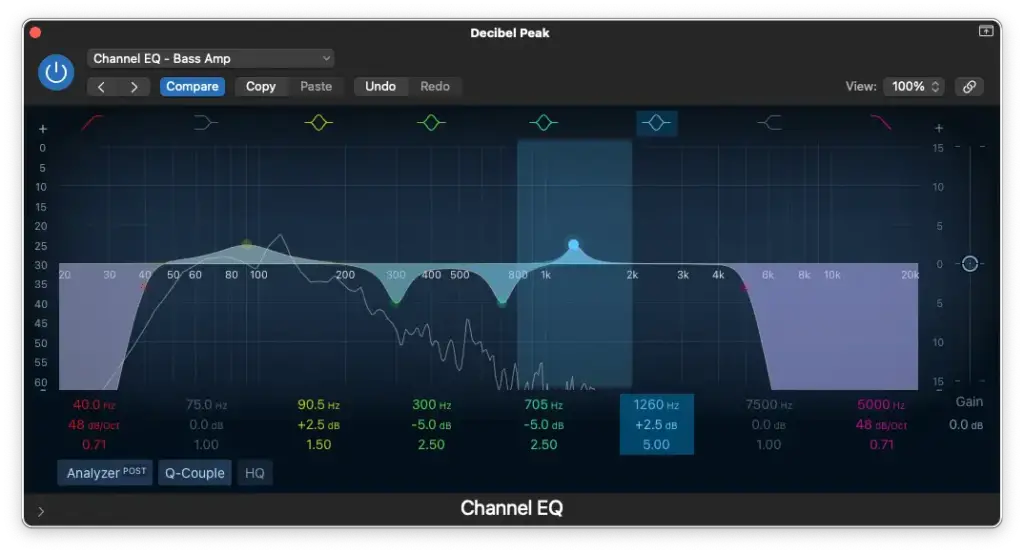
Boost between 1,000 Hz – 2,000 Hz.
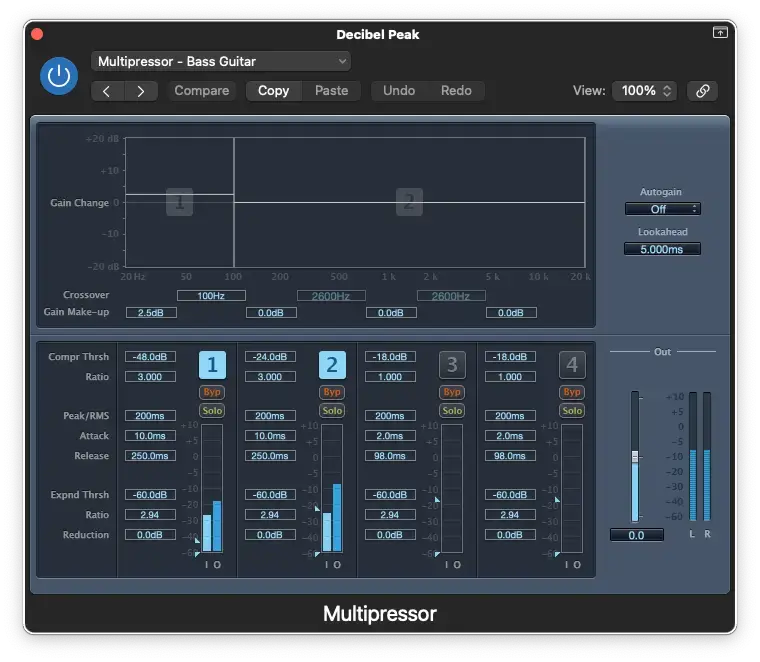
Insert a 2-Band Multipressor, and set the 1st band to end at 100 Hz.
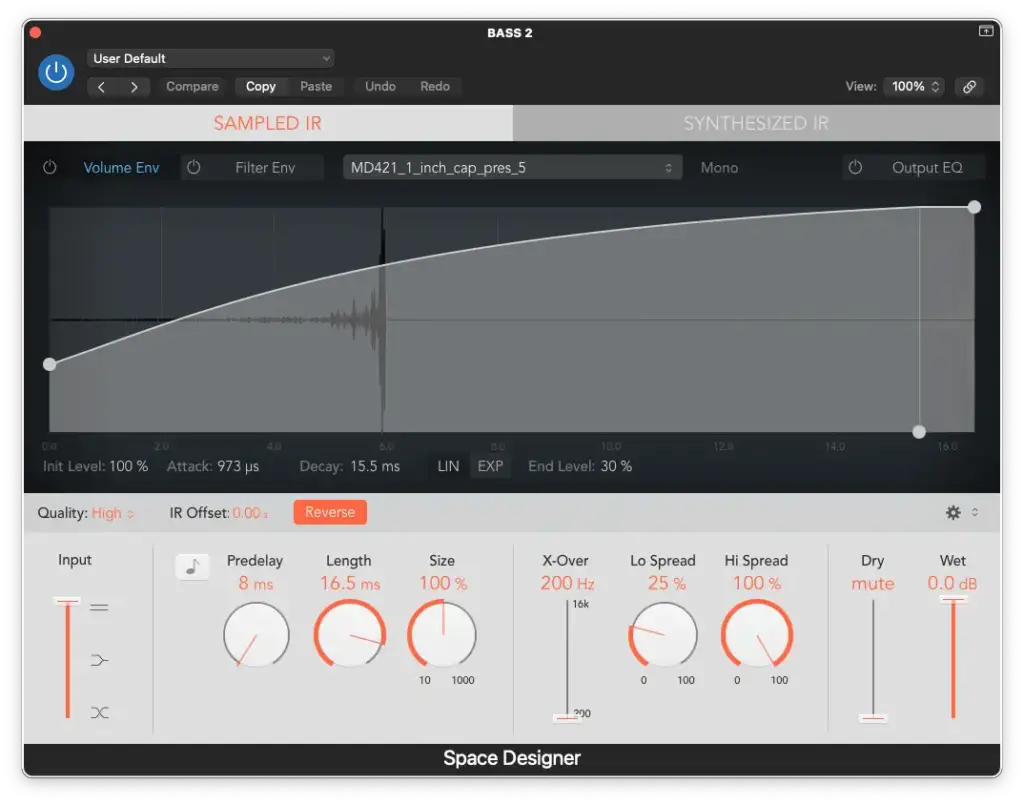
Insert a Space Designer and load an impulse response.
Advanced EQ Settings
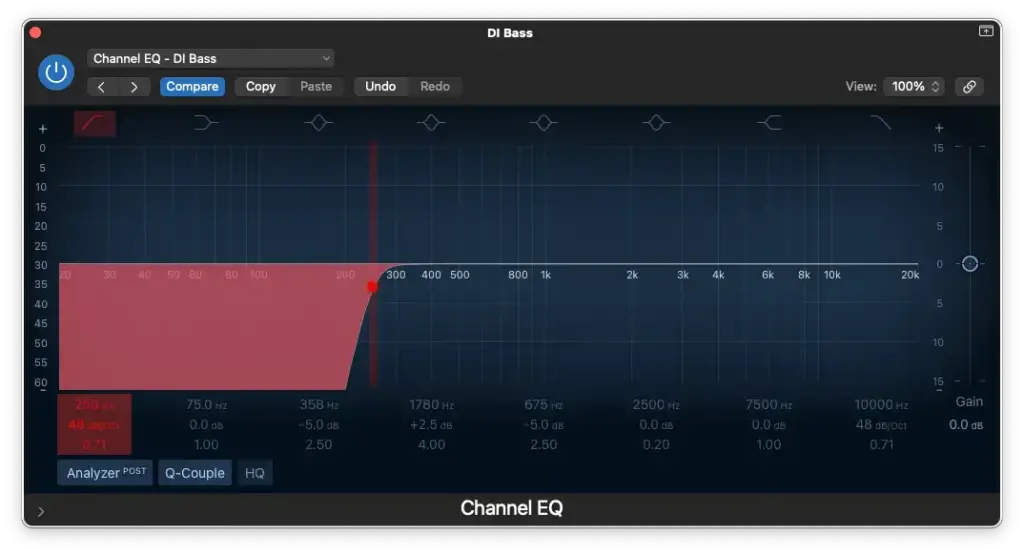
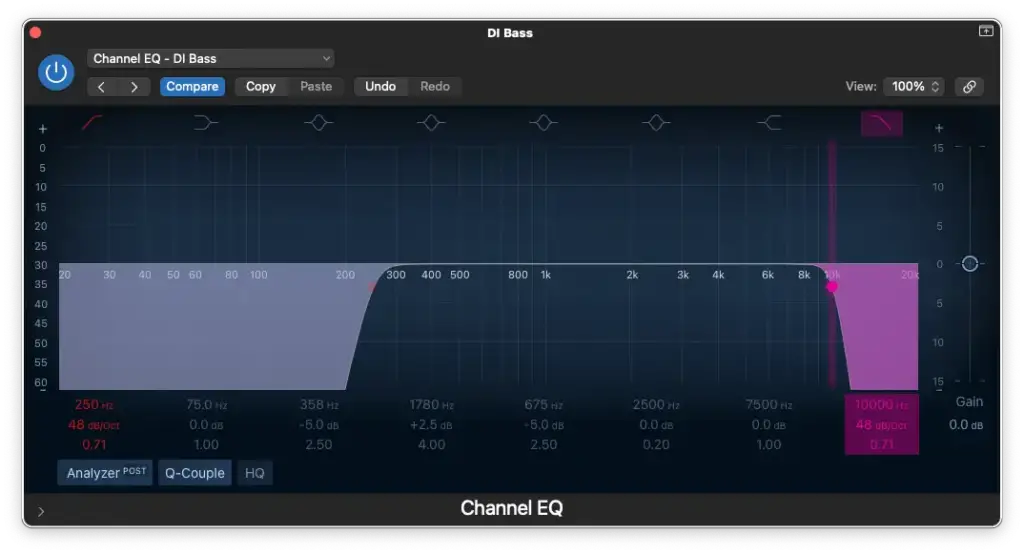
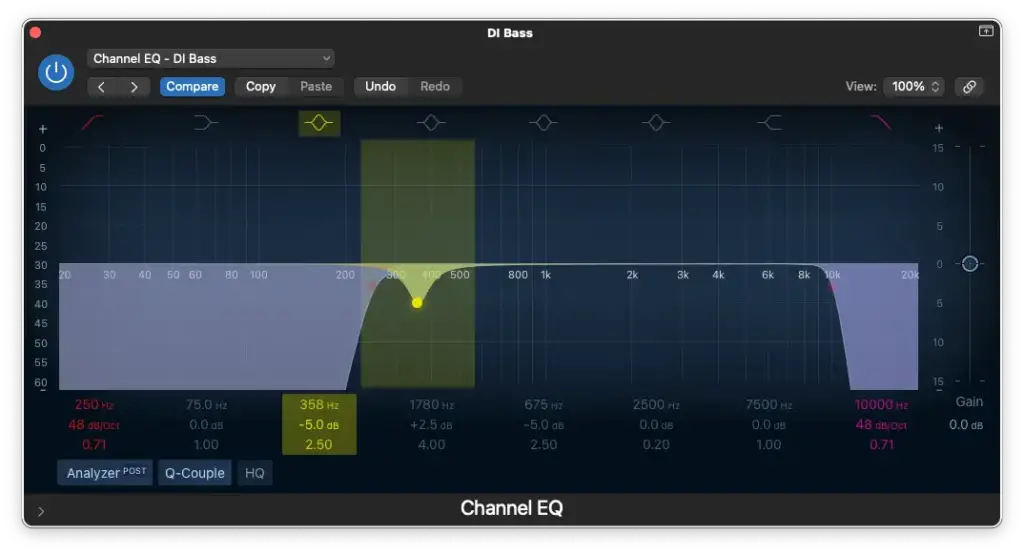
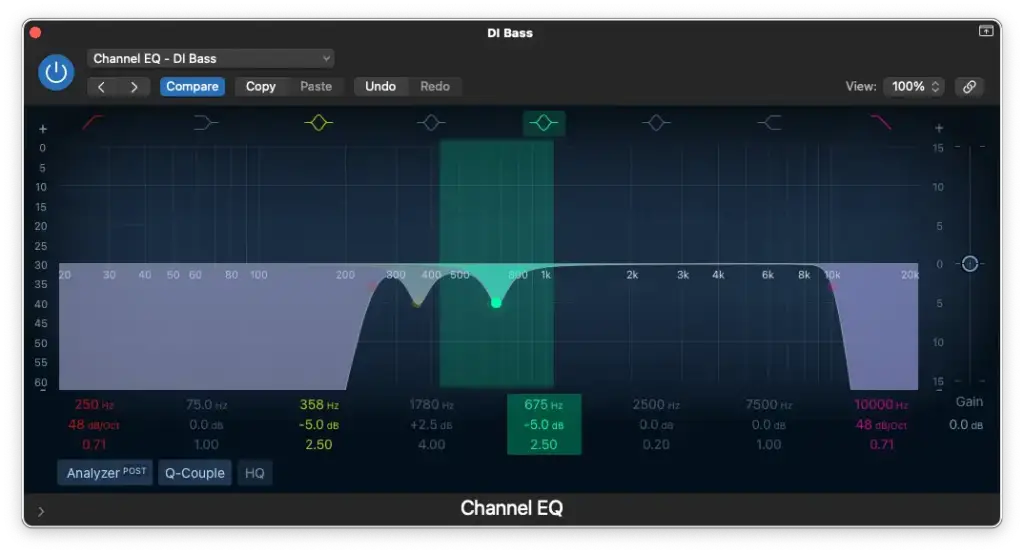
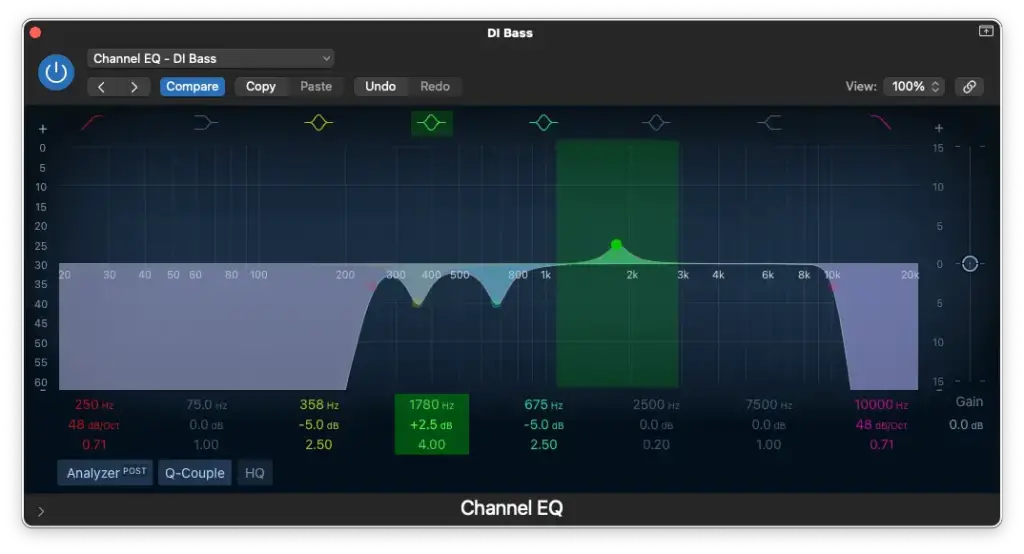
For more advanced EQ adjustments for your “DI Bass” track, follow these steps…
High-Pass Filter around 250 Hz.
Low-Pass Filter at 10,000 Hz.
Cut between 250 Hz – 800 Hz.
Boost between 1,000 Hz – 2,000 Hz.
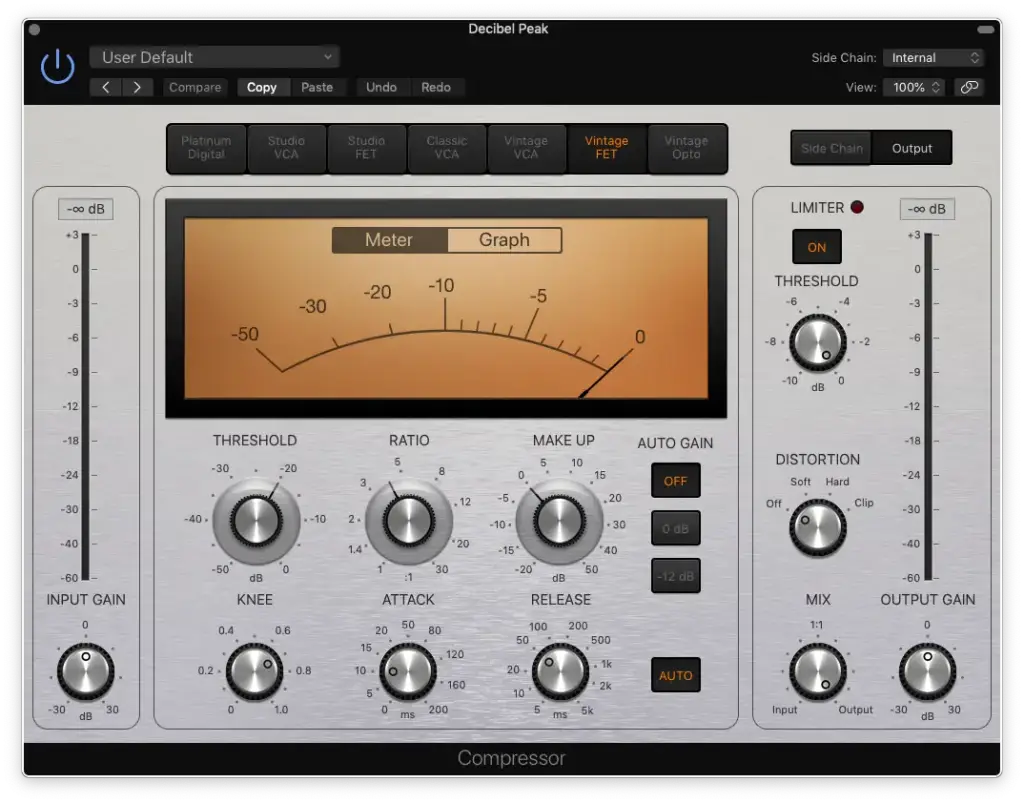
Compressor Settings
Applying compression to your bass guitar in Logic Pro X is essential for achieving a well-balanced mix.
Step 1: Set ratio to 4:1 Begin with a 4:1 compression ratio. This setting provides a subtle compression effect that maintains the natural character of the bass guitar.
Step 2: Set attack to 10ms A 10ms attack time is a good starting point for bass guitar. Adjust this value based on the interaction between your bass and kick drum, which will be discussed further in the “mixing bass guitar with your kick drum” section.
Step 3: Set release to “auto” Leaving the release time on “auto” is sufficient for bass guitar compression. It’s generally not a critical parameter for this application.
Step 4: Set make-up gain to 0dB Initiate the make-up gain at 0dB. You can make fine level adjustments using the output gain as needed.
Step 5: Set threshold to -20dB Maintain the threshold around -20dB, ensuring that you achieve 3-6dB of gain reduction. Adjust the input gain to align with the -20dB threshold effectively. Consistency across tracks is crucial, and this method helps maintain similar levels after compression.
Electric Guitar EQ and Compressor Settings
EQ Settings
High-Pass Filter: Use a high-pass filter to cut frequencies below around 80 Hz. This helps clean up the bottom-end without affecting the guitar’s core tone.
Low-Pass Filter: Apply a low-pass filter to cut frequencies above about 10 kHz. This focuses the energy in the guitar’s frequency spectrum.
Tweaking (Optional): Create notches and sweep through frequencies that may sound problematic or irritating. Reduce them by no more than 5 dB to address specific issues.
Compressor Settings
Threshold: Determine the level at which your compressor starts compressing. Lower values mean more compression. Aim for about 6 dB of gain reduction.
Ratio: Set the ratio to control the degree of gain reduction above the threshold. A 3:1 ratio is often suitable for guitars.
Make-Up/Output: Use this parameter to compensate for the loss of amplitude due to compression. Match it to the initial amplitude before compression (typically around 6 dB if you reduced by that amount).
Knee: Choose between a soft knee (smooth) or hard knee (aggressive) to shape the compression curve. For a natural sound, opt for a soft knee.
Release: Adjust the release time to determine how long the compressor holds onto the signal. A setting around the middle offers a natural response.
Piano EQ and Compressor Settings
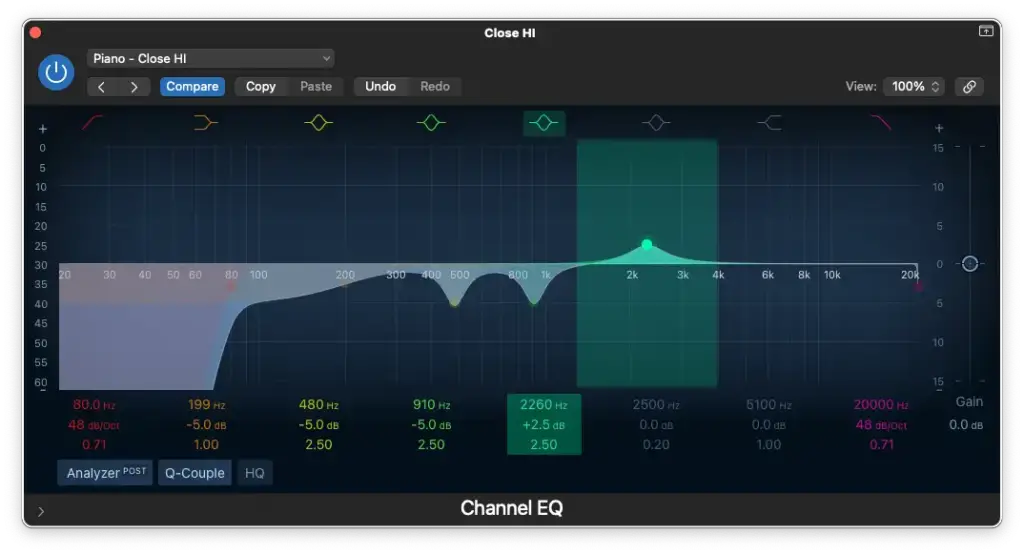
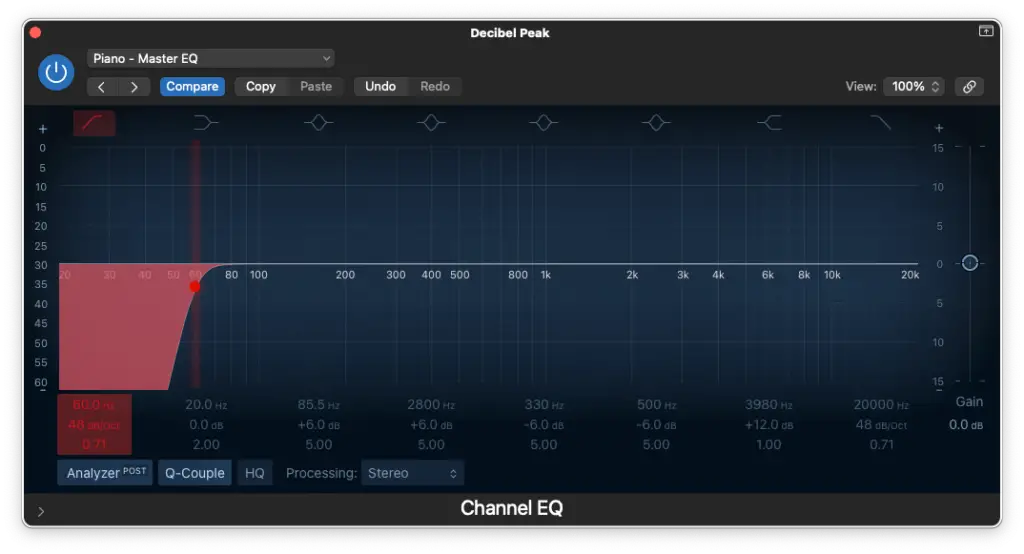
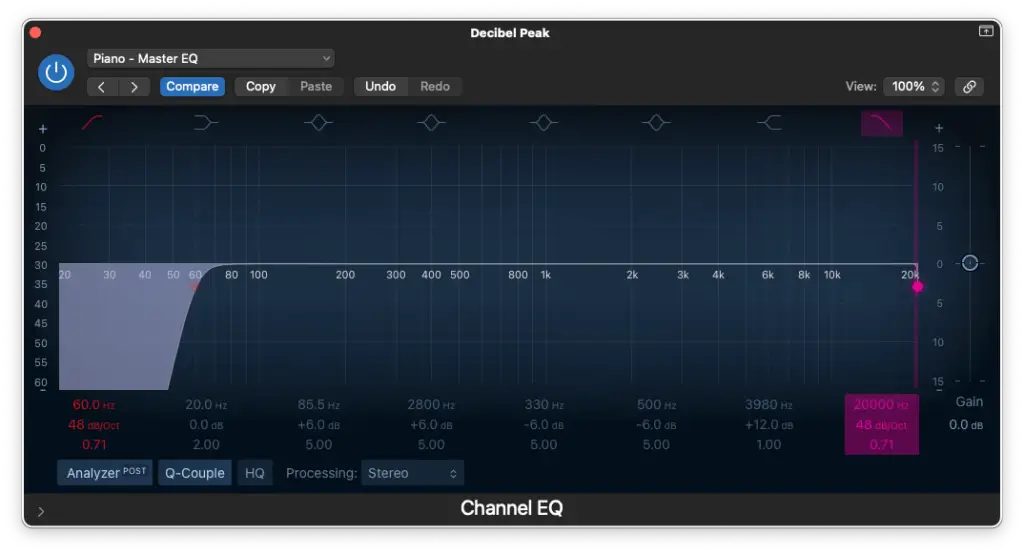
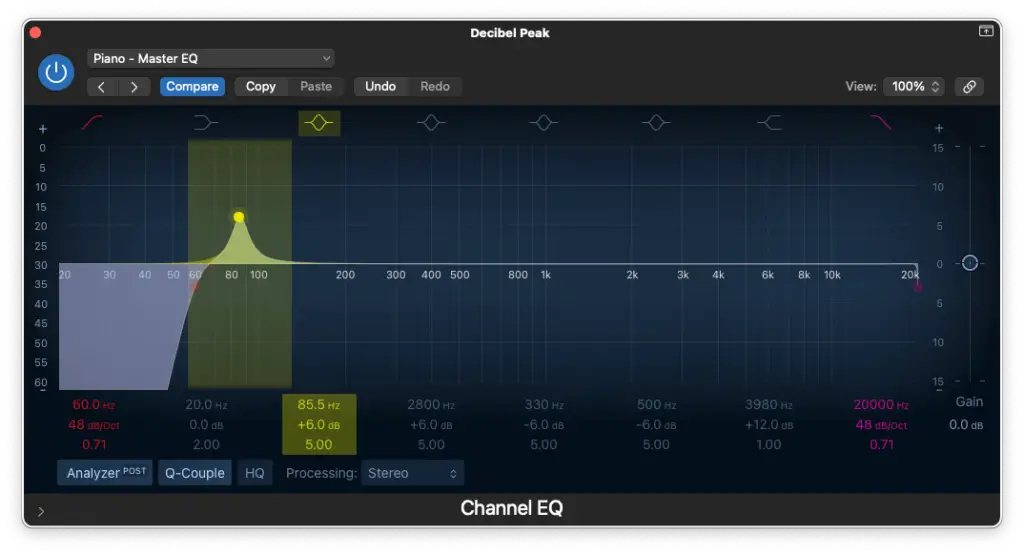
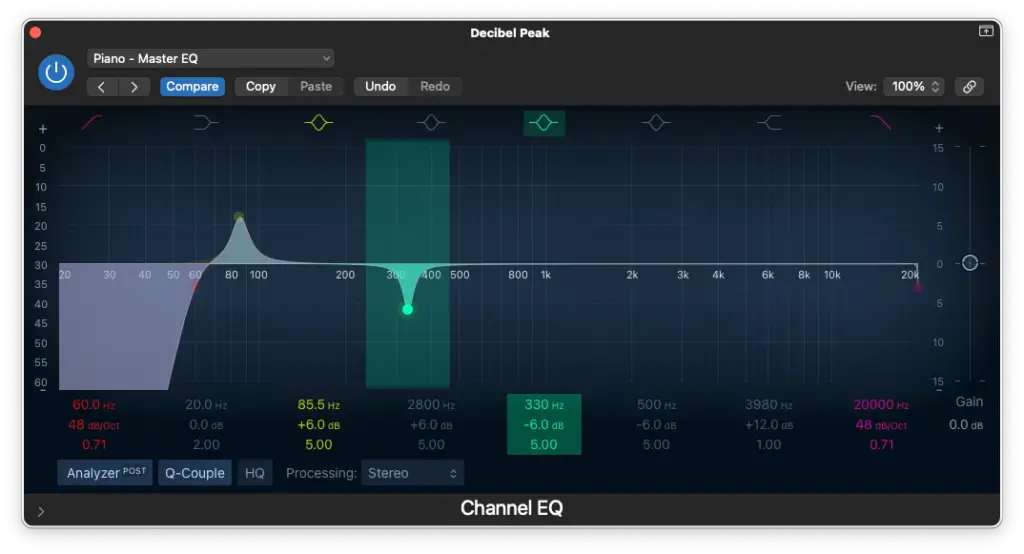
Increase your piano’s presence and clarity with the following EQ settings for both beginners and those looking for advanced precision.
Basic EQ Settings
Begin with these settings to enhance your piano’s sound globally.
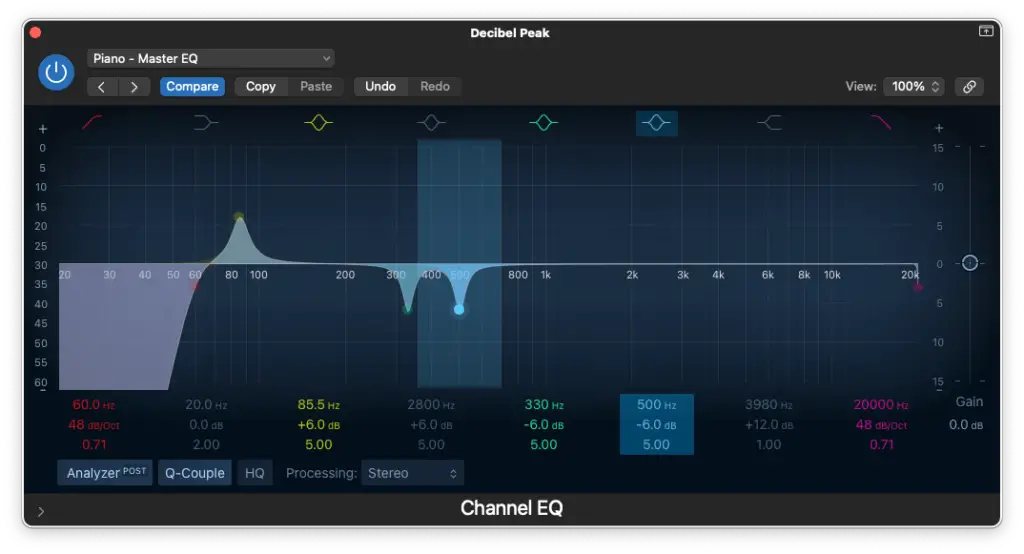
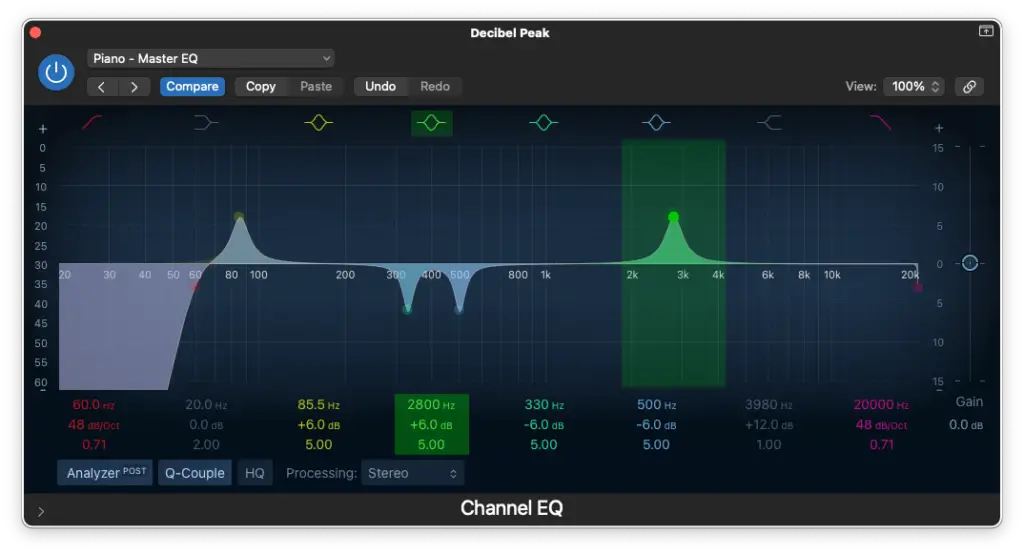
High-Pass Filter around 60 Hz – 80 Hz
Low-Pass Filter at 20,000 Hz
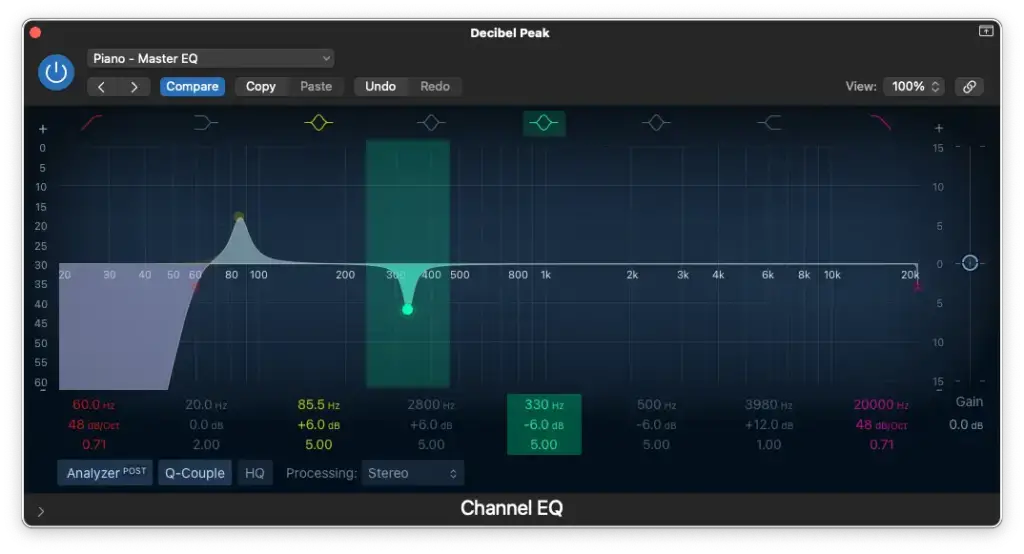
Boosting/Cutting around 80 Hz – 120 Hz
Cutting between 200 Hz – 500 Hz
Boosting around 1,000 Hz – 2,000 Hz
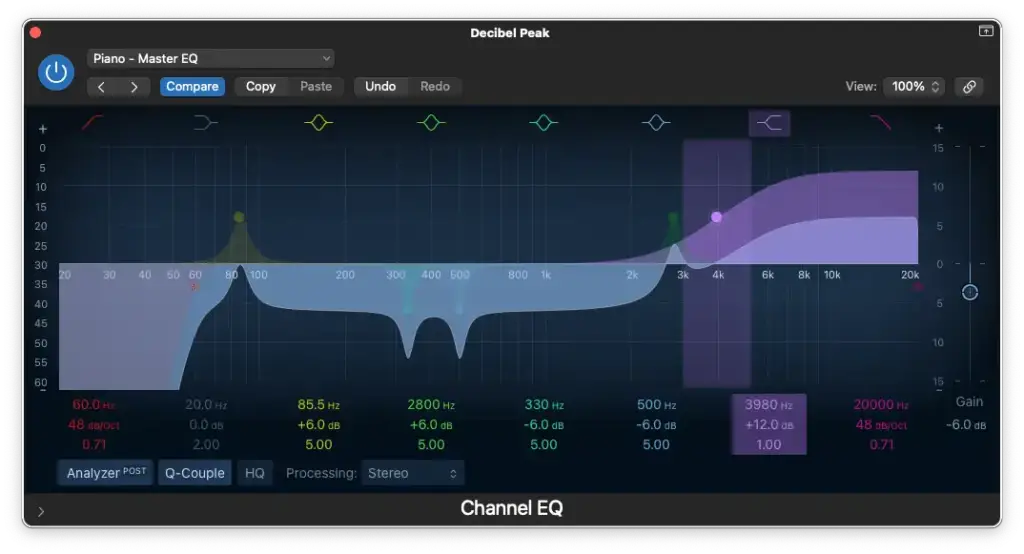
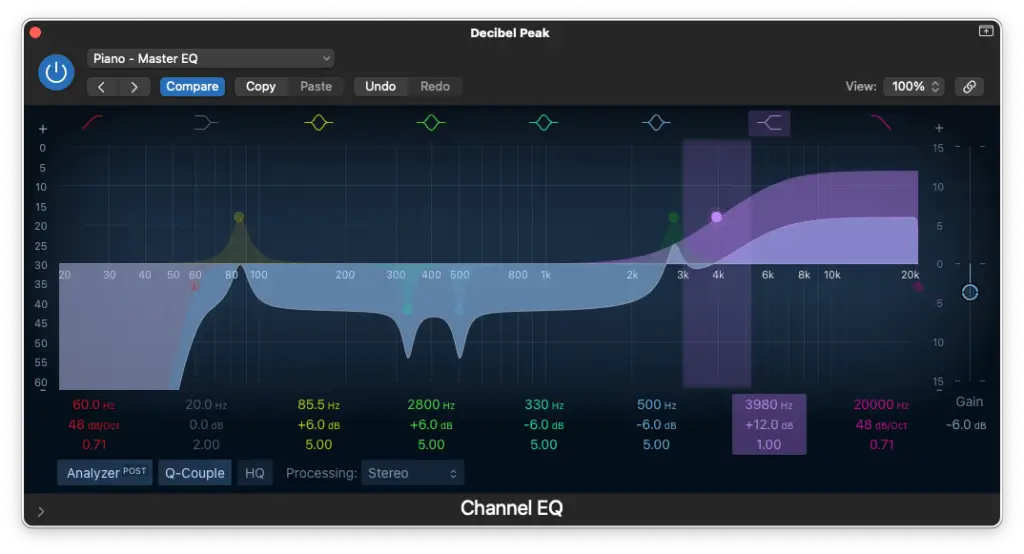
High-Shelf Boost around 4,000 Hz
Advanced EQ Settings
For more precision, tailor your EQ settings for individual microphone positions.
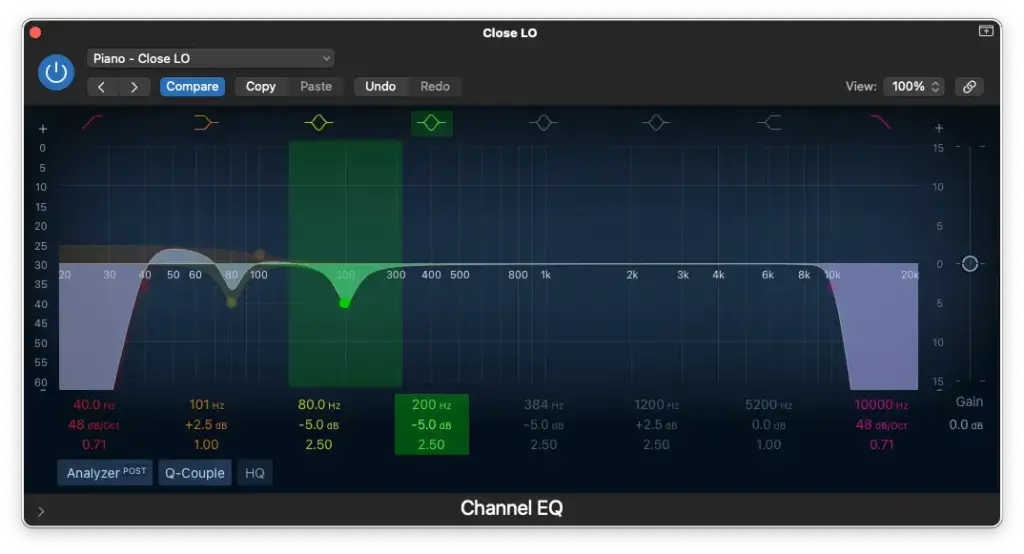
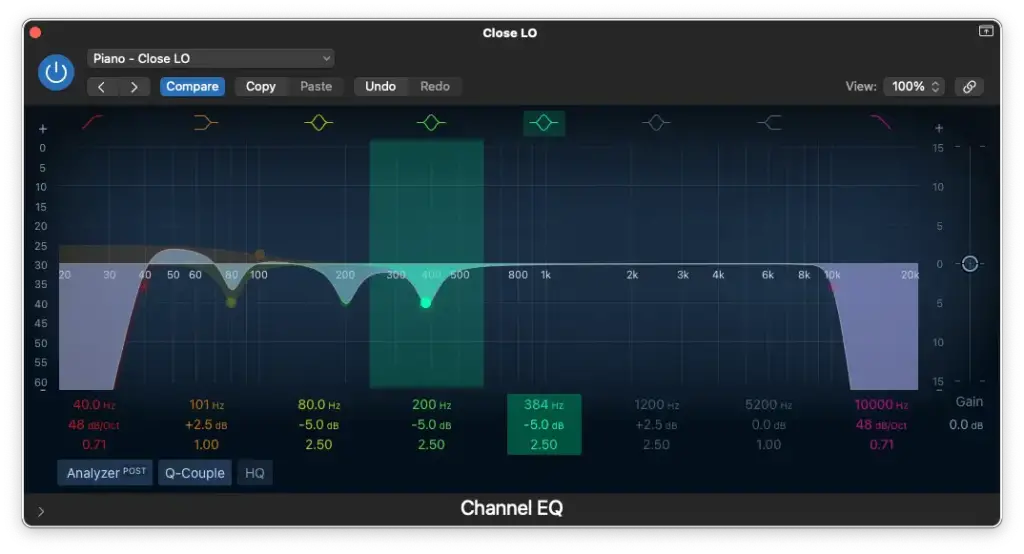
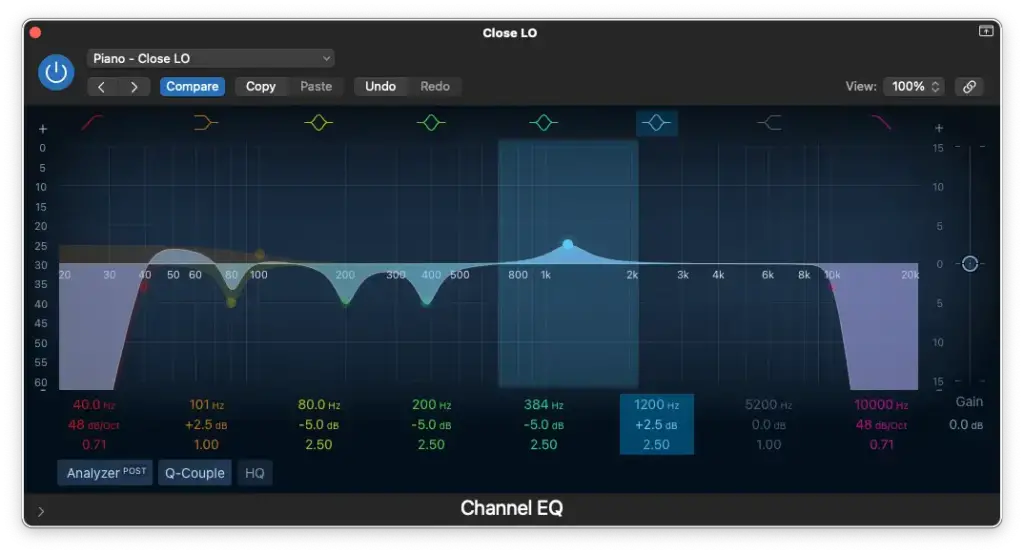
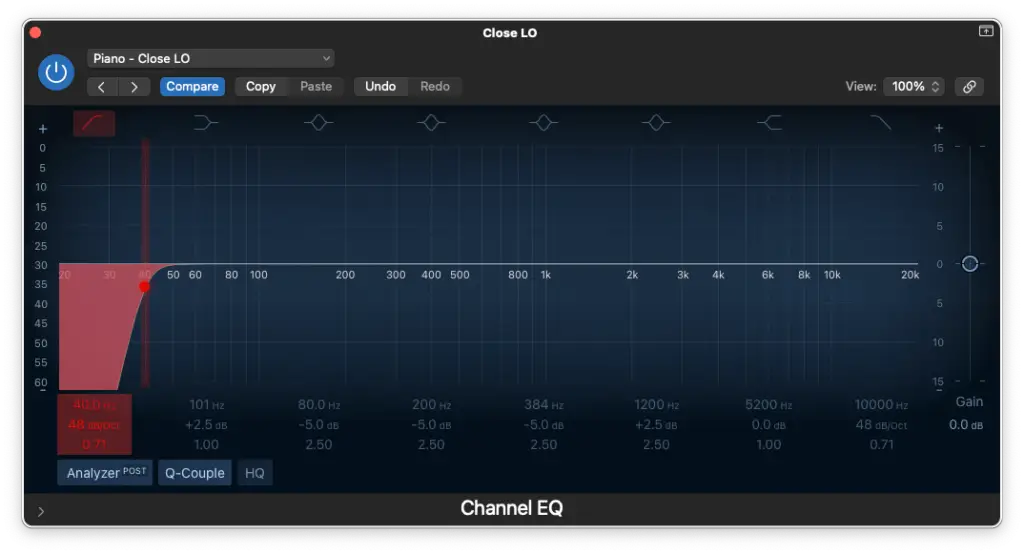
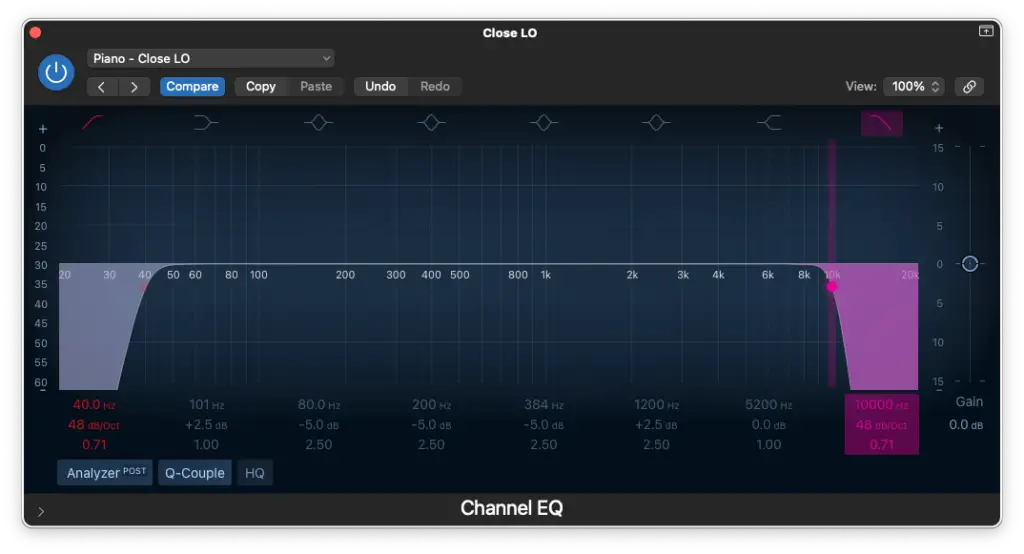
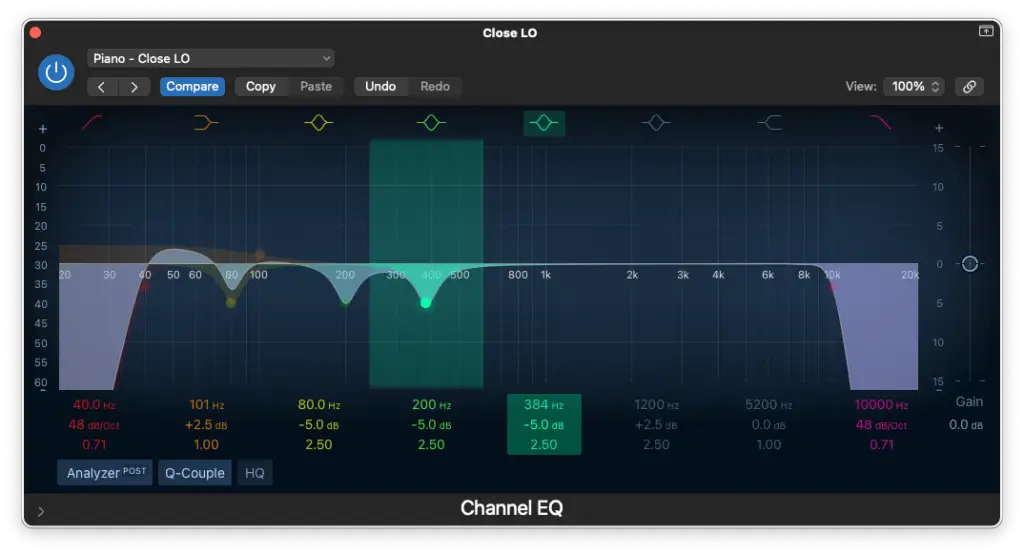
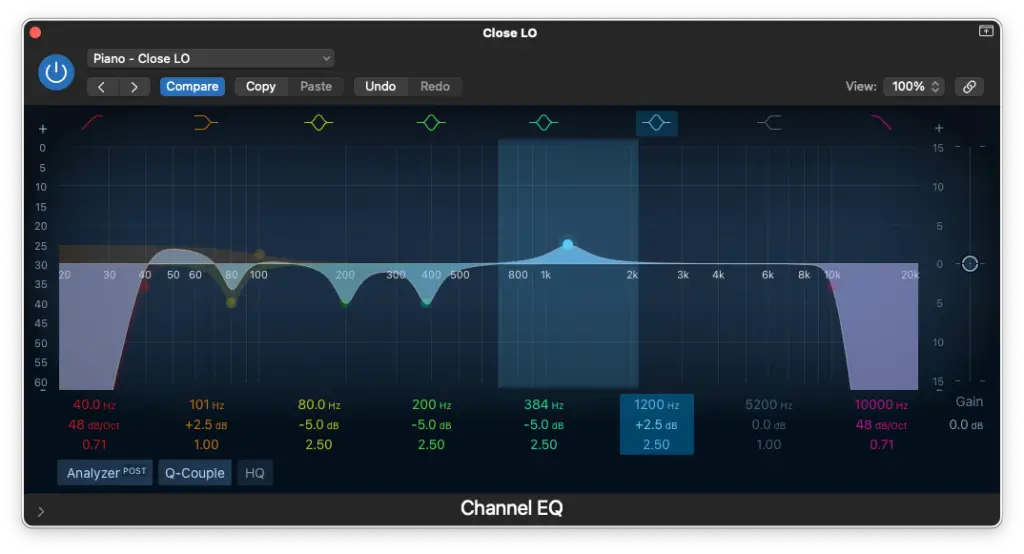
Close Microphone Position (Left/Low)
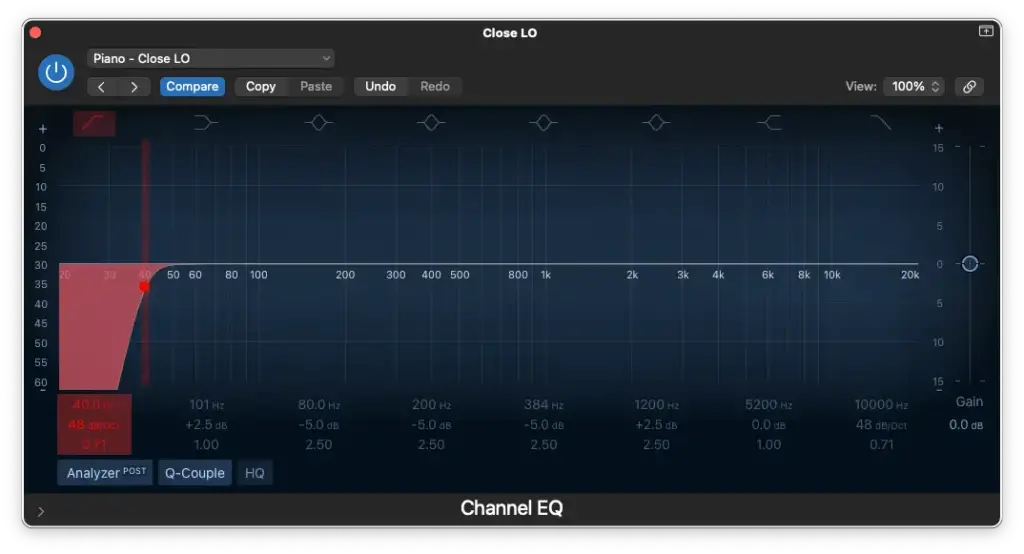
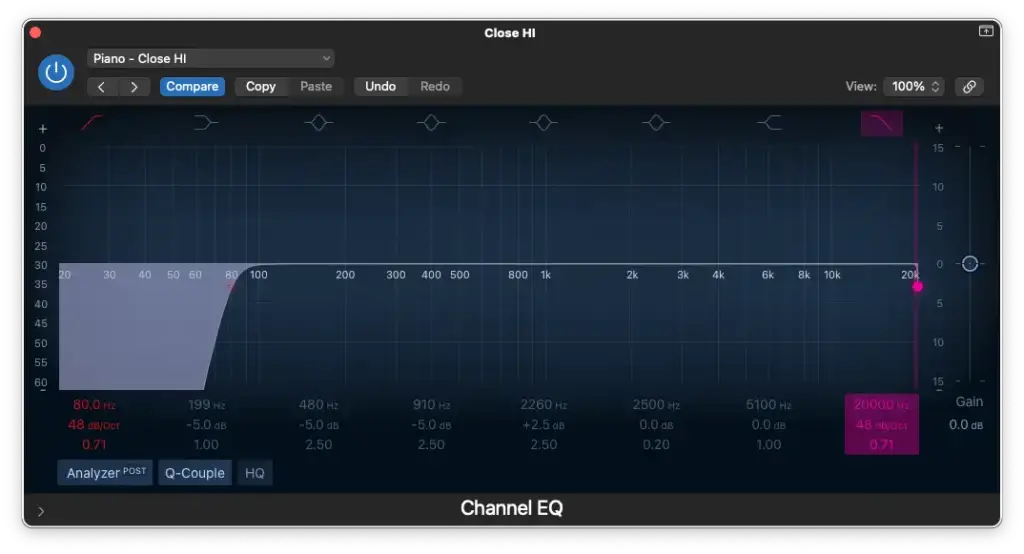
High-Pass Filter around 40 Hz – 60 Hz Maintain or enhance the low-end with a high-pass filter. Adjust to accommodate the microphone’s proximity to the piano.
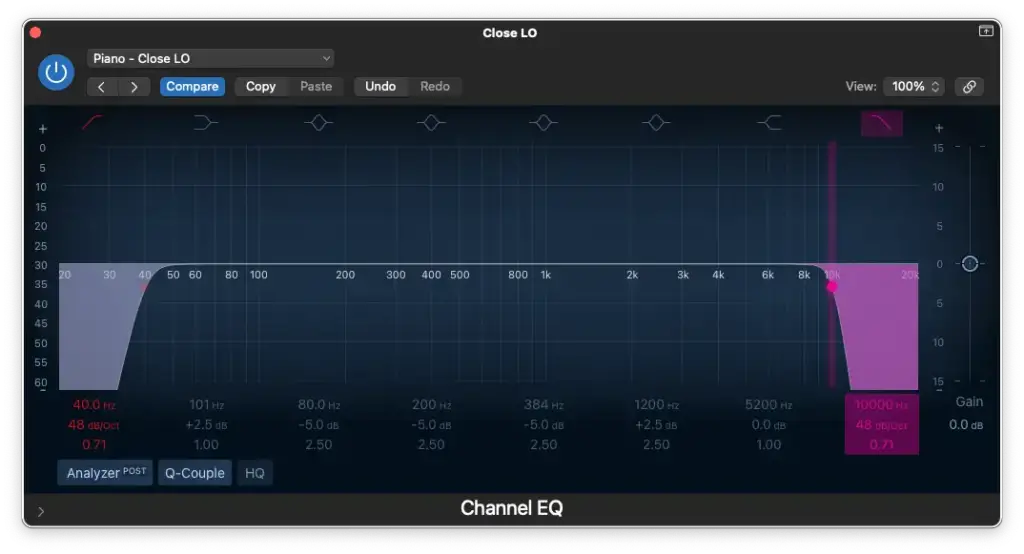
Low-Pass Filter at 10,000 Hz Darken the tone slightly by applying a low-pass filter at 10,000 Hz. Maintain the filter to avoid excessive high-frequency content.
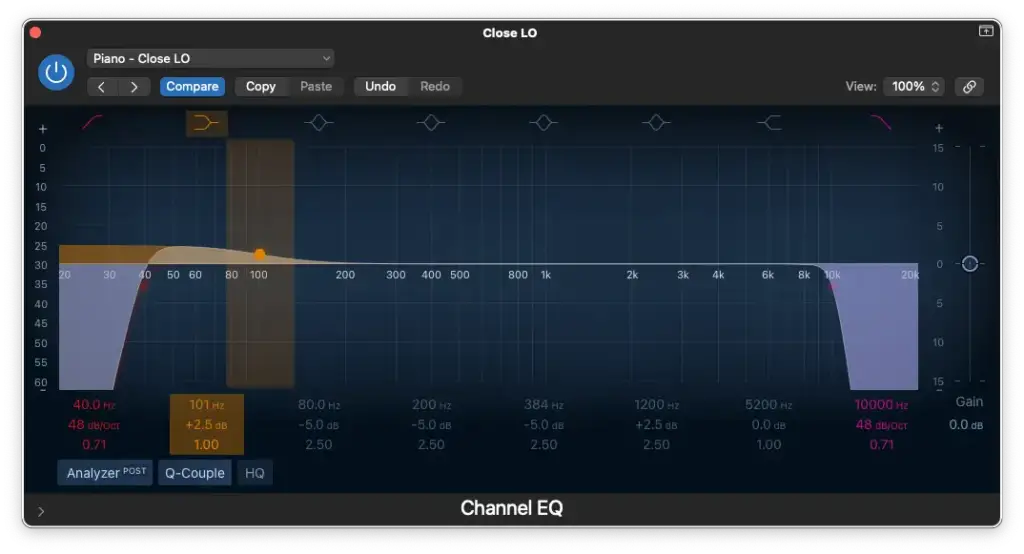
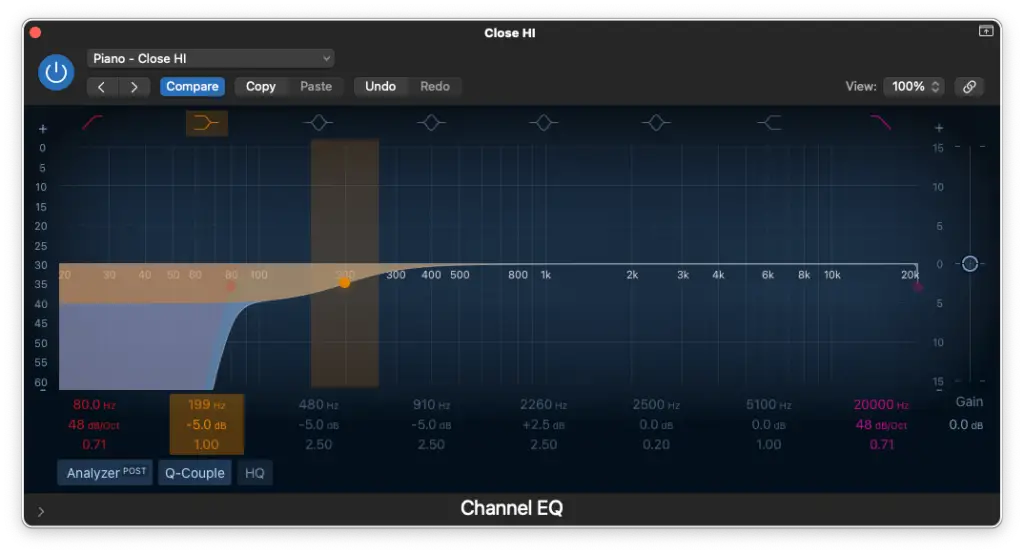
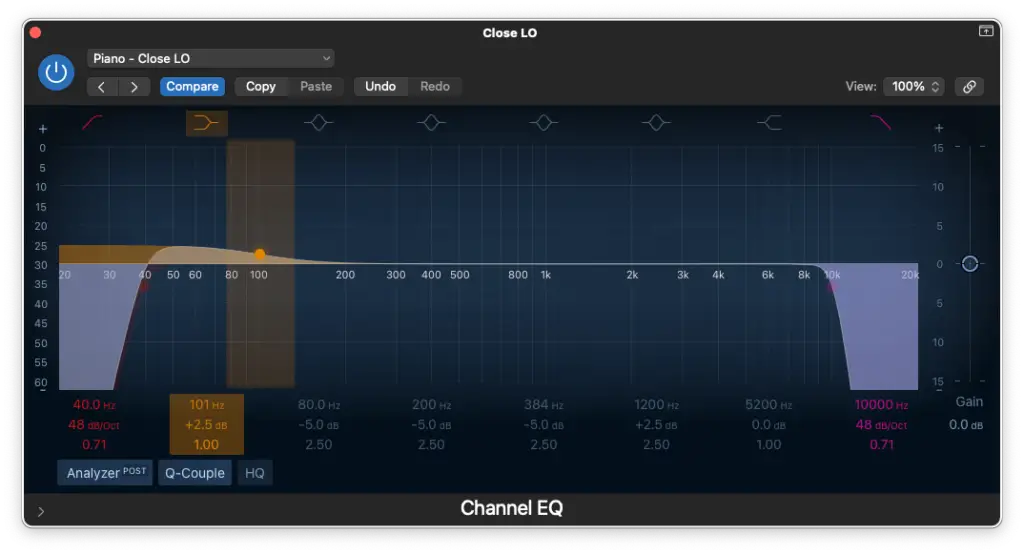
Low-Shelf Boost around 100 Hz Add thickness to the low-end by slightly boosting around 100 Hz.
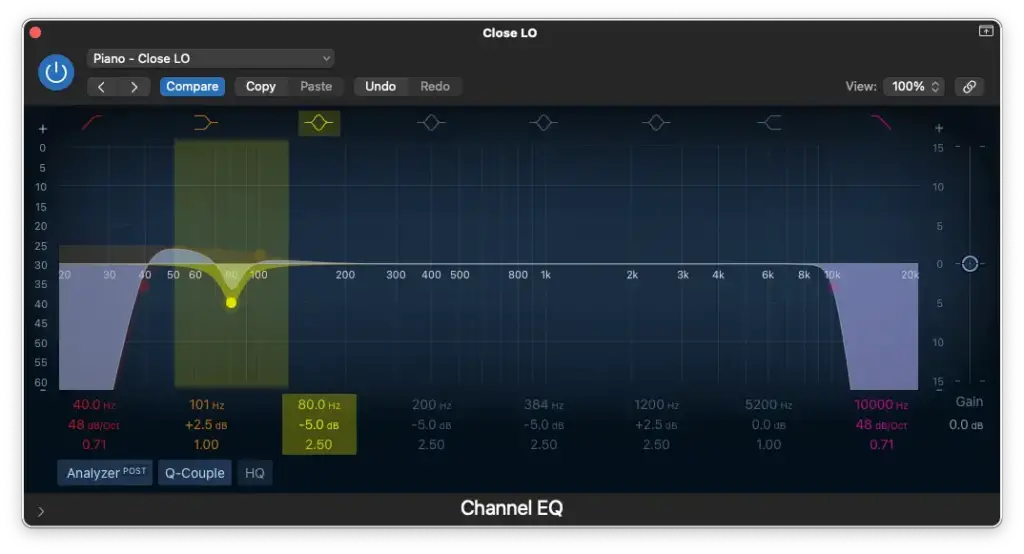
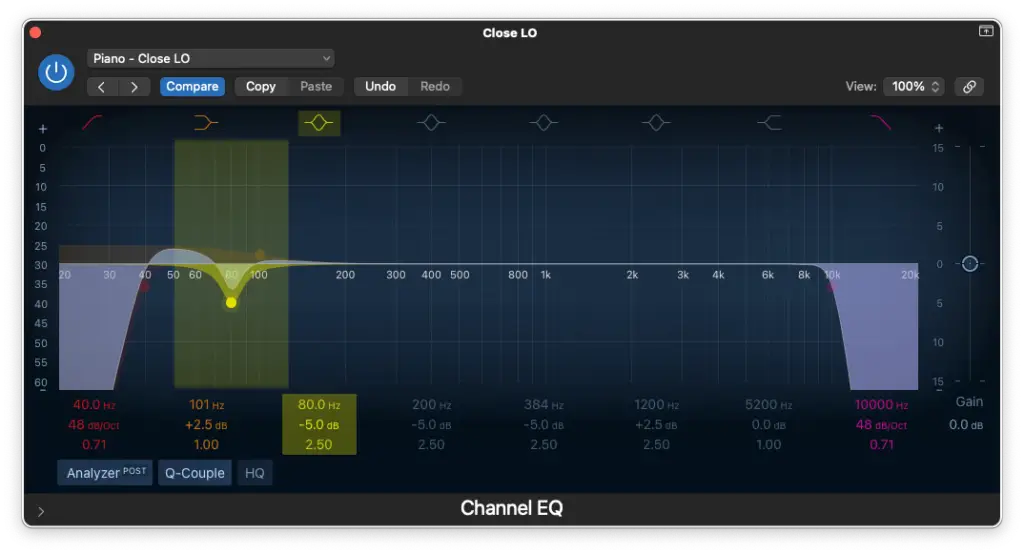
Cutting around 80 Hz – 100 Hz Create definition in the low-end by making precise cuts between 80 Hz and 100 Hz. This action can enhance the results of the previous low-shelf boost.
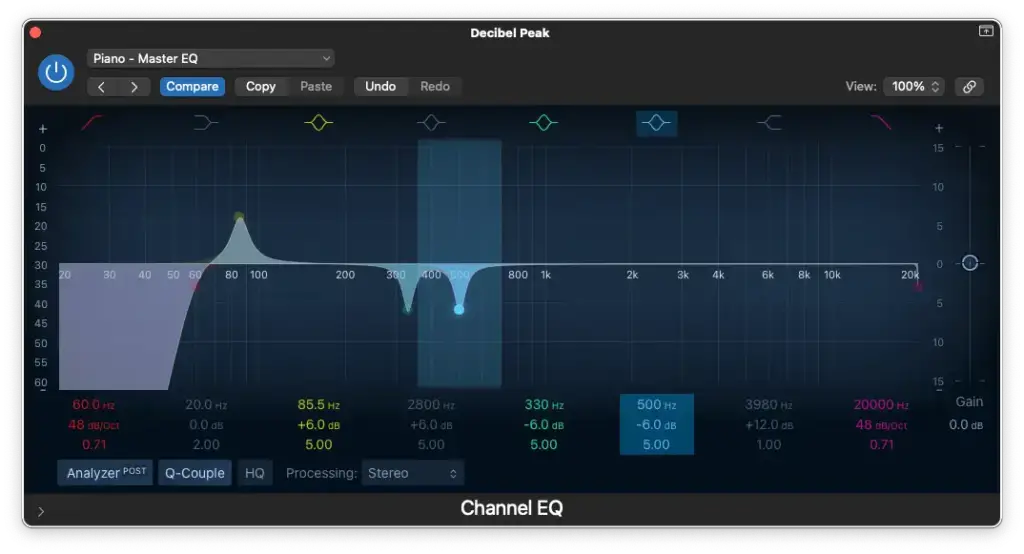
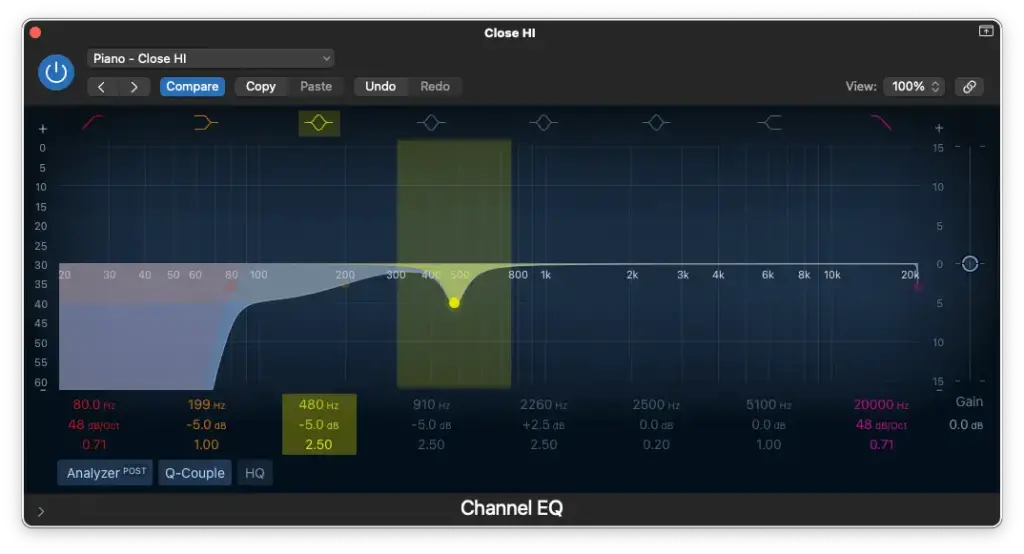
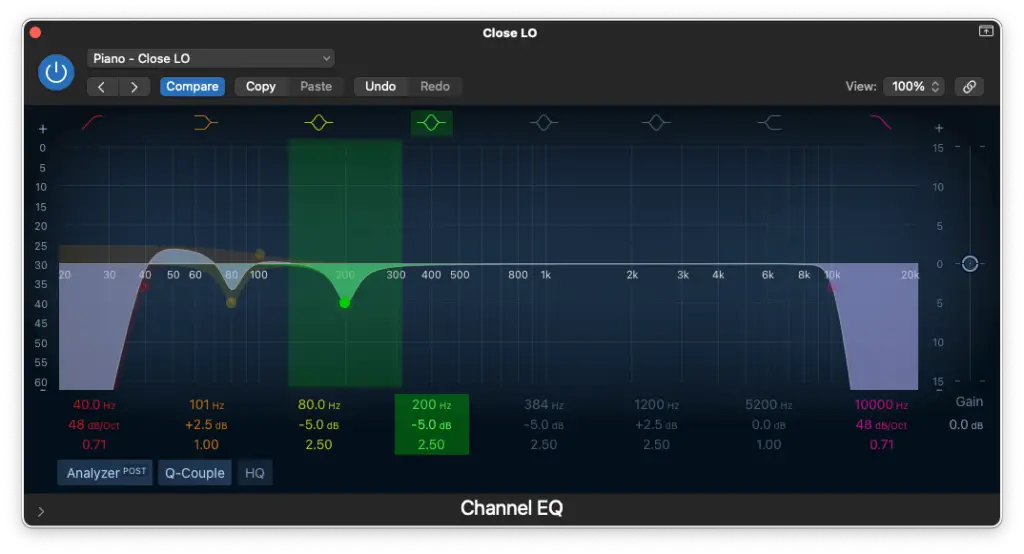
Cutting between 200 Hz – 500 Hz Refine the mids by making cuts between 200 Hz and 500 Hz. This step is crucial for eliminating troublesome frequencies.
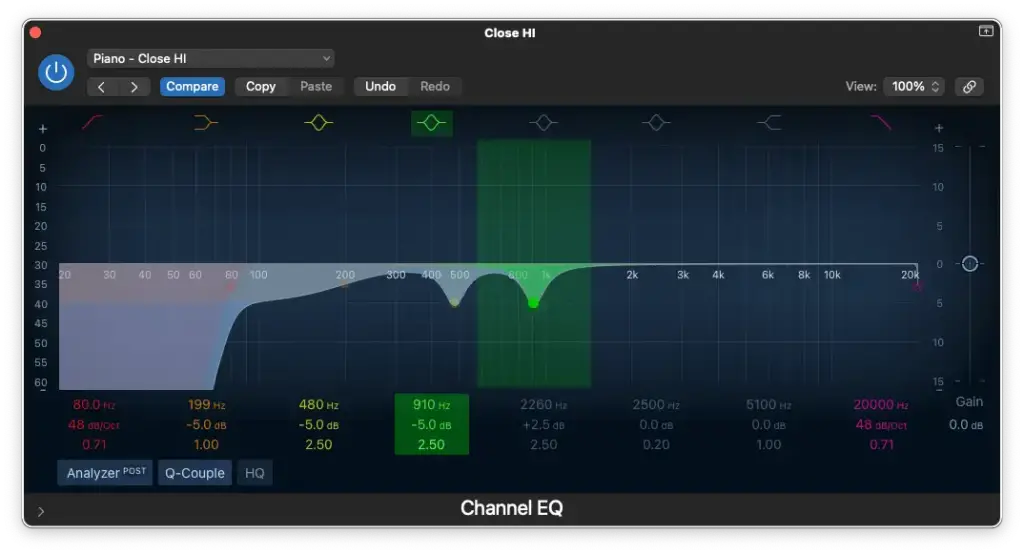
Boosting around 1,000 Hz Add some crunch to the sound by boosting around 1,000 Hz. Experiment to find the preferred level of crunch.
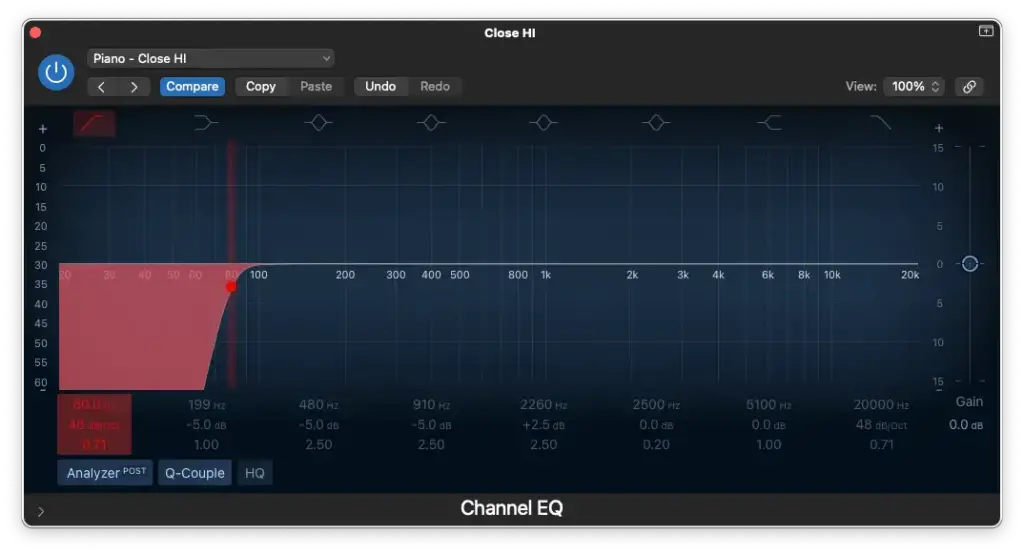
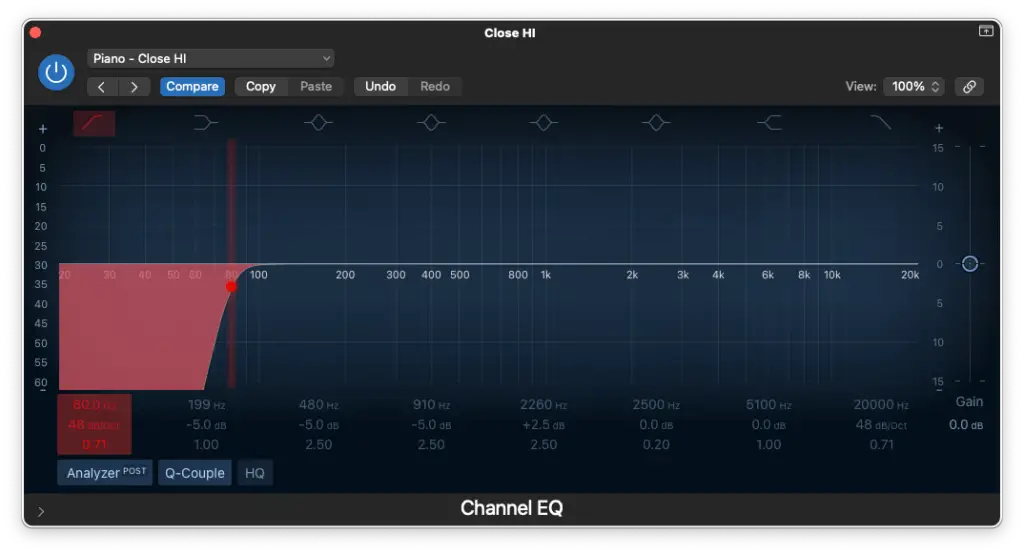
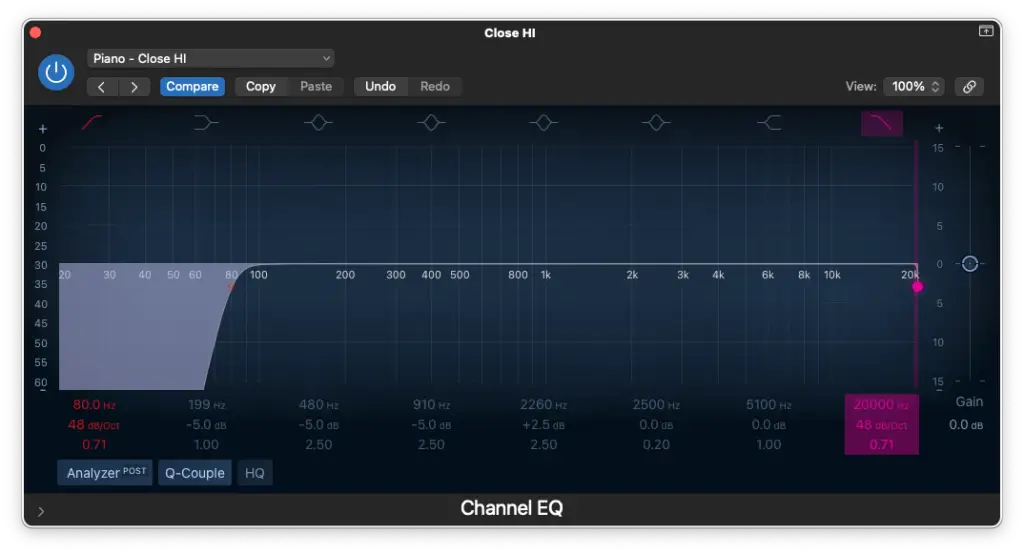
Close Microphone Position (Right/High)
High-Pass Filter at 80Hz – 100 Hz Free up space in the right-hand by applying a high-pass filter between 80 Hz and 100 Hz. Eliminate unnecessary low frequencies.
Low-Pass Filter at 20,000 Hz Maintain audio cleanliness by setting a low-pass filter at 20,000 Hz. Preserve the upper frequencies.
Low-Shelf Cut around 100 Hz – 200 Hz Balance the tonal properties of the left and right channels by cutting around 100 Hz to 200 Hz in the right microphone.
Cutting between 500 Hz – 1000 Hz Define the high-mids by making precise cuts between 500 Hz and 1000 Hz. Avoid targeting the same frequencies twice with multiple EQ adjustments.
Boosting around 2,000 Hz Enhance brilliance and sparkle by boosting around 2,000 Hz in the right microphone.
Vocals EQ and Compressor Settings
Vocal Ranges
Begin by understanding your vocalist’s range, whether they are male or female, baritone or soprano. Knowing this will guide your EQ decisions. Different vocal ranges require different treatment, and it also affects the choice of microphone. Microphones aren’t transparent; they add their own character to the sound. So, consider your vocalist’s characteristics, microphone type, and how they’ll blend in the mix.
Here’s a quick reference to vocal ranges:
Baritone: A2 – F4
Tenor: C3 – A4
Alto: G3 – A5
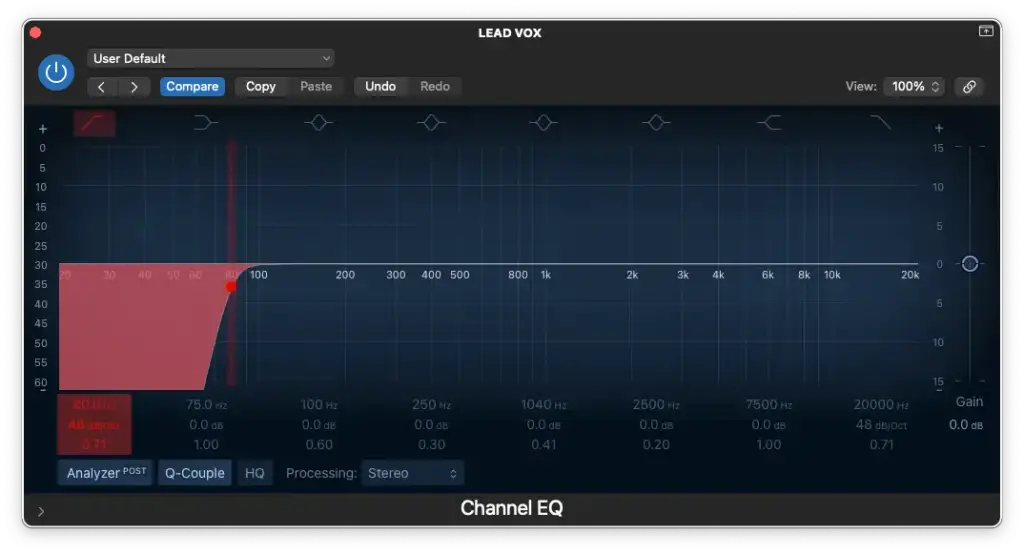
Soprano: C4 – A5
EQ Settings
High-Pass Filter around 60 Hz – 200 Hz
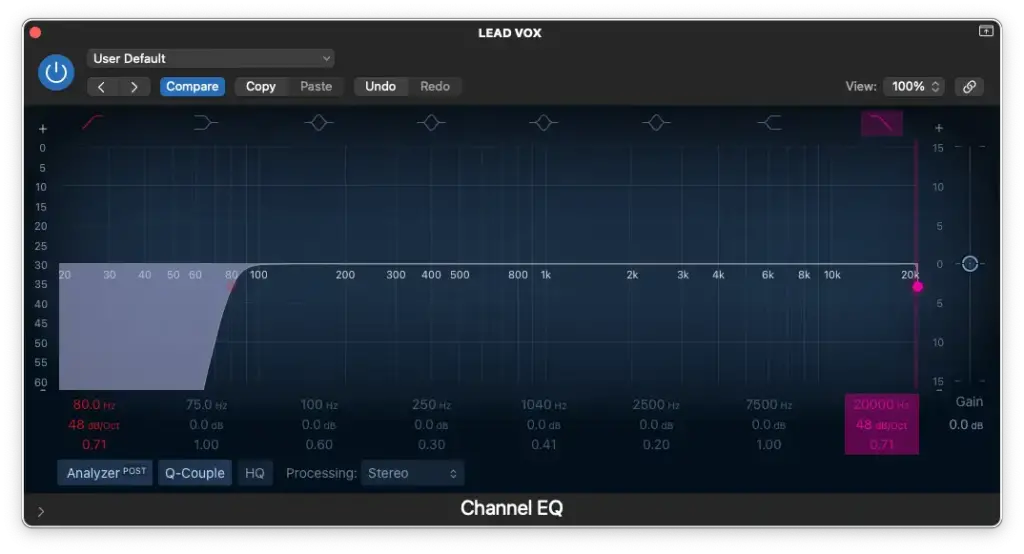
Low-Pass Filter at 20,000 Hz
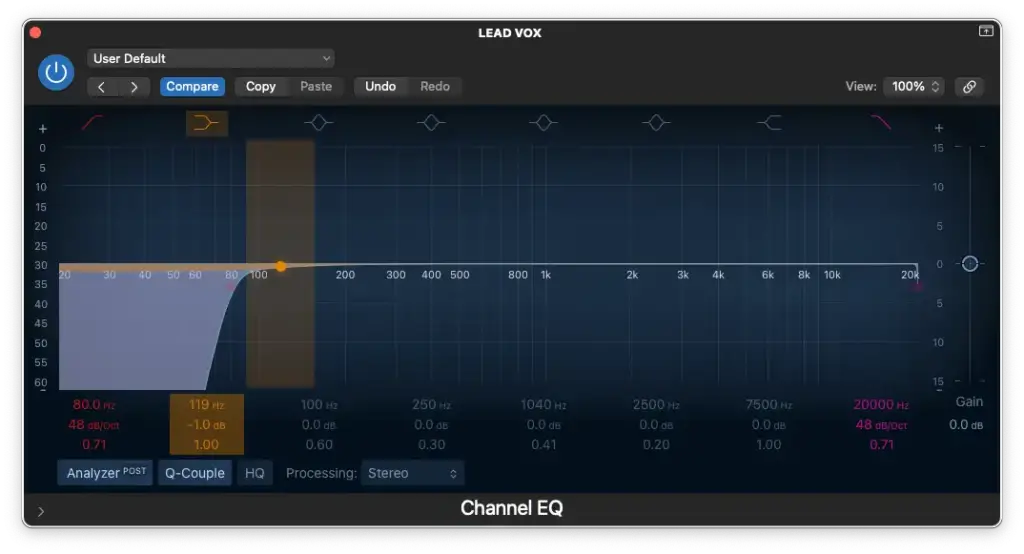
Low-Shelf around 100 Hz – 200 Hz (for male vocals)
Cutting around 200 Hz – 500 Hz (to reduce muddiness)
Boosting/Cutting around 800 Hz – 1,000 Hz (to adjust nasality)
Boosting around 1,000 Hz – 2,000 Hz (for added bite)
Boosting around 5,000 Hz – 8,000 Hz (for presence)
High-Shelf around 10,000 Hz – 15,000 Hz (for airiness)
Frequently Asked Questions (FAQ): Mixing and Mastering
How is mastering different from mixing?
Although almost all of the same plugins are used for both, mixing and mastering are quite different.
It’s all about the INTENTION.
Mixing involves lots of “cleaning up” and techniques that assist the individual tracks in sounding like they belong together. That comes by accentuating certain characteristics and obscuring others.
Mastering, on the other hand, is much more focused on loudness.
Of course, some colouration can still be done in the mastering phase but it’s much more subtle and aimed at the final product.
Technically speaking, you could get your track to sound EXACTLY the way you want it in the mixing phase and simply use a limiter and loudness meter to get your track up to industry standard.
That being said, mastering is just as subjective as mixing.
Personally, my tracks just wouldn’t sound the same without my mastering chain. It’s like a signature sound that you can apply to anyone’s music.
How loud should a master be?
Nowadays, we measure loudness in Loudness Units (LUFS).
That being said, you’ll find that most tracks (we’re talking about popular music here) average -10 LUFS.
Does that mean that your track needs to be as loud?
It really depends on the genre and how much dynamic range you want to preserve. Part of what makes your track “louder” is the level of compression.
If you go too far, you’ll also end up with an unpleasantly distorted master.
I personally aim for -10 LUFS and it usually gets me the results I’m looking for. However, I always tell myself “as loud as possible without compromising tonal quality”.
In other words, prioritize the SOUND over the actual loudness.
How loud should a mix be before mastering?
If you ask me, you should aim to get your mix to average -18 dB.
You can read more about that HERE, but let’s just say it’ll come in handy if you’re using any analog modelled plugins on your master bus.
Either way, the truth is it doesn’t really matter BECAUSE…
You can just as easily reduce the level before any particular plugins by using a trim/output gain knob (which is present in the EQ and Compressor in Logic Pro X).
How can you make a mix sound good on all devices?
It may not be the answer you’re looking for, but…
You’ll simply need to go through LOTS of trial and error before getting your mix to sound good on all devices. That’s why I prefer to mix and master a track in TWO HOURS OR LESS.
I never said that I don’t eventually go back to tweak things!
The reality is that you could spend DAYS refining your mix with your setup, but you have no idea what it’ll sound like on someone’s earbuds.
So, the sooner you bounce your track, the sooner you can start taking notes.
That being said, the process of refining your mix to sound good on all devices can take WEEKS. Everytime you hear something’s off, take notes and make the edit when you get home!
Summary: How To Mix and Master Music in Logic Pro X
Did that simplify your life or what?!
Maybe the entire process of mixing and mastering still feels a bit overwhelming, but the best way to conquer it is by diving right in and putting your knowledge into action.
As I mentioned earlier, if you’re looking for EVEN MORE guidance and an in-depth learning experience, my online course, discreetly named “MIX and MASTER IT Yourself” is readily available for you to explore. Alternatively, for a more personalized touch, consider scheduling a 1-on-1 lesson with me over Zoom.
Remember, everything we’ve covered can be achieved using only the STOCK plugins in Logic Pro X – EQ, Compressor, Reverb, and Limiter. These are the fundamental tools you need for both mixing and mastering. While the rest is subjective, having a good pair of headphones (or two) is essential. Although speaker monitors are strongly recommended, I managed without them for many years, so don’t let that hold you back.
If you have specific questions about mixing and mastering, or if you’d like to share your experiences, don’t hesitate to leave your thoughts in the comments section below. We’re here to help!
Now, you’re equipped with the knowledge and tools to take your music to the next level. Don’t let the challenges of mixing and mastering hold you back – embrace the process and let your creativity shine. What’s your biggest difficulty when it comes to mixing and mastering? Share your thoughts, and let’s continue this musical journey together!
If you’ve worked with piano in the past and have struggled to get it to cut-through in your mixes, this tutorial is for you. I guarantee that you’ll be EQing piano in minutes after reading.
I’ll be teaching you how to EQ piano the easy way (globally) and the advanced way (by isolating each microphone and EQing them individually).
I’ll also be providing some piano EQ presets for the Logic Pro X Channel EQ to get you started.
However, you’ll realize that there’s only 1 EQ manoeuvre that’s responsible for 99% of the result we’re aiming for. In other words, you might not even need the presets if you’re in a rush!
Did that grab your attention? Well, let’s get started then…
If you’re recording music in your home studio, chances are you’re not using an actual upright piano and definitely not a grand piano.
You’re probably using a software instrument like Arturia V Collection 8, Keyscapes, etc…
Either way, you SHOULD have control over the type of microphone(s), the placement and even the type of room you’re recording in.
That’s important because there’s only so much we can do with EQ in post-production.
We can already start shaping the sound BEFORE we start adding plugins.
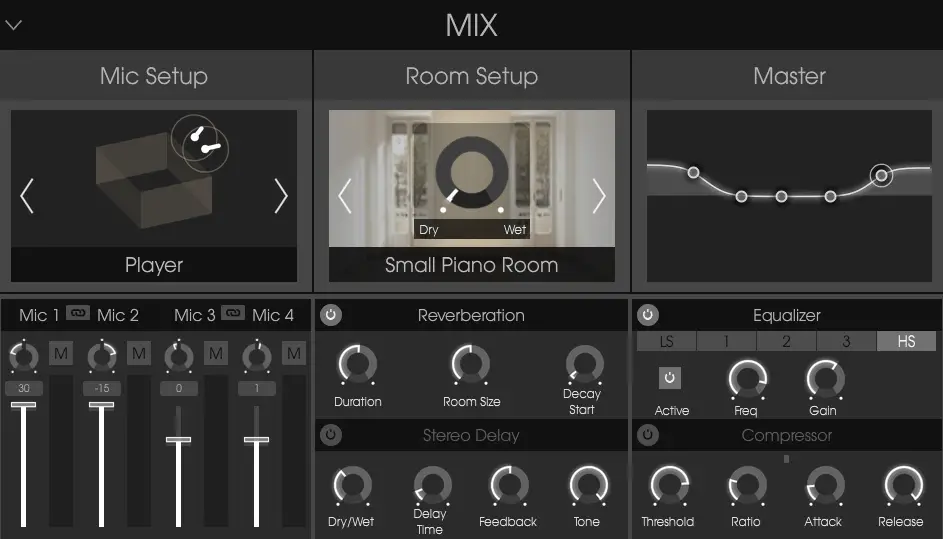
For example, take a look at the Piano V from Arturia V Collection…
You can change the type of room, microphone configuration and it even has a built-in EQ!
That’s one of the many advantages of working with high-quality software instruments.
Of course, it’ll be impossible to change your mind AFTER you’ve recorded a physical piano with microphones. That’s why taking the time to get a good sound is even more important.
That being said, you can check out THIS article to find out how to do just that.
If you ask me though… Save yourself the trouble and just use a software instrument.
What Should I Do BEFORE EQing Piano?
Depending on what you’re working with, you might have more than one piano track.
For example, you might have a left and a right channel (or maybe even 4 channels).
Of course, that might not be the case if you’re using a software instrument like Arturia V Collection since it all gets routed to the same stereo output.
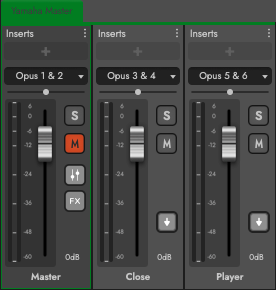
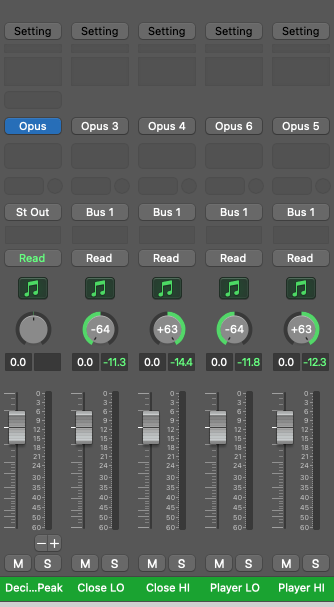
However, some software instruments like EastWest Composer Cloud allow you to route each virtual microphone to a different output.
I highly recommend doing this to have maximum control when it comes to EQ.
Each position will need to be EQed differently.
For example, the “close” and “player” microphone positions need to be treated differently. The left microphone (bass-side) will also behave differently than the right microphone (treble-side).
If you don’t have that option though, don’t worry!
We’ll be routing our individual channels to a sub-mix either way.
You can skip the advanced EQ steps if you want because we’re starting with the basics first…
6 Steps To EQ Piano in Logic Pro X [beginner]
We’re starting with the simplest method which is just to route every microphone to the same bus.
It might already be done for you, but we’re just going to EQ the piano mix globally. We’ll learn how to EQ different microphone positions in the next section!
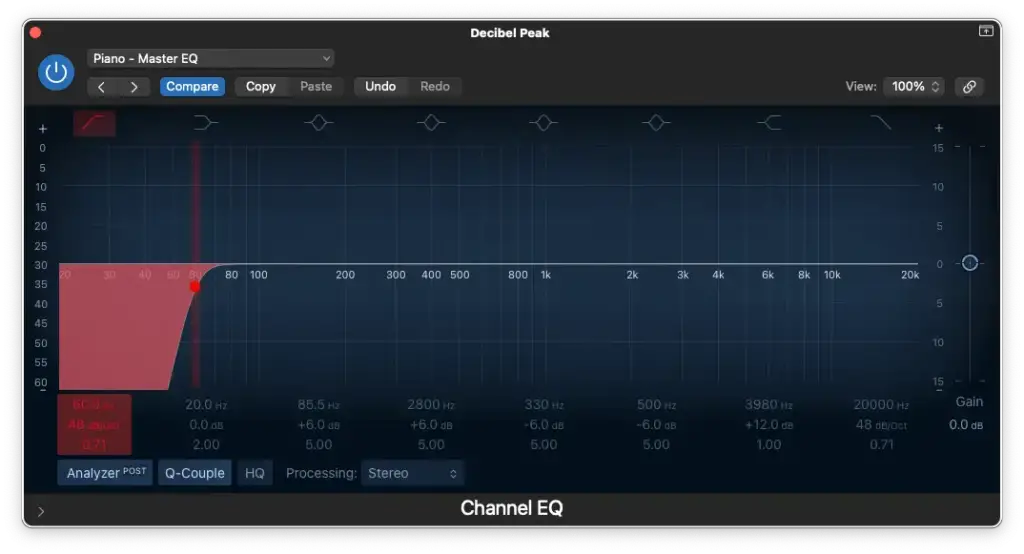
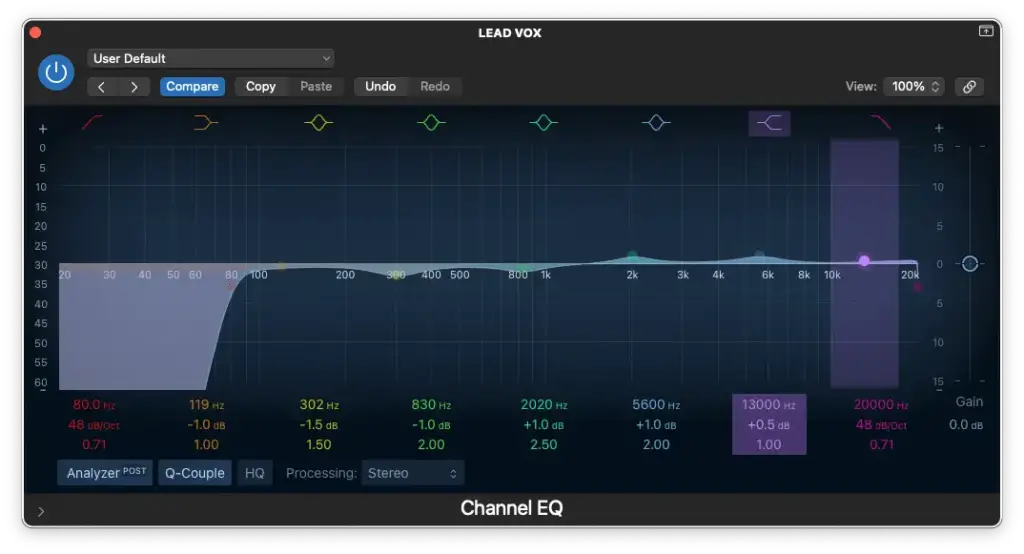
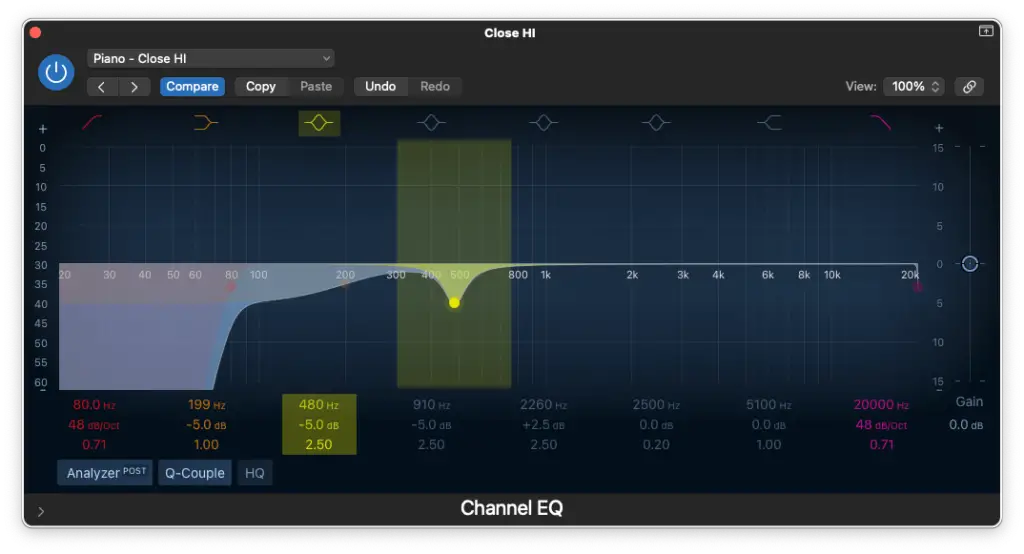
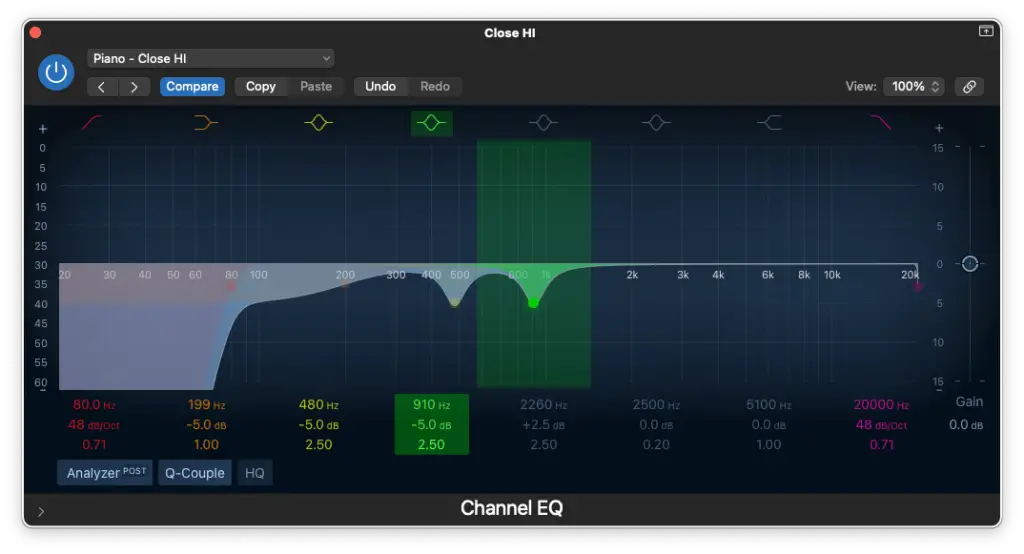
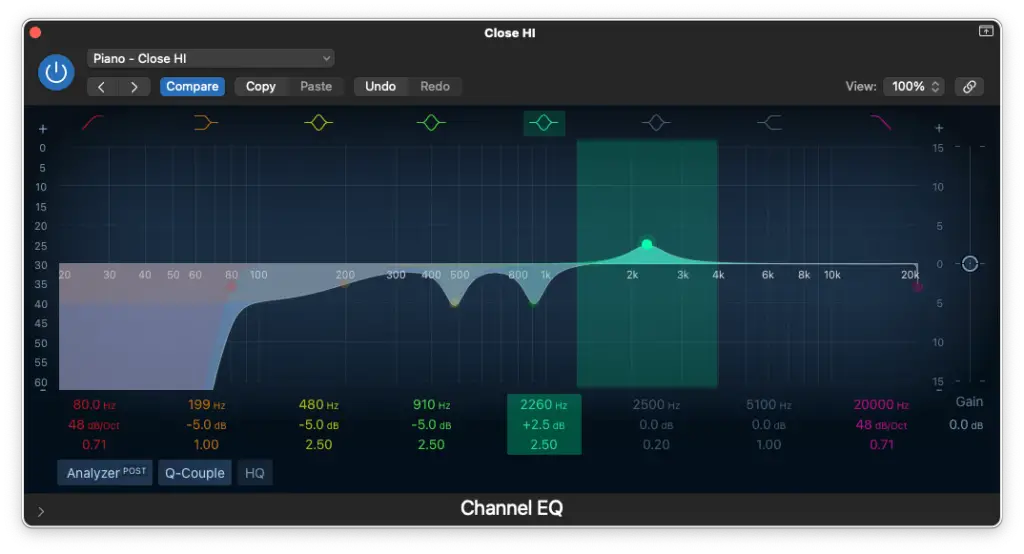
Step 1 – High-Pass Filter around 60 Hz – 80 Hz
This first EQ manoeuvre will depend on the type of mix you’re working with. Piano doesn’t really produce much sub-bass frequencies and they’d most likely clutter up the mix anyway.
If it’s a solo piano performance, you could skip this step or cut around 20 Hz – 40 Hz.
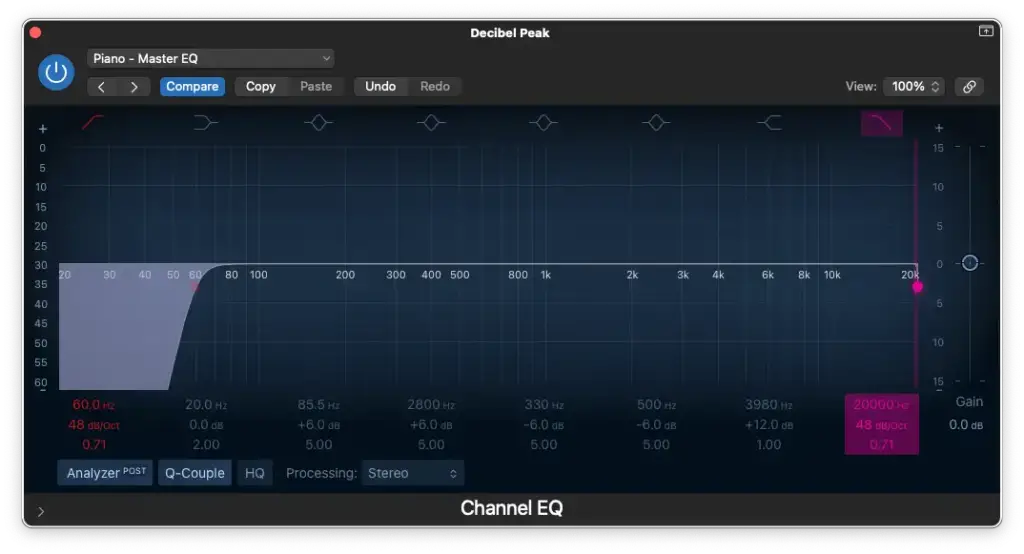
Step 2 – Low-Pass Filter at 20,000 Hz
The next one is merely for good practice because you won’t hear a difference. I don’t recommend cutting any lower than this because piano has lots going on in the high frequencies.
It’ll just remove any potential artifacts/aliasing above 20,000 Hz.
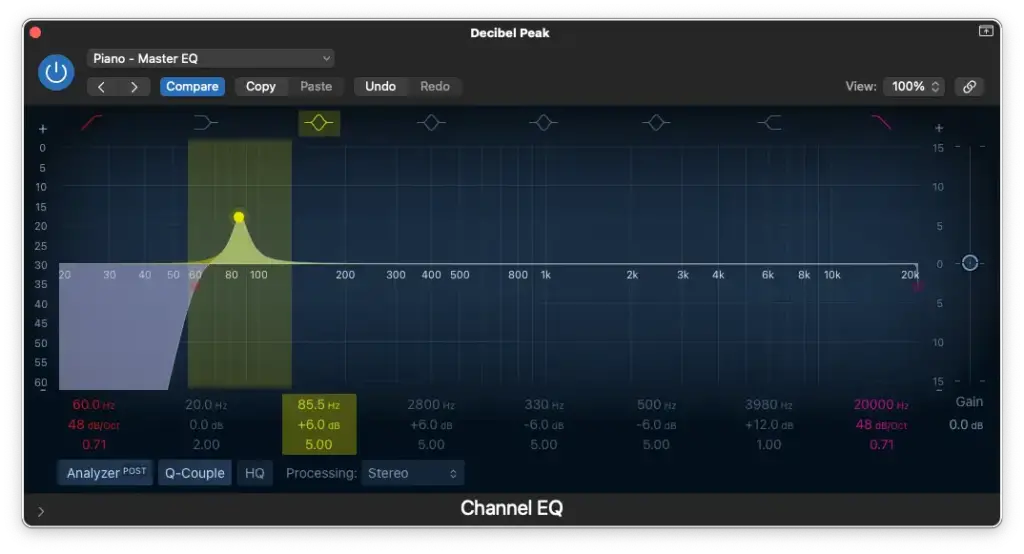
Step 3 – Boosting/Cutting around 80 Hz – 120 Hz
Depending on how close the microphones are to the piano, you might need more “boominess” if the microphones were not positioned close enough to the strings.
You’ll need to use your ears for this one and it also depends on what your mix needs.
Step 4 – Cutting between 200 Hz – 500 Hz
Generally speaking, the piano takes up too much space in the mids. You may actually one to make a few cuts in this area depending on what instruments you’ve got in your mix.
I recommend keeping the Q narrow to make precise adjustments.
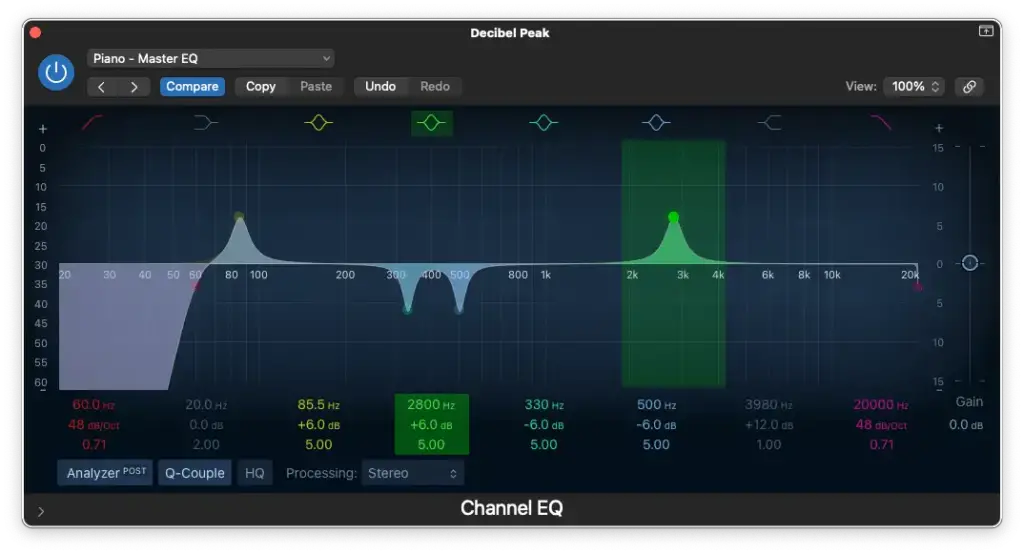
Step 5 – Boosting around 1,000 Hz – 2,000 Hz
This step is pretty important because one of the keys to getting your piano to stand out in the mix is boosting somewhere in this area. That’s where the sound of the hammer is!
You choose which sound you like best. For example, 1,000 Hz gives you one sound and an octave above (2,000 Hz) would give you a different sound.
Step 6 – High-Shelf Boost around 4,000 Hz
Now, this step is actually the most important and not something I usually do. I’m talking about boosting more than +6 dB (+12 dB in this case).
It might sound excessive, but trust me… These are the frequencies that make the piano shine!
You can actually drop the master gain on your EQ plugin -6 dB to compensate.
12 Steps To EQ Piano in Logic Pro X [advanced]
Okay, now we’re going to add some more precision to our mix. Technically, this part should be done BEFORE the global EQ we did in the previous section which you can now apply to the piano sub-mix.
In this case, we’ll be working with the “close” microphone position.
Once you have your left/right microphones separated, we’re ready to begin…
Close Microphone Position (Left/Low)
Step 1 – High-Pass Filter around 40 Hz – 60 Hz
In this case, we can probably get a little more sub-bass if you need it since we’re close enough.
If not, then you can just cut at 60 Hz.
Step 2 – Low-Pass Filter at 10,000 Hz
Now, this one is kind of optional, but I really like it.
Remember, you should only be using the left-hand part for reference and you’ll notice that you don’t lose much by cutting here. It just makes the sound a bit darker.
It’ll be a really nice foundation once we layer the right-hand microphone.
Step 3 – Low-Shelf Boost around 100 Hz
Nothing excessive, but it’ll really add some thickness in the low-end if you do this.
Remember, we’ll also have the EQ on our piano sub-mix to filter out any resonant frequencies in the low-end so just make it sound BIG for now!
Step 4 – Cutting around 80 Hz – 100 Hz
Be very precise with this move. It might sound counter-intuitive to cut the frequencies responsible for “boominess”, but it’ll really define the low-end after that low-shelf boost.
Of course, every piano is different. This one just needed some taming around 80 Hz.
Step 5 – Cutting between 200 Hz – 500 Hz
You’ll notice that you can never do enough cutting in this range when it comes to piano.
Just use your ears and try to find the most troublesome frequencies.
Also, make sure not to target different frequencies with each EQ you add to the mix.
Step 6 – Boosting around 1,000 Hz
In the case of the left-hand, you can add a bit of “crunch” to your sound if you boost here.
Make sure to lean closer to the 1,000 Hz area because we’ll be leaning more towards 2,000 Hz for the right-hand microphone.
Close Microphone Position (Right/High)
Step 7 – High-Pass Filter at 80Hz – 100 Hz
We’ve already got plenty of low-end, so we want to create some space in the right-hand.
It’s the same concept as what we did to the low-pass filter in the left-hand.
Step 8 – Low-Pass Filter at 20,000 Hz
Nothing much to say here, just keeping things clean and tidy!
Step 9 – Low-Shelf Cut around 100 Hz – 200 Hz
We boosted the low-shelf in the left-hand, so it makes sense to cut it in the right-hand.
You’ll hear how much it opens up the sound once you combine both channels together. This process is all about balancing and defining the right/left microphones.
Step 10 – Cutting between 500 Hz – 1000 Hz
We focused on the low-mids in the left-hand, so we’ll focus on the high-mids in the right.
You can make as many cuts as you deem necessary here. Just use your ears and make sure not to repeat yourself (boosting/cutting the same frequencies twice).
Step 11 – Boosting around 2,000 Hz
If you really listen closely, you’ll find a special frequency that’ll add lots of sparkle to your sound.
It should compliment the frequency you boosted around 1,000 Hz in the left-hand.
EQ Settings for Piano: Downloadable Presets
To make things easier for you, I’m providing the presets we created in today’s tutorial.
You can use them as references until you make your own (which I highly encourage you to do). Each mix will require different EQ moves, so make sure to tweak them and to USE YOUR EARS.
I know, that was a lot of information on how to EQ piano. Wasn’t it?
Lots of tutorials cover the beginner steps, but I haven’t found many tutorials on actually EQing the individual microphone positions used to record piano. That’s why I created my own!
Just to be clear though…
The steps in the “advanced” section should be done first (if you’re going that route)
You should always route your piano channels (whether it’s 1, 4 or more) to a sub-mix
The steps in the “beginner” section should be done last on this sub-mix
To create the sub-mix, just route your outputs to an auxiliary bus
I hope that makes sense and if it doesn’t please leave me a comment!
Also, make sure not to rely on the downloadable presets too much. They’re a great starting point, but I highly encourage you to use your ears and to develop your own presets.
Each type of mix will require different things and each piano performance is different.
So, did you learn something new today?
Let us know in the comments and once again, feel free to ask any questions if you need clarification on any of the steps we covered today.
Thanks for reading, I hope you enjoyed learning how to EQ piano in Logic Pro X!
Today, we’re learning how to mix binaural audio in Logic Pro X (NOT how to make binaural beats).
You’ll learn about a SECRET FEATURE that Logic Pro X has had for over a year now… I only recently found out about it.
Sometimes, I wish Apple would send us a memo…
Anyway, I’ll show you how simple it is to convert your mix from traditional stereo (L/R) to state-of-the-art binaural panning (which occurs on a VIRTUAL three-dimensional plane).
It’ll take your mixing and mastering skills to the NEXT LEVEL!!
Keep reading to find out how you can get started with this step-by-step tutorial…
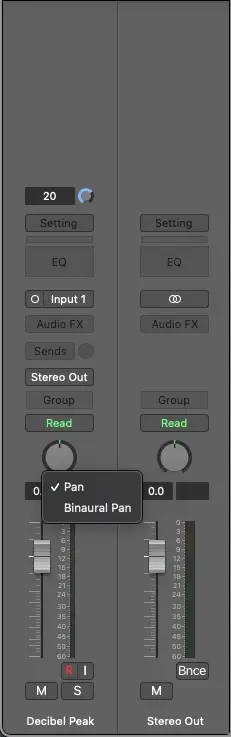
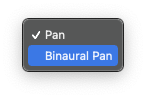
STEP NO. 1 | Right-Click your channel’s stereo pan
STEP NO. 2 | Select “Binaural Pan”
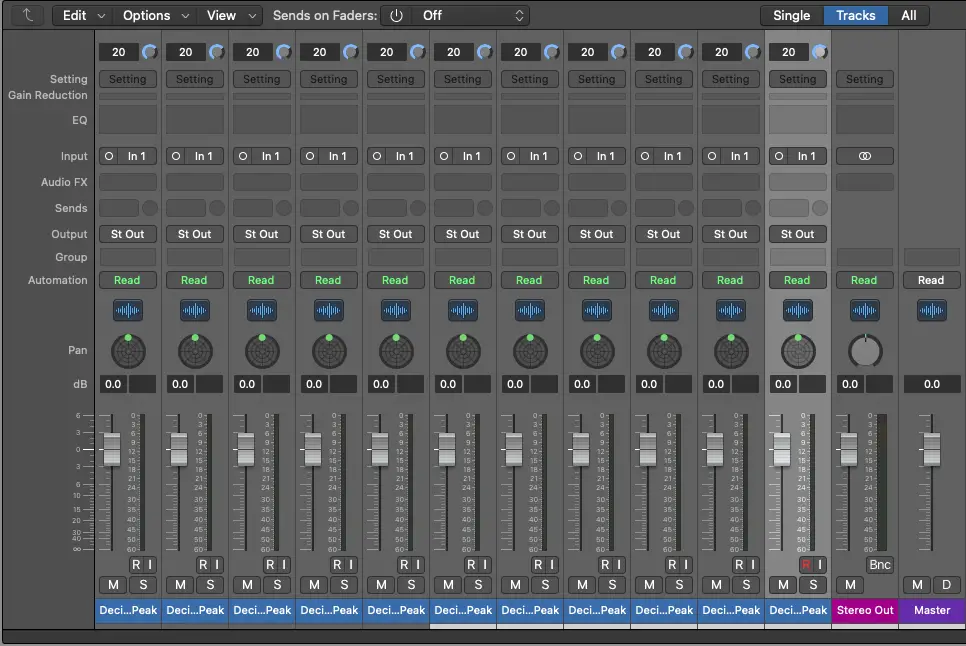
STEP NO. 3 | Repeat the same process for each channel/track
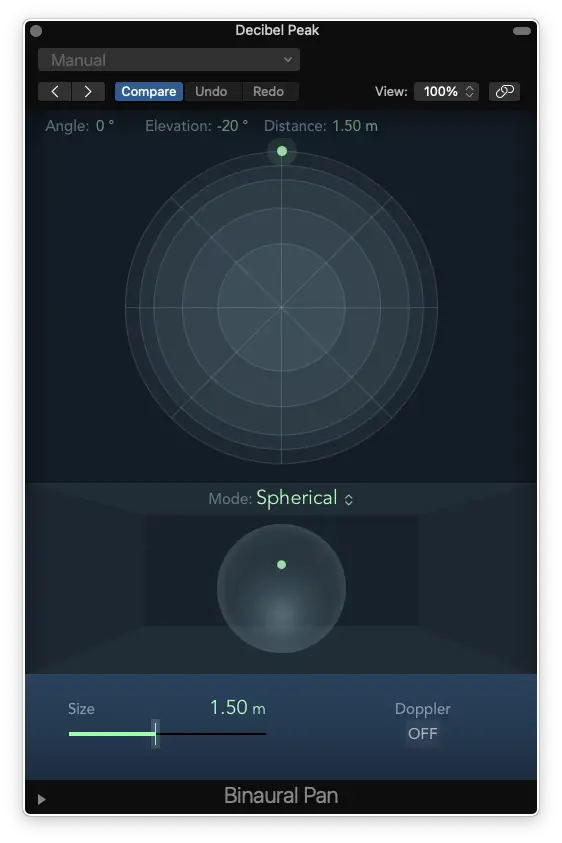
STEP NO. 4 | Double-Click your channel’s binaural pan
STEP NO. 5 | Adjust your binaural pan using advanced controls
Summary: How To Mix BINAURAL AUDIO in Logic Pro X
So, that’s how to mix binaural audio in Logic Pro X.
For the time being, Logic Pro X is the only DAW that has binaural pan integrated. I imagine that the other major DAWs will soon follow suit, but Apple is also planning to integrate an entire suite of spatial audio plugins by the end of 2021.
Apple Music is also starting to stream 3D/360-degree music, so let’s just say that I’m happy to be working with Logic Pro X.
I still can’t believe that I just recently found out about this feature!
It makes me want to go remix ALL of my music in binaural…
I’m personally considering the upgrade because the binaural pan plugin in Logic Pro X is actually missing some features.
Like I said, just check out the article.
AND if you have any questions about mixing binaural audio and music, feel free to drop me a line in the comments. Also, make sure to join Decibel Peak on Discord and to support our Patreon page if you’re enjoying the content.
Now, go and create some breathtaking binaural mixes…
I spent WAY too much time looking up how to use Logic Pro X with Zoom and trying solutions that were either too complicated and/or didn’t seem to work. That’s why I prioritized SIMPLICITY when coming up with my own personal solution to using Logic Pro X with Zoom…
The simplest way to use Logic Pro X with Zoom is to use Loopback by Rogue Amoeba (and/or other similar software).
If I’ve got your attention, here’s what we’ll be discussing:
The common issues with other “DAW-to-Zoom” solutions
So, I’ve tried pretty much everything when it comes to routing Logic Pro X (or any other DAW) to Zoom (or any other video conferencing software). It’s the same concept if you’re trying to route your DAW’s audio to another software like OBS.
Anyways, I’d had enough and was looking for something simple and easy to manage.
Here are the issues I was seeking to solve:
The Zoom audio driver (ZoomAudioDevice) requires your project to be 48KHz
Using Soundflower/BackHole disables the ability to monitor in-DAW
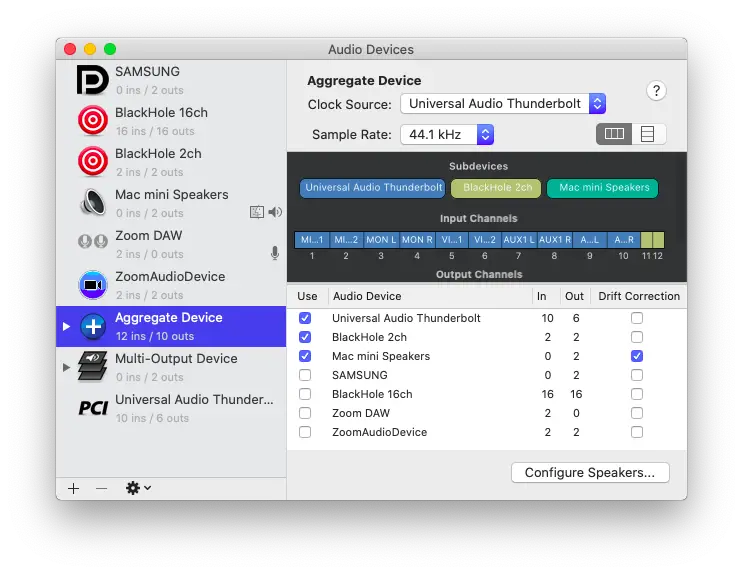
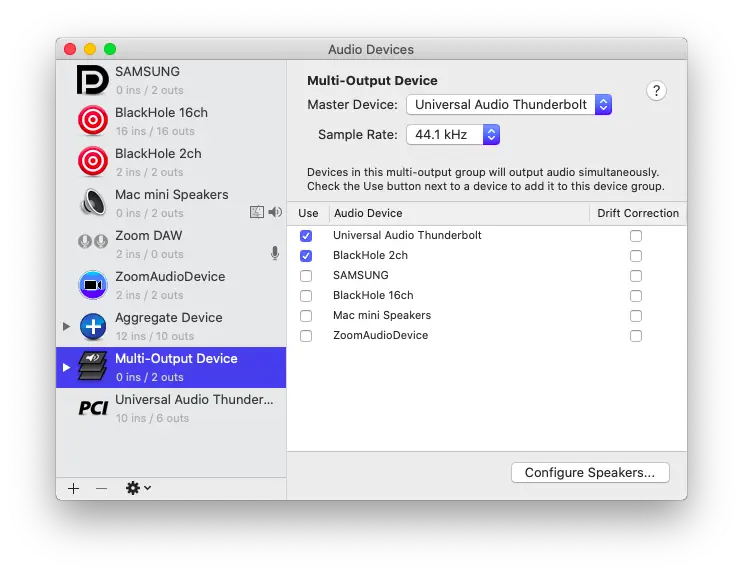
Creating aggregate/multi-output DOESN’T actually combine your ins/outs
If you’ve done some trial/error of your own, you’ll most likely understand where I’m coming from with all of these. If you’re just getting started, let’s go over some of the other solutions out there.
Using Zoom’s Audio Driver: One of the most common solutions is simply to use Zoom’s audio driver (which should be installed automatically). It seems simple enough, but the BIG problem is that your DAW/project sample rate needs to be set to 48KHz. If that’s not an issue for you, then look no further. For most of us though, that’s clearly the deal-breaker.
Using Soundflower/BlackHole: If you can’t use Zoom’s audio driver, you can always consider installing virtual audio drivers such as Soundflower/BlackHole. BlackHole just seems to be more reliable nowadays (especially for Zoom), but you’ll still lose the ability to monitor your audio in Logic Pro X because this virtual driver will become your “virtual output”. In other words, your attendees will be able to hear your audio, but you won’t. Lastly, if you’re using a webcam/USB microphone, you’ll need to alternate between both since Zoom doesn’t take multiple inputs.
Creating Aggregate/Multi-Output Devices: This last option seems to be the most popular, but the truth of the matter is that it requires lots of tweaking/setting up and the worst part… It doesn’t even work 100%. What I mean by that is that it DOESN’T actually combine your inputs/outputs into one “master” audio device. It becomes an audio device with multiple inputs/outputs, but it DOES allow for some additional flexibility. If all your audio (including your microphone) will be passing through Logic Pro X, then it’ll be fine. However, if you’re using any other devices for audio (like a webcam/USB microphone), it WON’T WORK. It’s also a pain to set up and requires you to constantly modify your DAW’s settings and to create “sends” just to have your audio routed properly (it’s very difficult to manage, especially with projects you’ve already created).
Most of the guides/tutorials I’ve read and seen talk about using aggregate/multi-output devices.
It makes me wonder if these individuals actually use Logic Pro X with Zoom on a daily basis (or professionally)…
I’d lose my mind configuring/re-configuring everything before/after meetings and depending on the type of setup you’re going with, it might be different each time.
If something went wrong during the meeting, it’d be very difficult to fix the issue without cancelling the meeting altogether.
That’s not something you want to worry about if your attendees are paying!
Maybe I’m making it sound more complicated than it actually is…
However, there’s likely a reason why it didn’t work for me and why YOU’RE still searching for answers!
Let me put your mind at ease; the method I’ll be suggesting requires very little preparation. All you’ll need is the piece of software and you can leave your Logic Pro X settings AS IS. It’ll be like nothing’s changed except you’ll have complete control of where your audio is routed.
Before getting into that though, we just need to make sure Zoom is optimized for stereo/high-quality audio.
That’s the one bit of information I found that seems to be pretty much universally accepted!
Modifying your Zoom settings to accommodate Logic Pro X
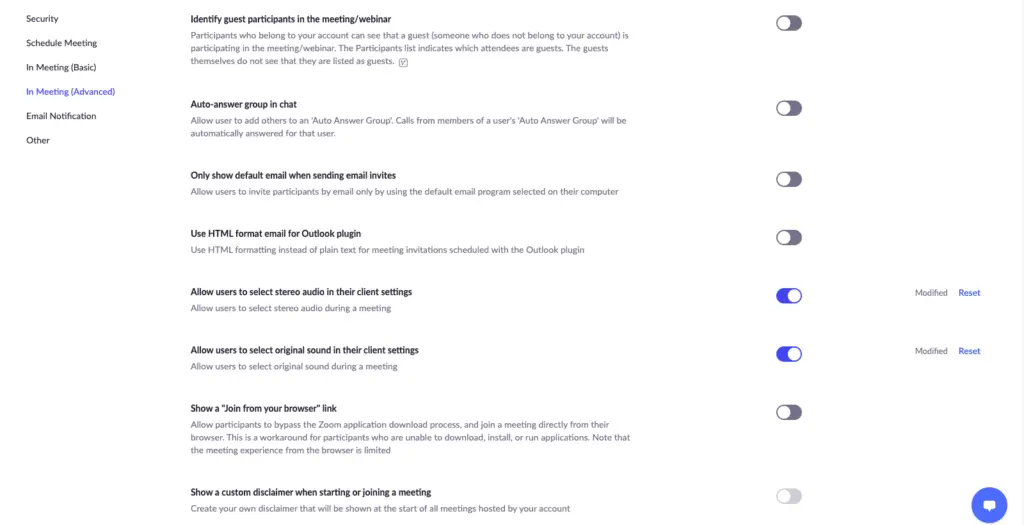
Did you know that some settings are actually hidden in your Zoom application? To enable these “hidden” options, you’ll need to log in to your Zoom account on your browser (not the app).
By enabling these options, you’ll have the ability to stream audio in stereo and in high-quality.
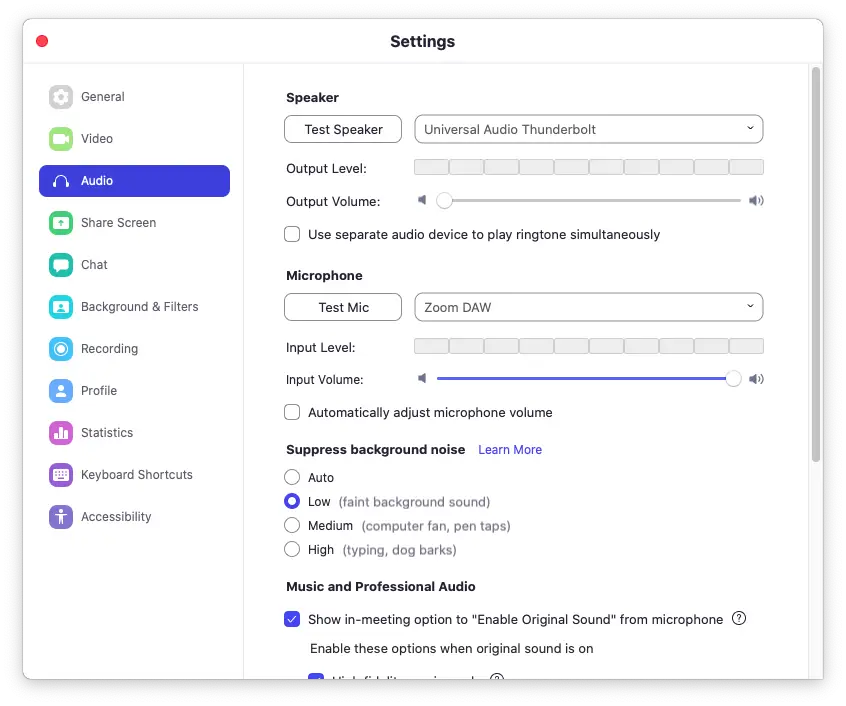
Step 1: Under “Settings/In-Meeting (Advanced)”, you’ll want to enable “Allow users to select stereo audio in their client settings” and “Allow users to select original sound in their client settings”. That’s it!
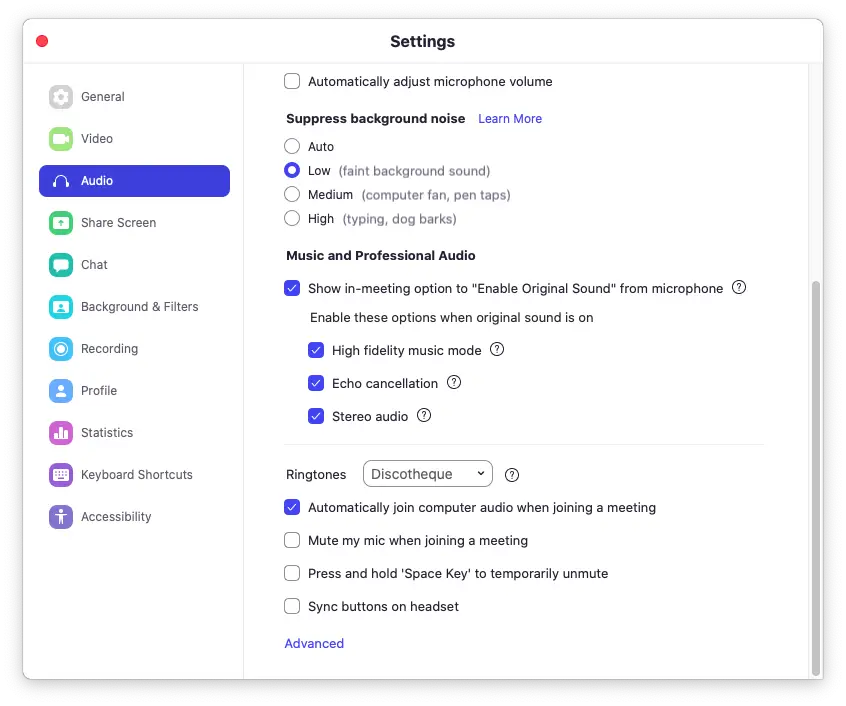
Step 2: In your Zoom application, you’ll have uncovered some hidden settings under “Audio/Music and Professional Audio”. Enable all of them!
Step 3: Depending on the method you’ll use, I personally recommend disabling “Automatically adjust microphone volume” and setting “Supress background noise” to Low.
That’s pretty much it!
You’ll now be capable of streaming high-quality audio in stereo regardless of the method you chose to go with. The final step is usually necessary, otherwise your non-voice audio will be filtered as if it were background noise (I don’t know why).
If you came here to simplify your life though, the next section is what this guide is all about!
Setting up Loopback to route Logic Pro X’s audio to Zoom
As I mentioned earlier, the simplest way to use Logic Pro X with Zoom is by installing Loopback by Rogue Amoeba. It’s an incredibly light-weight and elegant application designed to assist you in routing audio from just about any sound source (internal and/or external).
The best part is that it provides visual feedback, so you can see exactly what you’re doing (and hear what you see).
Think of Loopback as the definite mixing console for your entire computer! However…
Loopback is available for MacOS exclusively (we’ll be discussing alternatives later)
Loopback ISN’T FREE, but it can be used without a license for up to 20 minutes (I’m sure you can think of a workaround)
That last point is important because you can in fact use it for 20 minutes (then restart it) before the audio quality begins to degrade. I don’t recommend doing this though… I recommend purchasing this high-quality piece of software (no affiliation, just love it) because of the TIME AND HEADACHE it’ll save you.
If it’s too expensive for you, then you’re most likely not using Logic Pro X and Zoom professionally. In that case, you’ll want to consider the provided alternatives in the next section.
That goes for you Windows-users as well (you brave souls).
NOW, let’s solve the problem in LESS THAN 1 MINUTE. READY?!
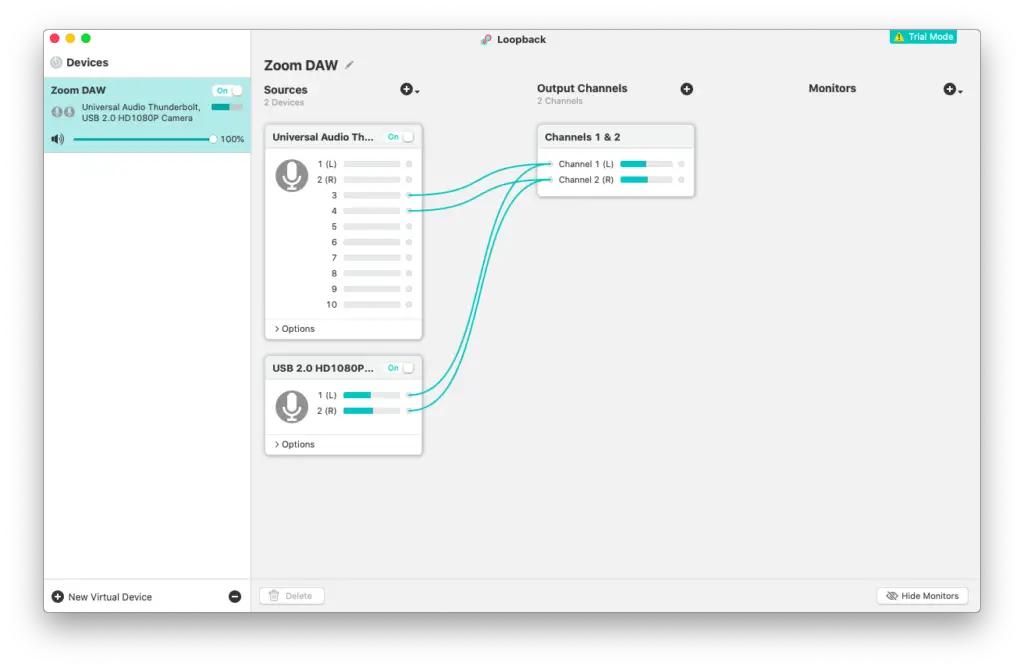
Step 1: Once you open the application, simply rename the default virtual device to something you’ll recognize (I used “Zoom DAW”).
Step 2: Delete the audio Pass-Thru.
Step 3: Add your audio sources. I personally don’t recommend adding Logic Pro X (or any other DAW) to the list. That’ll require you to change your in-DAW settings. Instead, I route the audio from my audio interface (because that’s what I use to make music) which has many different virtual outputs. Your audio interface might be different, so play something in your DAW to see which ins/outs have activity. Lastly, you can add your webcam/USB microphone to the list.
Step 4: In Zoom, simply select your newly created audio device for Microphone ONLY. You can set the speaker output to whichever device you’ll be using (audio interface in my case).
And there you have it!
If you haven’t realized, the main difference with this type of software is that it actually COMBINES/MIXES your different audio sources into ONE. Aggregate devices created with Audio Midi Settings don’t accomplish the same thing.
That’s why you’ll have to (at best) alternate between your devices during the Zoom meeting.
By using Loopback by Rogue Amoeba, everything is ready to go once you launch the application. If you ever need to make changes during the Zoom meeting, you can see how simple that would be.
The interface is super clean and user-friendly!
What about some alternatives though?
The best alternatives if you can’t use Loopback (for Windows-users mostly)
If you’re looking for a FREE alternative to Loopback that works on both Mac and Windows, you’ll want to check out VoiceMeeter by VB-Audio. It’s the best one I found.
However, you can actually “name your price” if you want to support the developer!
Similar to Loopback, it’s basically an internal audio mixer that takes audio from internal/external sources. It then combines them and allows you to create virtual outputs.
For example, one of these outputs can go to your headphones while the other goes to Zoom (or any other video conferencing software).
If you’re looking for something with more functionality though (especially if you’ve got some type of podcasting/broadcasting setup with many external devices inter-linked), you might want to consider Dante Via.
It’s not free, but you can try it for 30-days.
It’s mainly if you’ll need to route audio from one (or many) computers to another. They also sell the hardware you’ll need to make that happen.
This falls more into the “audio networking” realm though.
I’ll keep looking and update this post if I find any other options. If YOU find any other options, please let us know in the comments! For now though, VoiceMeeter seems to be the best FREE alternative for Mac/PC users.
Basically, you need an internal audio mixer.
FYI: UAD’s Console won’t work with devices other than their own, so that’s not an option (I use it, so I know).
The simpler the solution, the better the results
If you take one thing from this guide, it’s this… Use Loopback (or VoiceMeeter) to use Logic Pro X with your Zoom meetings. Everything else was simply to illustrate all the stress/hassle I went through to come to this solution (minus the instructions, of course).
This 5-10 minute read hopefully saved you HOURS of stress and research.
I still wanted you to be aware of the other options though. You’re more than welcome to try them out (maybe they’ll meet your needs), but just know that my way is definitely the simplest.
If you’re as busy as I am, then you most likely prioritize simplicity/minimalism.
That’s why I stopped using Windows and started using hardware/software that SIMPLY WORKS!!
I came to this world to make music and at most, to teach it.
If you came to this world to create unnecessary problems for yourself, then this website is most likely not for you… If I can help make your life SIMPLER though, feel free to reach out! If you’re having difficulty setting up Loopback, ask away in the comments!
I also want to hear about your successes and findings. Is there a simpler fix than this one?
Thanks for reading, I hope you get where I’m coming from. I just want all of us to keep doing what we love (and do more of it) minus the stress. Now go out there and make some music!
How To Mix Bass Guitar In Logic Pro X
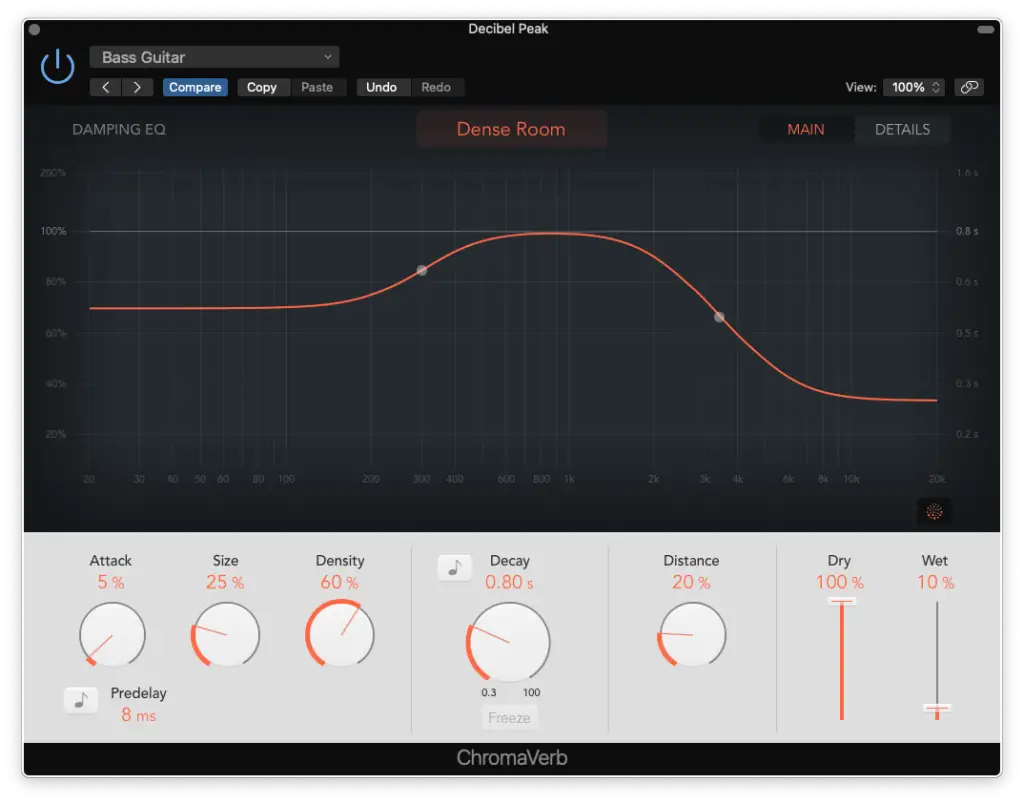
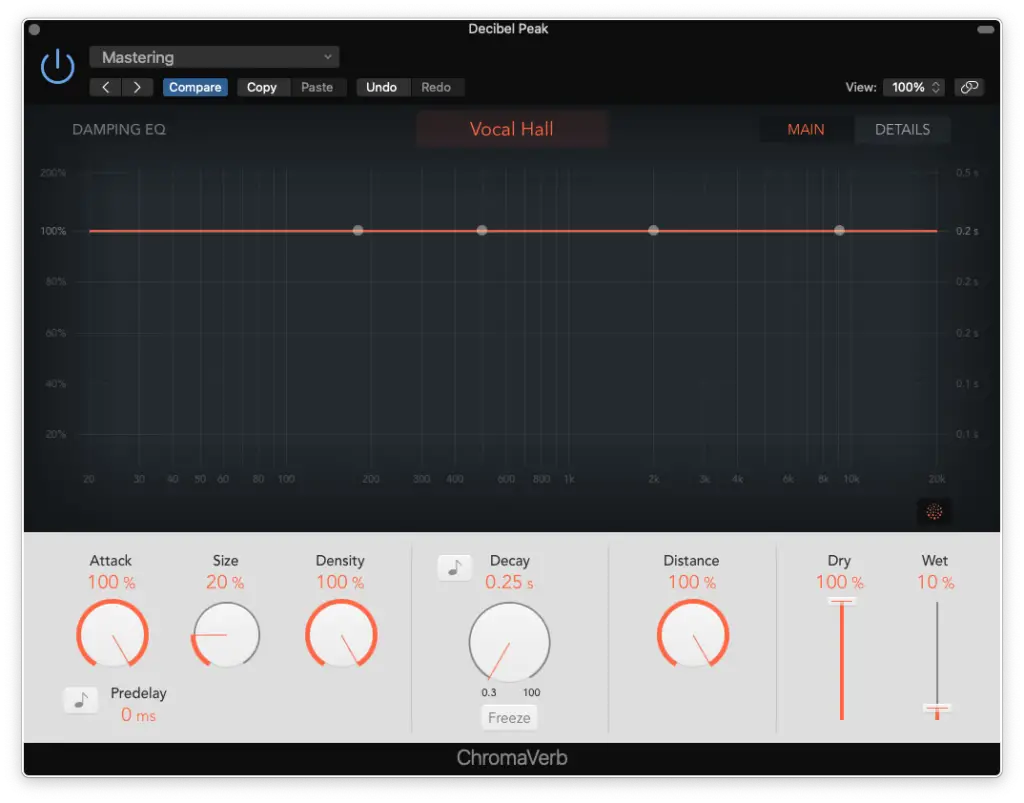
In today’s article, we’re going to be learning how to mix bass guitar in Logic Pro X. To keep things simple, we’ll be using only its default plugins (Channel EQ, compressor and Chromaverb). However, you can easily follow along regardless of the DAW/plugins you use. The parameters we’ll be working with are universal, but these teachings are exclusive to Decibel Peak Academy!
I’ll be teaching you how to mix bass guitar in Logic Pro X using only THREE plugins. Of course, there’ll certainly be cases when more plugins are needed, but we’re only concerned with the essential elements of mixing today. In other words, you CANNOT mix bass guitar without using EQ, compression and reverb. As we’ll be learning, each of these tools/plugins has an important role in the mixing (and mastering) process. If I’ve got your attention, you’ll definitely want to keep reading to find out more about the settings I use, how I organize my bass guitar tracks and how to integrate them with other tracks.
How To Control Logic Pro With Android | MIDI Network Setup Guide
You’ve most likely heard of the Logic Remote App, but if you’re not using iOS you’ll be pretty disappointed to know that it’s not compatible with Android devices. That’s why I began searching for an alternative for those of us wanting to control Logic Pro with Android. It took some time, but I finally found the solution and it’s much simpler than you think!
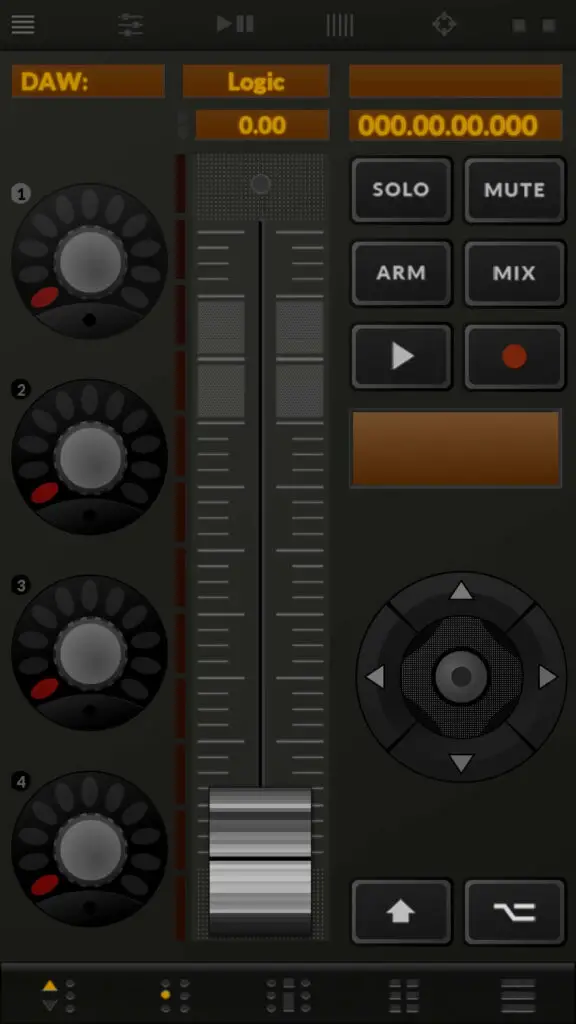
The best way to control Logic Pro with Android is to use an application called TouchDAW. It’s available for both Android AND iOS, so it’s an excellent alternative to the Logic Remote App in general. However, it does require some configuration. That’s where I come in. In this guide, we’ll be going through the process together so you’ll definitely want to keep reading!
Controlling Logic Pro with TouchDAW Demo vs TouchDAW Pro
The first thing you’ll want to consider is that TouchDAW is available for FREE. However, the free version does come with some pretty restrictive restrictions (like the inability to press record). That somewhat defeats the purpose of controlling Logic Pro remotely, doesn’t it?
Well, you’ll be relieved to know that the full version is only $5.99 (it’s a NO BRAINER if you ask me).
The only reason they provide us with the free version is simply to make sure it works. So, that’s what I recommend doing before purchasing the full version…
Testing it out!
That’s what I did and found out that it was in fact compatible with my system. It took some configuration (maybe 30 minutes at most) which we’ll be getting into soon. For now, you simply need to start by downloading “TouchDAW Demo” from the Play Store/App Store.
Once you’ve done that, you’re ready for the next step!
Configuring TouchDAW for Logic Pro (or any other DAW)
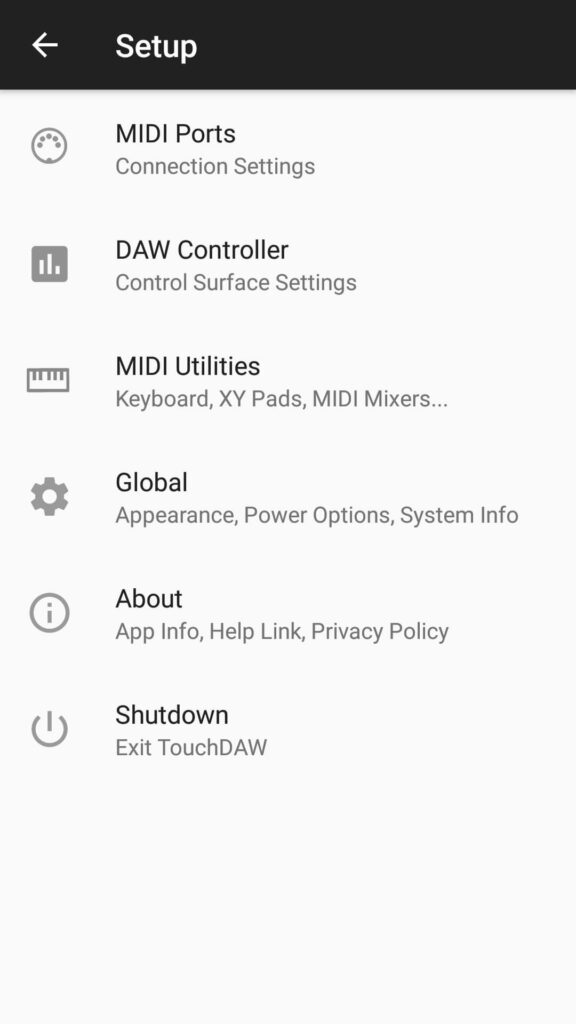
Before moving on to the computer, you’ll want to start by opening TouchDAW. It may seem overwhelming at first, but just focus on the settings for now (which can be located at the top-left corner of the screen).
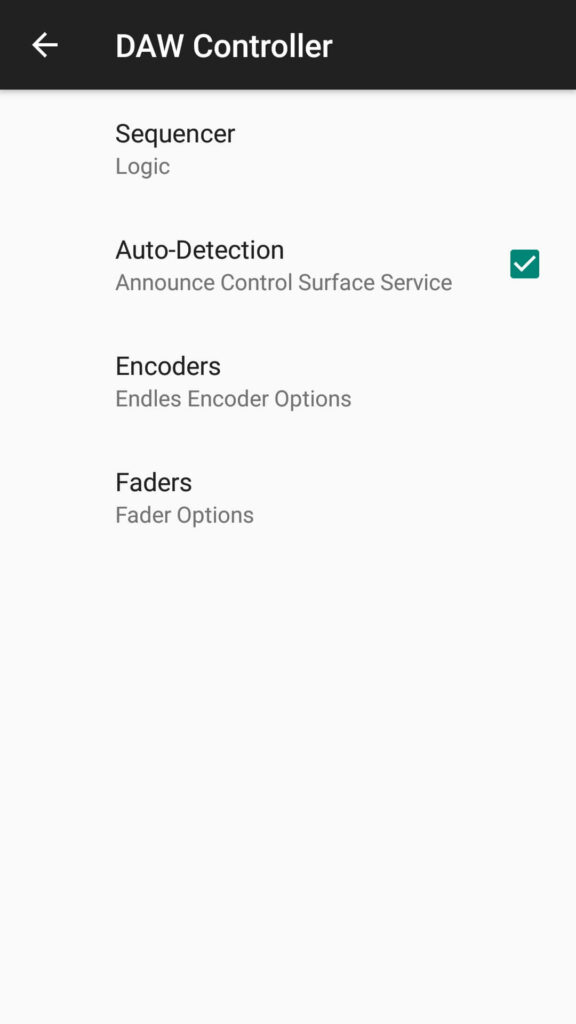
The only thing you’ll need to change is the sequencer.
By default, it’s been set to Cubase 7.5 (unless that changes at some point). You’ll simply want to select Logic as your sequencer (or your current DAW). If you’re accustomed to working with different DAWs, you’ll need to switch this setting each time.
That being said, you now know that TouchDAW is compatible with pretty much every DAW.
That’s something we CAN’T say about the Logic Remote App.
Controlling Logic Pro with Android through MIDI networking
Great, we’re now ready to start creating our MIDI network using the Audio MIDI Setup App. If you can’t find it, you can simply search for it. It’s included by default with every installation of Mac OS X.
Once you’ve got that opened up…
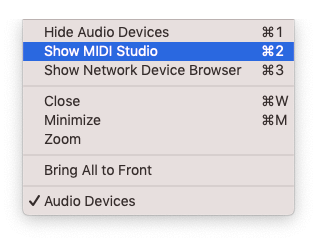
Click on the “Window” tab and select “MIDI Studio”
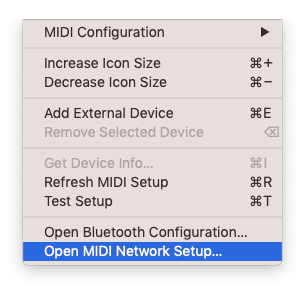
Click on the “MIDI Studio” tab and select “MIDI Network Setup”
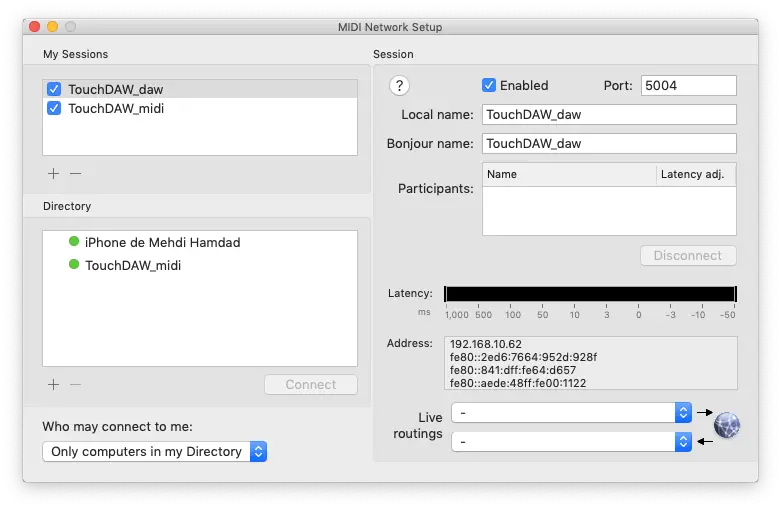
Now, you should have this window opened up:
The first thing you’ll want to do is create TWO sessions. You can name them whatever you like, but I recommend naming them “TouchDAW_daw” and “TouchDAW_midi”. Make sure to ENABLE both of these sessions.
After you’ve done that, you simply want to make sure you’ve restarted Logic Pro for it to detect these virtual inputs/outputs (if it hasn’t done so already).
The next thing you’ll want to do is to open TouchDAW and make sure you’re connected to the same Wi-Fi network as your computer (IT’S MANDATORY).
Note: VPNs will cause conflicts since it changes your IP address.
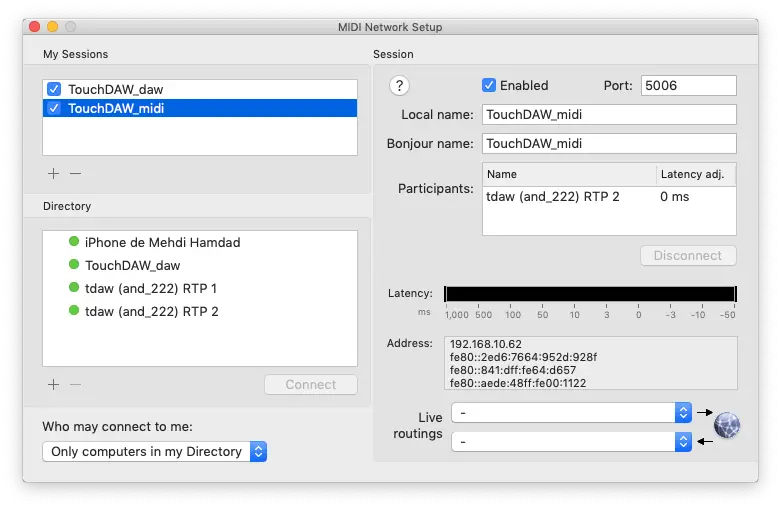
If done correctly, you should see two channels appear in the directory.
You’ll simply want to connect each one to its respective session:
RTP 1 goes to “TouchDAW_daw” (input)
RTP 2 goes to “TouchDAW_midi” (output)
Once that’s done, you can safely exit the Audio MIDI Setup App.
Note: You’ll need to go through this process each time you want to reconnect (like when launching TouchDAW). I recommend leaving Audio MIDI Setup open throughout the duration of your remote session.
We’re ready for the final step!
Assigning TouchDAW to Logic Pro’s key commands
Using the FREE version of TouchDAW, I still wasn’t able to control Logic Pro after following all of these steps. It seems that I needed to manually assign each parameter (because Logic reads TouchDAW like MIDI notes) for it to work.
However, I recommend NOT wasting your time with this.
It seems like the full version was configured automatically (for me, anway).
The only thing you need to do is make sure it’s working. That being said, we’re only going to assign the “Play” button for this test run before deciding if the full version is right for us. Feel free to assign more parameters though!
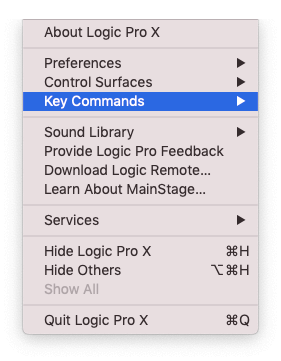
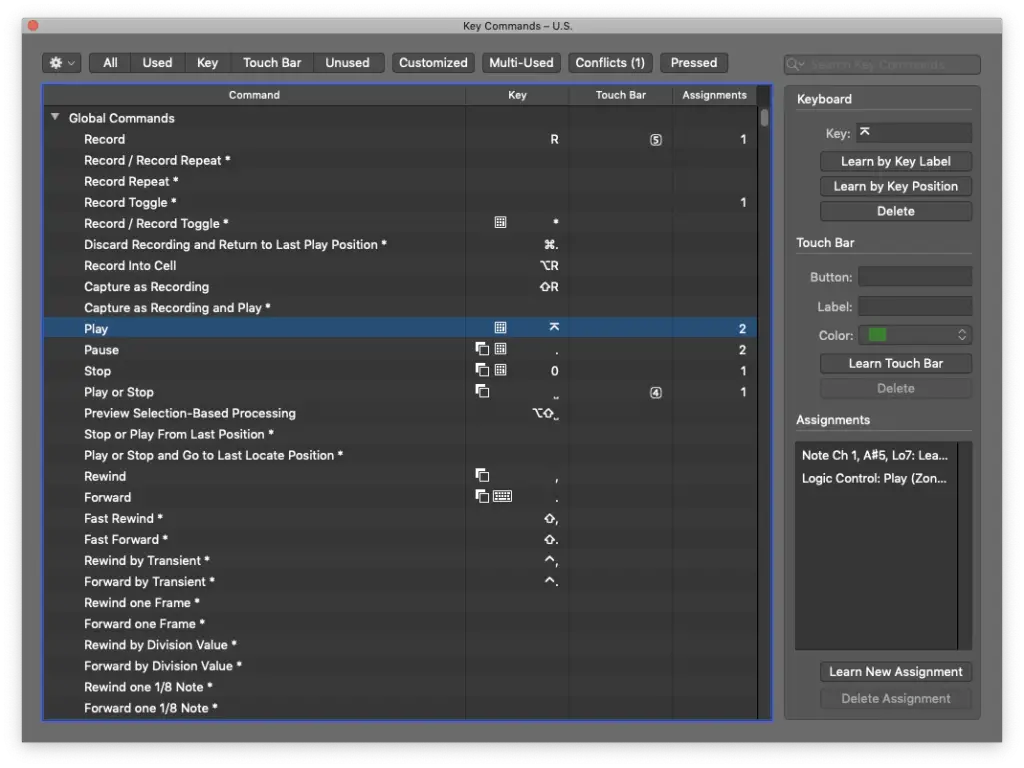
So, you’ll need to click on the “Logic Pro X” tab and select “Key Commands”.
Once that’s opened up, you want to locate the “Play” button and click “Learn New Assignment”.
Just press the play button in TouchDAW and it should detect the input.
If it hasn’t detected anything, make sure that Logic Pro is receiving MIDI from TouchDAW. Just press buttons in TouchDAW and pay attention to the center display. When you trigger MIDI notes with a keyboard, for example, they usually show up there.
If it’s still not working, you may want to leave me a comment so I can further assist you!
Why would you even need to control Logic Pro remotely?
Once you’ve gone through all these steps, you should be capable of controlling Logic Pro with Android devices, whether it’d be your phone, tablet, Chromebook, etc… However, you may be wondering why you’d even want to control Logic Pro remotely.
On the other hand, you may know EXACTLY why.
Either way, I’ll tell why I personally needed to control Logic Pro remotely. The realization came to me once I was ready to record drums and then…
How do I press “Record” from all the way back here?
For those of us using desktop computers (like my Mac Mini), it’s not always convenient to record instruments that are placed further away from the screen/keyboard/mouse. The only other way would be to use a laptop right next to the drum kit.
Either way, even instruments that are recorded closer to my workstation could benefit.
I can’t stand reaching over to my mouse and keyboard while recording guitars!
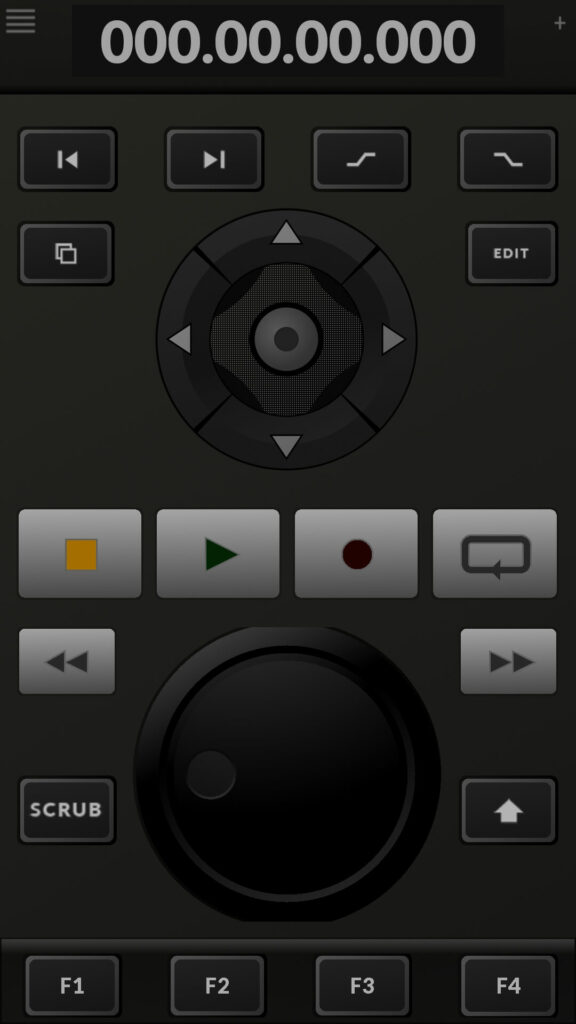
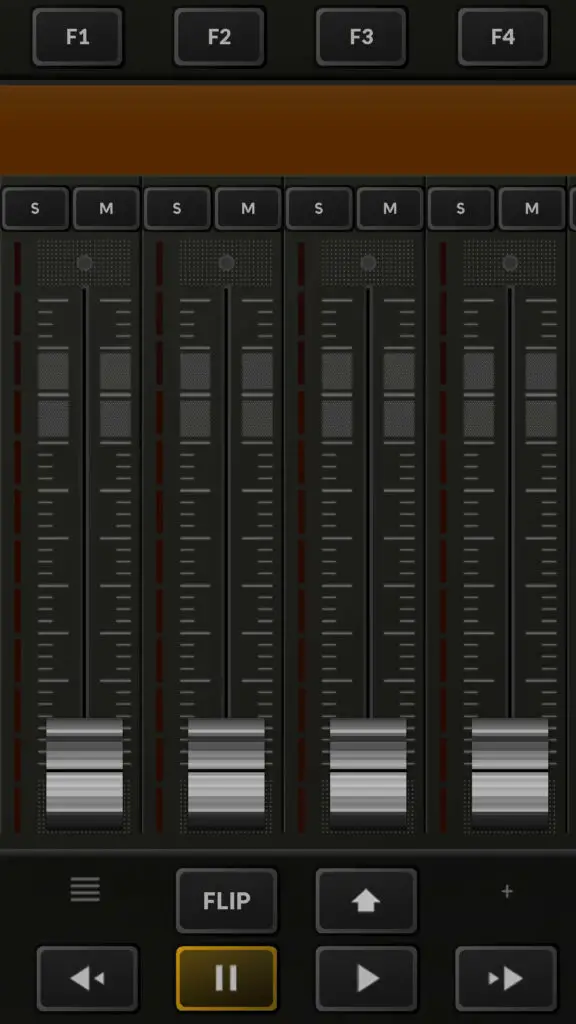
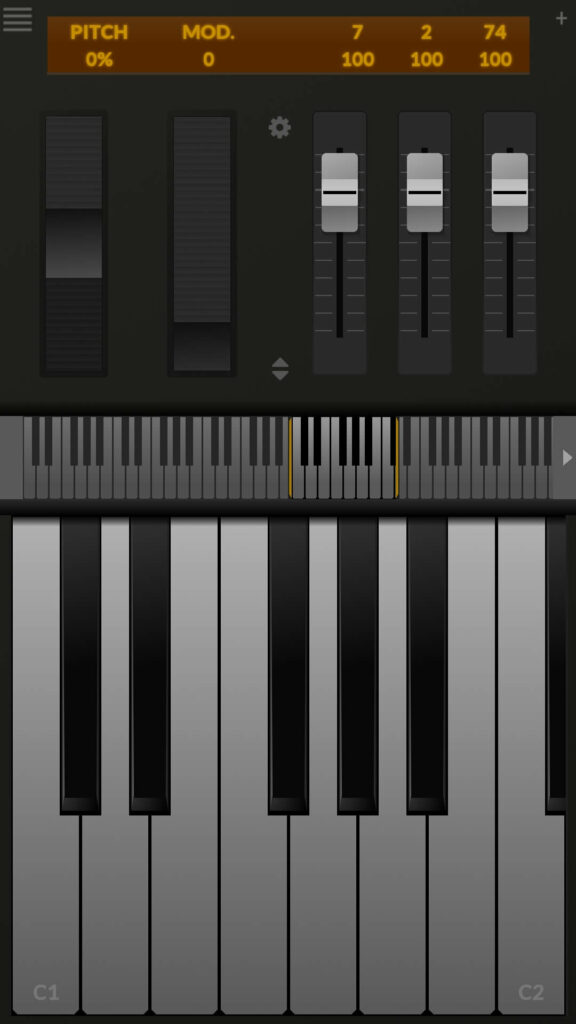
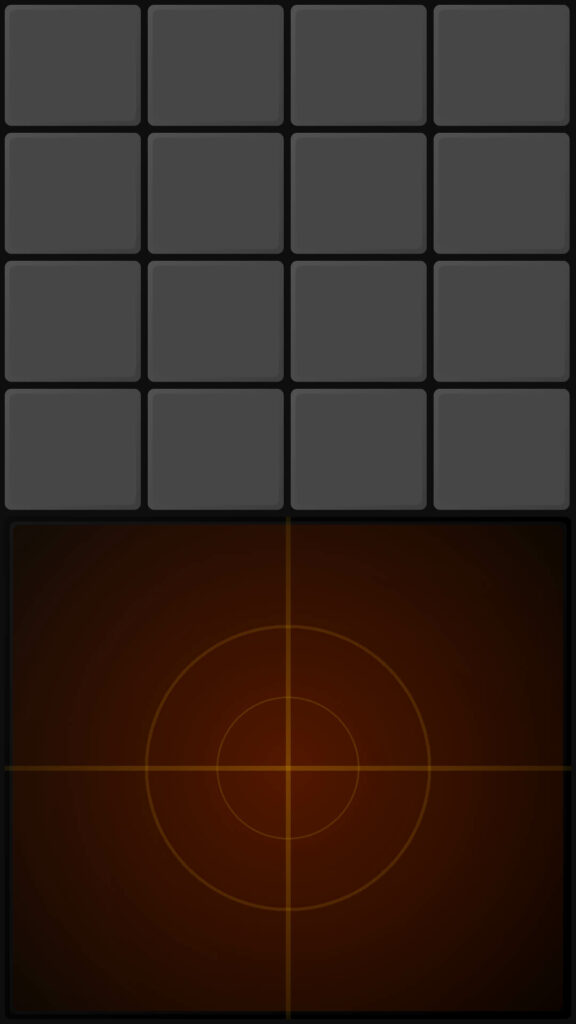
That’s why I’m so grateful to have found this solution! Controlling Logic Pro using my Android smartphone has made the process MUCH more efficient and pleasant. It’s also worth noting that TouchDAW includes EVERYTHING you’d ever need…
MIDI Keyboard
Drum Pads
Mixing Console
Transport Bar
There’s even more where that came from, but I leave the rest of the exploration to you!
If you need any assistance setting up, don’t be shy. Leave me a comment and I’d be more than happy to help you set up your first MIDI network using TouchDAW!
I hope you’ve found this guide on setting up a MIDI network using TouchDAW useful. I was honestly starting to consider buying a cheap iPod Touch just to have access to Logic Remote, but that’s not necessary! If you’ve got some patience, I’m sure you’ll be much more satisfied with TouchDAW in the long run. Don’t forget to share this post if you think it’ll help someone else and as always, thanks for reading!
Find the Tempo of a Song | Using Smart Tempo in Logic Pro X
I always thought it’d be practical to have the ability to play along to your favourite song using your DAW, but there was one issue… In order to synchronize your session to your chosen track’s tempo, we’d need to have access to some sort of analyzer. When I discovered what Logic Pro X’s Smart Tempo feature was capable of, I was able to find the tempo of a song at the click of a button.
If you’ve been wondering how to find the tempo of a song, you’ll be learning about the possibilities that Logic Pro X’s Smart Tempo can provide. Whether you’re analyzing tracks that were synchronized to a “click” or that were recorded live, Smart Tempo will produce an accurate tempo track that synchronizes the rest of the session to the designated audio file. It’s easier than you think and has made my workflow much more pleasurable.
There are many reasons you may want to identify your given song’s tempo. For example… DJs may be looking for tracks with specific BPMs, music producers may want to synchronize their reference track’s tempo to their project and the list goes on.
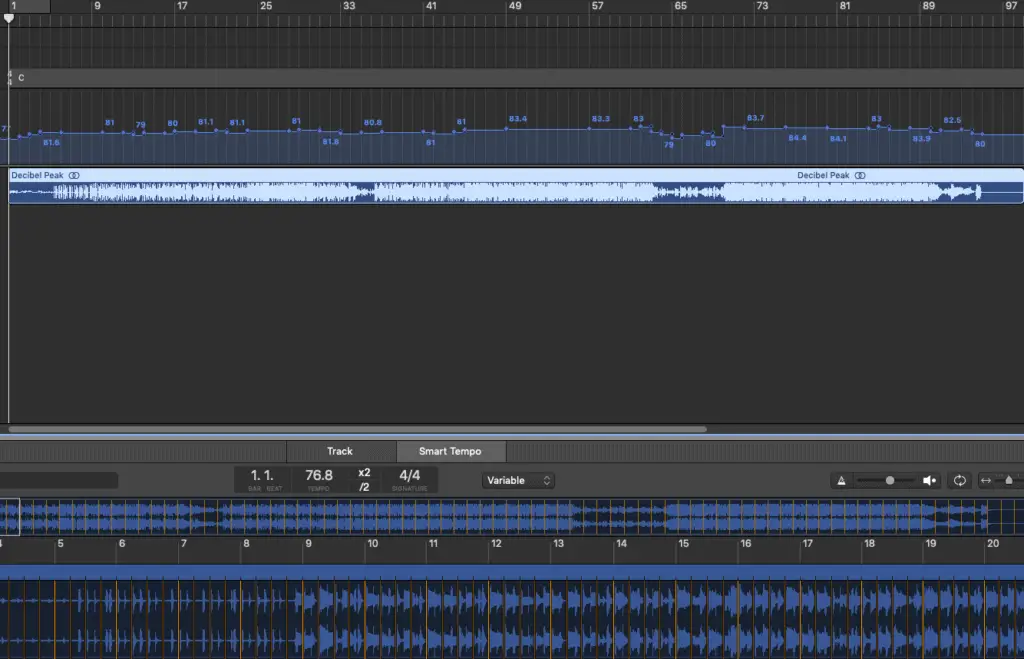
As you can see, Logic Pro’s Smart Tempo feature analyzed this audio file’s tempo quite accurately.
I even tested its work using the metronome and everything lined up nicely. It’s not perfect, but it provides more than enough precision for a variety of tasks. I use it all the time when working with reference tracks.
Each music producer has his/her own way of working with reference tracks, but I personally like to loop sections of 4-8 measures. It helps me pick up some of the “vocabulary” of any unfamiliar styles. I play-along and replicate different parts of the recording (drums, bass, guitar, keys, etc…)
Professional music transcribers can use Smart Tempo to assist them in transcribing their projects in these same 4-8 measure sections, making it easier. You can even play-along and add your own parts to the mix (for remixing purposes)!
I believe each DAW has an equivalent feature, but today we’ll be working with Logic Pro X. If you haven’t used Smart Tempo before, we’re going to be setting that up right now!
How to find the tempo of a song using Smart Tempo
Open your new project and import your audio file.
Right-click your audio clip. Go to: Tempo > Smart Tempo Editor
Select the “Analyze” button in the editor window.
Once it’s been analyzed, right-click your audio clip. Go to: Tempo > Apply Region Tempo to Project Tempo
I usually select “Align downbeat…”. It makes editing easier, but feel free to uncheck this to retain the audio clip’s original position.
Now take a look at your tempo track. Your entire project’s tempo should be synchronized to every little nuance of that audio file’s performance.
Smart tempo can do more than find the tempo of a song
Now that you’ve got your project synchronized with your song’s tempo, we can do many things! In this particular case, Smart Tempo really comes in handy since this performance was NOT recorded to a “click”.
You can loop 4-8 measures, you can add parts to make a remix or simply slow-down/speed-up the entire thing to make transcription easier.
For that last one, you’ll actually need to get used to making any future changes using the tempo track. You’ll also need to set Flex & Follow to “On” for any changes to affect the audio file’s speed.
Another of Smart Tempo’s features is the ability to track any given performance’s tempo using the “Adapt Project Tempo” option.
In other words, you can record without using a metronome and Logic will adapt its tempo throughout the entire recording process.
What this means is you’ll be able to add overdubs and any additional parts while being synchronized with the original recording’s tempo. If you forgot to do this, it’s no trouble… You can use the previous step-by-step process to analyze your band’s performance post.
I know for a fact that Cubase can do the exact same thing. It’s becoming standard.
Find the tempo of any song using Logic Pro X’s Smart Tempo
I still can’t get over how far sound technology has come. From playing-along to vinyl or even old cassettes to jamming out to your personal computer’s DAW. It’s inspiring!
I forgot to mention how you could easily use Smart Tempo to sample from pretty much any audio file.
It really comes in handy for music producers who sample from vinyl. By analyzing each track’s tempo, you can easily make quick and accurate cutdowns.
I find it especially useful for working with tracks that HAVEN’T been recorded to a “click”.
How do YOU intend to use Smart Tempo? Let us know in the comments and feel free to share this post with your music producer friends if you’ve found it helpful. Don’t forget to subscribe to our newsletter to receive our latest content on a weekly basis. Thank you!
Controlling Pedalboard With An Expression Pedal | Logic Pro X Tutorials
I was determined to control Logic Pro X’s Pedalboard plug-in with an expression pedal! I was especially interested in the potential of using it with its Wah-Wah, Volume and Pitch Shifter pedals. After doing some research, I finally figured out how to achieve this using these two devices.
I’ll be demonstrating how to configure this in just 5 STEPS!!
Create an audio track and insert an instance of Pedalboard (w/ Wah-Wah)
Expand Pedalboard’s bottom-panel and set your “Macro A Target”
Under < Logic Pro X < Control Surfaces, select [Learn Assignment for “Macro A Value”]
Select [Learn] from the pop-up window and use your expression pedal
Set your channel’s automation to [Touch] when you want to record, then back to [Read]
A few things to consider
To hear everything in real-time, you’ll need to select “input monitoring” for your audio channel. Depending on the performance of both your CPU and audio interface, you may experience audible latency.
In all honesty though, you could simply record your performance without effects and simply layer your expression pedal’s performance afterwards using automation.
If you’re looking for the most valuable expression pedal, I highly recommend checking out the Nektar Expression Pedal (NX-P). I connect mine through my M-Audio Hammer 88 USB/MIDI controller for an amazing synergy between the two of them!
http://decibelpeak.com/88-key-weighted-keyboard
I hope you’ve found this guide to using your expression pedal with Logic Pro X’s Pedalboard useful. If you have any questions, leave me a comment!