I always thought it’d be practical to have the ability to play along to your favourite song using your DAW, but there was one issue… In order to synchronize your session to your chosen track’s tempo, we’d need to have access to some sort of analyzer. When I discovered what Logic Pro X’s Smart Tempo feature was capable of, I was able to find the tempo of a song at the click of a button.
If you’ve been wondering how to find the tempo of a song, you’ll be learning about the possibilities that Logic Pro X’s Smart Tempo can provide. Whether you’re analyzing tracks that were synchronized to a “click” or that were recorded live, Smart Tempo will produce an accurate tempo track that synchronizes the rest of the session to the designated audio file. It’s easier than you think and has made my workflow much more pleasurable.
- Why find the tempo of a song?
- How to find the tempo of a song using Smart Tempo
- Smart Tempo can do more than find the tempo of a song
- Find the tempo of any song using Logic Pro X’s Smart Tempo
Why find the tempo of a song?
There are many reasons you may want to identify your given song’s tempo. For example… DJs may be looking for tracks with specific BPMs, music producers may want to synchronize their reference track’s tempo to their project and the list goes on.
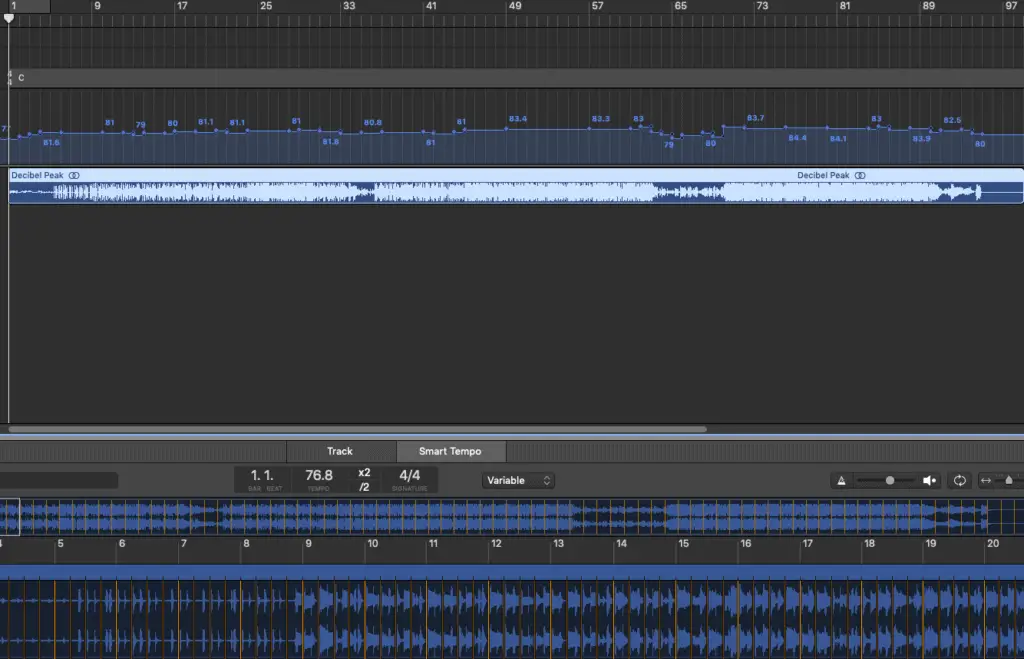
As you can see, Logic Pro’s Smart Tempo feature analyzed this audio file’s tempo quite accurately.
I even tested its work using the metronome and everything lined up nicely. It’s not perfect, but it provides more than enough precision for a variety of tasks. I use it all the time when working with reference tracks.
Each music producer has his/her own way of working with reference tracks, but I personally like to loop sections of 4-8 measures. It helps me pick up some of the “vocabulary” of any unfamiliar styles. I play-along and replicate different parts of the recording (drums, bass, guitar, keys, etc…)
Professional music transcribers can use Smart Tempo to assist them in transcribing their projects in these same 4-8 measure sections, making it easier. You can even play-along and add your own parts to the mix (for remixing purposes)!
I believe each DAW has an equivalent feature, but today we’ll be working with Logic Pro X. If you haven’t used Smart Tempo before, we’re going to be setting that up right now!
How to find the tempo of a song using Smart Tempo
- Open your new project and import your audio file.

- Right-click your audio clip. Go to: Tempo > Smart Tempo Editor

- Select the “Analyze” button in the editor window.

- Once it’s been analyzed, right-click your audio clip. Go to: Tempo > Apply Region Tempo to Project Tempo

- I usually select “Align downbeat…”. It makes editing easier, but feel free to uncheck this to retain the audio clip’s original position.

- Now take a look at your tempo track. Your entire project’s tempo should be synchronized to every little nuance of that audio file’s performance.

Smart tempo can do more than find the tempo of a song
Now that you’ve got your project synchronized with your song’s tempo, we can do many things! In this particular case, Smart Tempo really comes in handy since this performance was NOT recorded to a “click”.
You can loop 4-8 measures, you can add parts to make a remix or simply slow-down/speed-up the entire thing to make transcription easier.
For that last one, you’ll actually need to get used to making any future changes using the tempo track. You’ll also need to set Flex & Follow to “On” for any changes to affect the audio file’s speed.

Another of Smart Tempo’s features is the ability to track any given performance’s tempo using the “Adapt Project Tempo” option.

In other words, you can record without using a metronome and Logic will adapt its tempo throughout the entire recording process.
What this means is you’ll be able to add overdubs and any additional parts while being synchronized with the original recording’s tempo. If you forgot to do this, it’s no trouble… You can use the previous step-by-step process to analyze your band’s performance post.
I know for a fact that Cubase can do the exact same thing. It’s becoming standard.
Find the tempo of any song using Logic Pro X’s Smart Tempo
I still can’t get over how far sound technology has come. From playing-along to vinyl or even old cassettes to jamming out to your personal computer’s DAW. It’s inspiring!
I forgot to mention how you could easily use Smart Tempo to sample from pretty much any audio file.
It really comes in handy for music producers who sample from vinyl. By analyzing each track’s tempo, you can easily make quick and accurate cutdowns.
I find it especially useful for working with tracks that HAVEN’T been recorded to a “click”.
How do YOU intend to use Smart Tempo? Let us know in the comments and feel free to share this post with your music producer friends if you’ve found it helpful. Don’t forget to subscribe to our newsletter to receive our latest content on a weekly basis. Thank you!